Why this matters
Writing code is half of programming. The other half is running it and checking what it did. A file full of correct JavaScript does nothing until something runs it, and the way you run it, the place you stand when you do, and the way you read the result are skills in their own right.
Most beginner trouble in the first month is not about the code. It is a wrong folder, an unsaved file, a typo in a command, or an error message that looked like gibberish. This lesson removes those. You run a program, give it input, read what comes out, learn the anatomy of an error message, and finish with a method for the question "I changed my code and nothing changed."
What "running a file" means
Start with the machine's side. Your file hello.js is text. The processor of your computer cannot read JavaScript text. It understands only its own small set of instructions. Something must translate your text into actions.
For JavaScript outside a web browser, that something is Node.js, usually shortened to Node. Node is a program. You give it the name of a file. It reads the file from disk, works through your instructions from top to bottom, and carries them out. A program that reads source code and carries it out directly is called an interpreter. (A compiler, used for Java and C++, instead translates the whole file into machine instructions first, and you run the result. You will meet that in those tracks.)
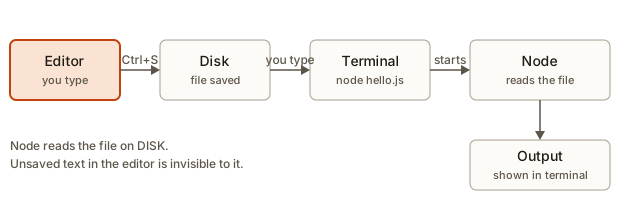 The path of a run: you type in the editor, save to disk, type node hello.js in the terminal, and Node reads the file from disk and prints output
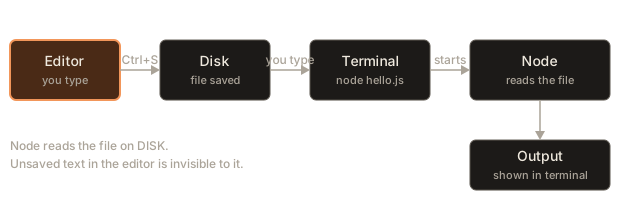
Look closely at the second box, Disk. Node reads the file from disk, not from the editor's screen. Text you typed but did not save lives only in the editor's memory, and Node never sees it. That one fact explains most "my change did nothing" confusion, and the last section of this lesson turns it into a method.
An analogy: you give a cook a recipe card. Node is the cook, and the file on disk is the card. If you scribble a correction on a sticky note and keep it in your pocket (the unsaved editor), the cook cooks from the old card.
Install Node and check it
Node is a separate program from VS Code. Check whether it is installed. Open a terminal and type:
node --versionIf you see something like v24.1.0 (any recent number is fine), you have it. If you see an error, install the LTS version from nodejs.org. LTS means long-term support: the version meant for everyday use rather than the newest experiments. Close and reopen the terminal afterwards so that it notices the new program.
On Windows PowerShell a missing Node looks like this:
node : The term 'node' is not recognized as the name of a cmdlet, function, script file, or operable program.On macOS and Linux it reads zsh: command not found: node or bash: node: command not found. They all say the same thing: the shell looked through the folders on its PATH and found no program called node.
The integrated terminal
You met the terminal in its own module. VS Code includes one inside the editor, called the integrated terminal. Open it with Ctrl+` (backtick) or the menu Terminal, New Terminal. It appears in the panel at the bottom.
The integrated terminal is the same kind of shell you used before: bash or zsh on Linux and macOS, PowerShell or Command Prompt on Windows, and your Linux shell if you opened the folder through WSL. The advantage of having it inside the editor is that it starts in your project's root folder, and you never switch windows.
Things worth knowing:
- The drop-down arrow next to the plus sign lets you pick a different shell, for example Git Bash on Windows.
- The plus sign opens a second terminal. You can keep a long-running program in one and type commands in another. Use the list on the right side of the panel to switch.
- The trash icon kills the terminal. Closing the panel only hides it.
- You can drag the panel taller or toggle it with
Ctrl+J.Ctrl+Shift+`opens a new terminal. - In the terminal,
Ctrl+Cstops the running program. (Copying isCtrl+Shift+Con Linux and Windows terminals, andCmd+Con macOS, once something is selected.) - Press the Up arrow to bring back the previous command. Press Tab to complete a file name. Both save much typing.
When the terminal opens it prints a prompt. The prompt differs by system, such as anisha@laptop:~/forgestack$ on Linux or PS C:\Users\anisha\forgestack> on Windows. It tells you who and where you are, and it ends where you type.
Where am I? The current folder
Every terminal is standing in one folder, called the current working directory. Commands that name a file look for it there. This idea causes more first-month errors than any other, so look at it from two sides.
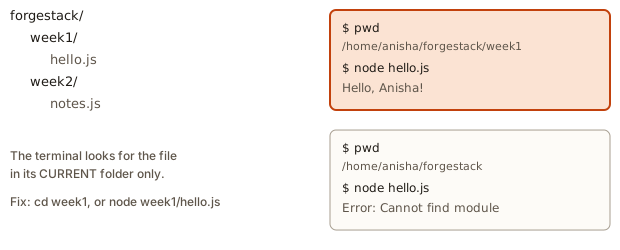 Two terminals: one standing in the week1 folder where node hello.js works, and one standing in the forgestack folder where it fails with Cannot find module
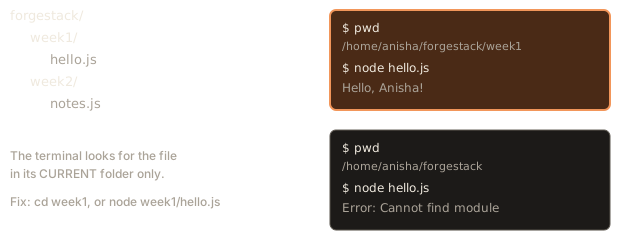
The command pwd (print working directory) prints where you are. ls lists what is in the folder (dir in Windows Command Prompt). cd changes folder. A short trace makes it concrete. Your project looks like this:
forgestack/
  week1/
    hello.js
  week2/
    notes.js
The terminal opens in the folder you opened in VS Code, which is forgestack. You type:
pwd/home/anisha/forgestacklsweek1 week2There is no hello.js here. It is one level down. So this fails:
node hello.jsnode:internal/modules/cjs/loader:1228
throw err;
^
Error: Cannot find module '/home/anisha/forgestack/hello.js'Read the last line. It names the full path Node looked for: forgestack/hello.js. That is the clue: Node searched in the folder you stand in and found nothing. You have two fixes. Either move into the folder, or name the file with its path from where you stand:
cd week1
node hello.jsnode week1/hello.jsBoth print Hello, Anisha!. The first changes where you stand. The second gives a longer address. In the Explorer you can right-click hello.js and choose Copy Relative Path to get week1/hello.js without typing it.
Two shortcuts to remember: cd .. moves up one folder, and typing cd followed by the first letters of a folder name and pressing Tab completes it.
Your first run, step by step
Here are the steps in the order you do them.
- Open the folder
forgestackin VS Code. - Open
week1/hello.js. It should contain the program from the first lesson. - Check the tab: no dot. If there is a dot, press
Ctrl+S. - Open the terminal with
Ctrl+`. - Type
cd week1and press Enter. - Type
node hello.jsand press Enter.
Here is the program, which you can also run right here in the page:
In the terminal you see:
Hello, Anisha!Then the prompt comes back, which means the program finished. The text came out through standard output, the channel every program uses to print. console.log writes to it. The terminal shows it. In the browser box above, the output panel shows the same thing.
The exit code
When a program ends, it hands one small number back to the shell: the exit code. Zero means "all went well". Any other number means something went wrong. Scripts, build tools and online services read this number to decide whether to carry on.
You can see it. On Linux, macOS and Git Bash, the variable $? holds the last exit code:
node hello.js
echo $?Hello, Anisha!
0A program that hits an uncaught error exits with 1:
node broken.js
echo $?(error text)
1In PowerShell the same check is echo $LASTEXITCODE.
You can choose the code yourself. The program below reads a number from the Input box, doubles it, and sets a non-zero code when the input is not a number. In the Input box type 21, run it, then type abc and run it again:
With 21 the output is double is 42, and with abc it is not a number: abc and the exit code is 1. This is how real command-line tools say "I failed" without printing anything fancy.
Giving a program input
Programs are more useful when they accept input. There are four common ways. You will use all of them within weeks.
1. Standard input
Standard input, or stdin, is the channel a program reads text from. By default that is your keyboard through the terminal. Here is a program that reads a line of numbers and adds them up. Give it 3 4 5 in the Input box:
sum = 12Trace what happens inside. readFileSync(0, ...) reads everything from file descriptor 0, which is stdin. trim() removes the stray line break at the end. split("\n") cuts the text into a list of lines. The first line 3 4 5 is cut at spaces into the list "3", "4", "5", and map(Number) turns each piece of text into a real number. The loop then adds them: 0, then 3, 7, 12.
In a real terminal, you run node sum.js, type 3 4 5, press Enter, and then signal "no more input" with Ctrl+D on Linux and macOS, or Ctrl+Z then Enter in Windows Command Prompt and PowerShell. The program waits until it gets that signal, so it looks frozen at first. It is not. It is waiting for you.
Python reads input a line at a time. In the Input box type your name, press Enter, then type an age:
For the input Anisha and 21 the output is:
Hello, Anisha
Next year you will be 22
input() returns text, so int(...) turns the age into a number before the addition. Without it Python would complain that it cannot add a string and a number.
2. Pipes and redirection
You do not have to type input. You can send it from another command or a file. The pipe | sends the output of one command into the next:
echo "3 4 5" | node sum.jssum = 12And < feeds a file to the program as if you had typed it:
node sum.js < numbers.txtThis is how programs in programming contests, and the problem pages later in this course, receive their input.
3. Command-line arguments
Words you type after the file name are arguments. Node collects them in a list called process.argv. The first two entries are always the path to node and the path to your file, so your own arguments start at position 2. Run this block, which has no arguments. It prints the length of the list and the user part:
2
[]
In a terminal with arguments, the same file shows:
node args.js hello 424
[ 'hello', '42' ]Notice that 42 arrives as the text '42', with quotes. All arguments are text. If you need a number, convert it with Number("42").
Real tools use patterns like --name Anisha --times 2. The program below parses such a list that is written directly in the code, so you can see the logic without a terminal:
{ name: 'Anisha', times: '2' }
Hello, Anisha
Hello, Anisha
4. Environment variables
An environment variable is a named value that the operating system hands to every program it starts. They carry settings such as a mode or a secret key, so you do not write them into the code. In Node they live in process.env. This program picks a mode, with a default when the variable is not set:
mode: developmentOn Linux and macOS you can set a variable for one run by putting it before the command:
FORGESTACK_MODE=production node mode.jsmode: productionReal projects use environment variables for database addresses and API keys. You will see them again in the backend module. Never put a secret directly in a file you commit to Git.
Programs that wait, and stopping them
Some programs do not finish at once. This one prints a line every ten milliseconds, then stops itself after three ticks:
started
tick 1
tick 2
tick 3
Observe the order: started prints first even though the timer line comes earlier in the file. The timer schedules work for later, and the next line runs straight away. That is the first glimpse of how JavaScript handles waiting, which a later module explains in detail.
If you forget the clearInterval line, the program never finishes. The terminal prompt does not come back and ticks keep flowing. Press Ctrl+C in the terminal to stop it. A program stuck in an endless loop does the same, and Ctrl+C is how you get out. Remember it. It is the escape hatch.
Watch mode
Typing node hello.js after every change gets old. Node has a built-in watch mode:
node --watch hello.jsNow Node runs the file and then keeps watching it. Each time you save, it runs again and prints the new output. Stop it with Ctrl+C. Together with Auto Save, this turns the terminal into a live view of your program.
Running with a keyboard shortcut: tasks
If you want a key that runs the current file, VS Code has tasks: saved commands. Open the palette, run Tasks: Configure Task, choose Create tasks.json file from template, and replace its content with:
{
  "version": "2.0.0",
  "tasks": [
    {
      "label": "run current file",
      "type": "shell",
      "command": "node",
      "args": ["${file}"],
      "group": { "kind": "build", "isDefault": true }
    }
  ]
}
The file lives in .vscode/tasks.json. ${file} is a placeholder: VS Code replaces it with the full path of the file in the active tab. Because the task is marked as the default build task, pressing Ctrl+Shift+B runs it. The output appears in a terminal panel.
For Python, the Python extension adds a small Run triangle at the top right of an open .py file, and the terminal command is python3 hello.py on Linux and macOS or python hello.py (or py hello.py) on Windows.
Reading an error message
Errors are not failures of you. They are the program telling you, in a fairly precise way, what it could not do. The skill is reading them. Take this tiny file:
console.log(nmae);The terminal shows:
/home/anisha/forgestack/week1/oops.js:1
console.log(nmae);
            ^

ReferenceError: nmae is not defined
    at Object.<anonymous> (/home/anisha/forgestack/week1/oops.js:1:13)
    at Module._compile (node:internal/modules/cjs/loader:1929:14)
    at Object..js (node:internal/modules/cjs/loader:2060:10)
Break it into four parts, top to bottom.
- Where.
oops.js:1is the file and the line. The next line repeats the code, and the caret^points to the exact spot. - What kind.
ReferenceErroris the error type. It means you used a name that does not exist. - The message.
nmae is not definedsays which name. The typo is visible:nmaeshould bename. - The stack trace. The lines starting with
atare the stack trace: the chain of calls that led to the failure. The firstatline is the closest to your code, and it holdsoops.js:1:13, which is file, line and column. Lines that mentionnode:internalare Node's own machinery. You can ignore them.
In the integrated terminal you can hold Ctrl (or Cmd) and click a path like oops.js:1:13. VS Code opens the file at that line and column.
Here are the other errors you will meet most. Each is a real output from Node.
SyntaxError. The code is not valid JavaScript, so nothing runs at all. A missing closing bracket:
console.log("Hi"
            ^^^^

SyntaxError: missing ) after argument list
The carets point at the place where Node got confused. The real mistake is usually on that line or just before it.
TypeError. The value exists but you used it in a way it cannot support. Here a program asks for user.address.city, but user has no address:
TypeError: Cannot read properties of undefined (reading 'city')Read it as: "you tried to read city of something that is undefined." undefined means "no value". The thing missing is user.address.
Assigning to a constant.
TypeError: Assignment to constant variable.You declared a name with const and then tried to give it a new value. Use let for values that change.
Cannot find module. Seen above. Wrong folder or wrong file name. Check pwd, ls and the spelling.
A program can also catch an error itself, with try and catch, instead of crashing. This keeps going after a bad input:
SyntaxError
still running
The error's name is SyntaxError, and the program carries on. Without try and catch it would stop at the bad line, print the error, and exit with code 1.
What happens inside when you press Enter
When you type node hello.js and press Enter, here is the sequence.
- The shell splits your line into words:
nodeandhello.js. - It looks for a program named
nodein each folder of your PATH, from first to last, and finds it. - It starts that program as a new process, a running instance of a program, and hands it the argument
hello.js, and your current folder. - Node opens
hello.js, relative to the current folder. If the file is missing, this is where "Cannot find module" comes from. - Node reads, checks and runs the text. A syntax error stops it before anything runs.
console.logwrites to standard output, which the terminal displays.- The process ends and hands an exit code back to the shell. The shell prints the prompt again.
Every part of the earlier errors maps to a step: step 2 explains "command not found", step 4 explains "Cannot find module", step 5 explains SyntaxError.
Which shell am I in?
The integrated terminal runs a shell: the program that reads what you type and starts other programs. Different systems use different shells, and the commands for moving around are mostly the same, with a few differences that trip beginners.
| Task | bash and zsh (Linux, macOS, WSL, Git Bash) | PowerShell | Command Prompt |
|---|---|---|---|
| Show current folder | pwd | pwd or Get-Location | cd |
| List files | ls | ls or dir | dir |
| Show last exit code | echo $? | echo $LASTEXITCODE | echo %ERRORLEVEL% |
| Set a variable for one run | NAME=value node app.js | set $env:NAME first | set NAME=value first |
| Path separator | / | \ or / | \ |
You can tell which shell you have from the prompt. A prompt that starts with PS and a path is PowerShell. One that ends with $ or % is bash or zsh. A prompt that is only a path ending in > is Command Prompt. The terminal drop-down in VS Code shows the name of the current shell, and lets you pick another. If a command from a tutorial fails with an error that looks like nonsense, check that the tutorial and your terminal use the same shell family.
The good news: node file.js is identical in all of them. It is a program with an argument, not a feature of the shell.
How the shell finds node: the PATH
You will hear the word PATH often, so here is what it means. The PATH is an environment variable that holds a list of folders. When you type a command name such as node, the shell searches those folders, in order, for a program with that name. It runs the first one it finds. If no folder has it, you get "command not found".
This explains three situations from this module:
code .fails right after install: the folder that holdscodeis not on the PATH yet, or the terminal started before it was added. A new terminal reads the PATH again.nodefails after you install Node: the same cause, so close the terminal and open a new one.- Two versions of a tool exist: the first folder on the PATH wins. This is why
node --versionis the first check when the version surprises you.
You can look at your PATH. In bash or zsh type echo $PATH, and you see folders separated by colons. On Windows, folders are separated by semicolons. The program below splits such a value for you, to show its shape:
folders to search: 3
1 /usr/local/bin
2 /usr/bin
3 /home/anisha/.local/bin
The shell tries /usr/local/bin/node first, then /usr/bin/node, then the third, and stops at the first that exists.
Running a project of several files
Real programs span several files. One file can load another, and the run command names only the first. Suppose week1 holds two files. helpers.js:
function greet(name) {
  return "Hello, " + name + "!";
}
module.exports = { greet };
and app.js:
const { greet } = require("./helpers");
console.log(greet("Anisha"));
You run only the entry file:
node app.jsHello, Anisha!Two things to notice. require("./helpers") starts with ./, which means "in this same folder, relative to this file". The path is relative to the file that asks, not to the terminal's current folder. And the entry point, app.js, is the file you pass to node. Running node helpers.js would define a function and exit with no output, because nothing calls it. (The browser box on this page runs one file at a time, so multi-file examples live in your project, not in the box.)
Reading a longer stack trace
The stack trace earlier had one line of your code. Real errors travel through several functions. This file has three small functions that call each other:
function parse(text) {
  return JSON.parse(text);
}
function load(text) {
  return parse(text);
}
function main() {
  console.log(load("{oops"));
}
main();
The output, with the long folder part of each path shortened to ...:
<anonymous_script>:1
{oops
 ^

SyntaxError: Expected property name or '}' in JSON at position 1 (line 1 column 2)
    at JSON.parse (<anonymous>)
    at parse (.../deep.js:2:15)
    at load (.../deep.js:5:10)
    at main (.../deep.js:8:15)
    at Object.<anonymous> (.../deep.js:10:1)
Read the stack from top to bottom as a story told backwards. The failure happened inside JSON.parse, which is Node's own function. It was called by parse at line 2. parse was called by load at line 5, which main called at line 8, which the top level of the file called at line 10. The top line is where it broke, and the bottom is where it all started.
Which line do you fix? The error says the text {oops is not valid JSON. Node's own line tells you nothing you can edit, but the first line of your file in the trace, line 2 of deep.js, is where your code handed bad text to the tool. From there you look at who built the text: the call at line 8 passed "{oops". The bad value comes from main. A stack trace shows you the route from the failure to the cause, and you walk it until you find the line that supplied the wrong value.
The Python run, and the Python prompt
Python files run the same way with a different program name:
python3 hello.pyOn Windows the launcher may be py hello.py or python hello.py. Typing only python3 opens Python's own interactive prompt, which shows >>>. It is the equivalent of Node's > prompt. It runs one line at a time, which is handy for trying an idea. Leave it with exit() or Ctrl+D.
A Python error has a similar anatomy, with the order reversed: the lines of the traceback come first, and the kind and message sit at the very end:
Traceback (most recent call last):
  File "week1/oops.py", line 1, in <module>
    print(nmae)
NameError: name 'nmae' is not defined
The last line says the kind (NameError) and the message. The line above it shows the code that failed. Python lists the most recent call last, so you read Python tracebacks from the bottom up, while Node traces read from the top down. Knowing this prevents a lot of confusion when you switch languages.
Common mistakes
Typing the code into the terminal. The terminal runs commands, not JavaScript. If you type console.log("hi") there, the shell tries to read it as a shell command, and prints an error about an unexpected token. The program text belongs in the file, and the terminal runs node file.js.
Typing only node. With no file name, Node starts an interactive prompt that shows >. This is the REPL, a place to try one line at a time. It is not a mistake as such, but beginners get stuck in it. Leave with Ctrl+D, or type .exit.
Running before saving. The tab has a dot, and the terminal runs the previous version. Turn on Auto Save.
Running the wrong file. The tab shows avg.js but you typed node average.js, or two similar files exist. Look at the file name in the command.
Wrong folder. The Cannot find module error. Check pwd.
Forgetting the program is waiting for input. A program that reads stdin shows nothing and the prompt does not return. Type your input and press Ctrl+D, or press Ctrl+C to leave.
Using the Python command that does not exist. On Windows python3 may not exist and python or py does. On Linux the reverse can happen. Try the other name when you see "command not found".
PowerShell refuses to run scripts. Running tools such as npm in PowerShell can fail with running scripts is disabled on this system. That is a Windows security default, and a one-time change by an administrator fixes it, or you can use a different terminal such as Git Bash. Search the exact message when you see it.
Reading only the last line. In an error, the last lines are the stack. The kind and message come first. Read from the top.
A debugging walkthrough: "I changed my code and nothing changed"
You edit hello.js to say Hello, Meera!. You run it. It still says Hello, Anisha!. Work through the suspects, cheapest first.
- Is the file saved? Look at the tab for a dot. Press
Ctrl+Sand run again. If the output changes, that was it. - Am I running the file I think I am? Compare the tab's file name with the command you typed. Press the Up arrow and read the command carefully.
- Am I in the right folder? Type
pwdandls. Perhaps there are twohello.jsfiles, one inweek1and a stale copy in the folder above. If you rannode ../hello.js, you ran the other file. - Is the change in the right place? Perhaps you edited a copy that VS Code opened from another path. Hover over the tab to see its full path.
- Is the output cached by my own mistake? Perhaps the old terminal is a program still running, such as the earlier watch mode. Stop it with
Ctrl+C, then run again.
The cheapest test is first, and each step splits the possibilities in half. For a deliberate test, add console.log("version 2") at the top of the file. If it does not show, you are not running the file you edited. This trick, called a sentinel, is a quick way to prove which file runs.
Interview and real-world use
Running a program from a terminal is the basis of every automated workflow. A continuous integration service, which runs your tests every time you push code, does exactly what you did here: it checks out the code, runs commands in a terminal-like environment, and reads exit codes. If any command exits with a non-zero number, the build is marked failed. A developer who understands exit codes, standard input and arguments can read a failing build log without help.
The project file package.json, which a later module covers, lets you save commands as short names, for instance npm test or npm start. Those names are shortcuts for commands exactly like node hello.js. In interviews, "walk me through what happens when you run this" is a favourite question, and the sequence above is a good answer.
Practice
- In the integrated terminal, run
pwd,lsandnode --version. Write down what each prints. - Create
week1/hello.jswith a program that prints your name and run it withnode. Confirm that the exit code is 0 usingecho $?. - Stand in
forgestack(notweek1) and runnode hello.js. Copy the last line of the error, then fix it two different ways. - Make a file
argsdemo.jsthat printsprocess.argv.slice(2). Run it with three different words. Then run it with the arguments5 3and print their sum. What goes wrong if you do not convert them withNumber? - Write a program that reads a line from standard input and prints it in uppercase. Run it by typing, then with
echo "hello" | node file.js. - Make a deliberate error of each kind: a SyntaxError, a ReferenceError and a TypeError. For each, write the kind, the line and what the message means in your own words.
- Run
node --watch hello.js. Change the message and save. Describe what you see, then stop it. - Create the
.vscode/tasks.jsonfrom this lesson and run the current file withCtrl+Shift+B. - Write a program that reads a number from stdin. If the input is not a number, print an error message and set
process.exitCode = 1. Check the code withecho $?for both kinds of input. - You tell a teammate "it works on my machine" but their copy prints
Cannot find module. Give four reasons from this lesson that could cause it, and how you would find out which one.
Solution
-
pwdprints the full path of your project root,lslists its files and folders,node --versionprints a version such asv24.1.0. -
For example
console.log("Anisha");. Runnode hello.js, thenecho $?, which prints0. On PowerShell useecho $LASTEXITCODE. -
The error ends with
Error: Cannot find module '.../forgestack/hello.js'. Fix one:cd week1and runnode hello.js. Fix two: stay put and runnode week1/hello.js. -
console.log(process.argv.slice(2));prints a list of the words. For5 3,process.argv[2] + process.argv[3]gives the text53, because arguments are text and+joins text. UseNumber(process.argv[2]) + Number(process.argv[3])to get8.
const text = require("fs").readFileSync(0, "utf8").trim();
console.log(text.toUpperCase());
echo "hello" | node file.js prints HELLO.
-
SyntaxError:
console.log("Hi"(missing bracket), messagemissing ) after argument list. ReferenceError:console.log(nmae);, messagenmae is not defined, meaning the name was never created. TypeError:const x = 1; x = 2;, messageAssignment to constant variable., meaning you may not reassign a const. Each message names the line and a caret points to the spot. -
Node prints the output once. After you change the file and save, it prints a restart notice and the new output, without you typing the command again. Stop it with
Ctrl+C. -
After creating the file, open
hello.jsand pressCtrl+Shift+B. A terminal opens and shows the output. The${file}placeholder is replaced by the active file path.
const lines = require("fs").readFileSync(0, "utf8").trim().split("\n");
const n = Number(lines[0]);
if (Number.isNaN(n)) {
  console.log("not a number: " + lines[0]);
  process.exitCode = 1;
} else {
  console.log("double is", n * 2);
}
With echo 21 | node f.js the code is 0, and with echo abc | node f.js the code is 1.
- The file is not saved or not committed, the terminal is in a different folder, the file name differs in case (Linux treats
Hello.jsandhello.jsas different files), or the teammate has a different folder layout. Find out by asking them to runpwdandlsand send you the output, then compare with yours.
What you now know
- Node reads your file from disk and runs it, so you must save first.
- The integrated terminal starts in your project root, and the current folder decides which files commands can see.
- A program takes input from stdin, arguments, files, pipes and environment variables, and reports success or failure with an exit code.
- An error message has a place, a kind, a message and a stack trace, and you read it from the top.
Ctrl+Cstops a running program, andnode --watchreruns on every save.- When a change does not show up, check save, file, folder and a sentinel line, in that order.