Why this matters
There are two ways to get fast at a code editor. One is to add the right tools. The other is to stop reaching for the mouse. Together they change how a working day feels. A developer who knows ten shortcuts edits roughly twice as fast as one who knows none, and makes fewer typing mistakes, because many shortcuts do a whole job in one move that would otherwise take a dozen small edits.
This lesson covers both. First it explains what an extension is and how to judge one before you install it, because extensions are code that runs on your machine. Then it sets up the two extension types every JavaScript beginner needs, a formatter and a linter. After that comes the second half: the command palette, the shortcuts worth learning first, multiple cursors, snippets and search with find and replace.
What an extension is
VS Code itself is small on purpose. It edits text, shows files and runs a terminal. Everything language-specific lives in extensions: small programs, written by Microsoft or by other people, that VS Code loads when it starts. One extension colours Python. Another formats code. Another connects to a database.
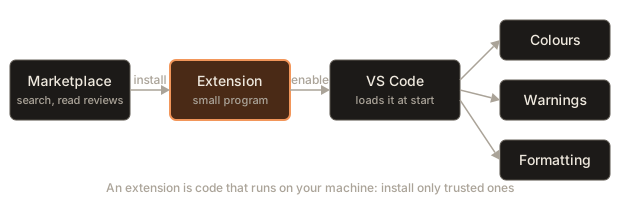
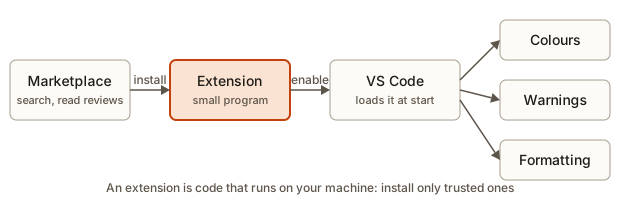 The path from the Marketplace through an installed extension to the features it adds in VS Code
An analogy: VS Code is a phone, and extensions are apps. A phone with no apps still makes calls. Each app adds one ability, and a badly made app can slow the phone or leak your data.
That last point matters. An extension is a program with access to the files you open. It is not a harmless theme file. Most are made by honest people and are safe. A few are fakes made to look like popular ones. So you judge before you install.
Where extensions come from
Extensions live in the Marketplace, a catalogue built into VS Code. You open it by clicking the Extensions icon in the activity bar (the four squares) or pressing Ctrl+Shift+X. Type a name in the search box and a list of results appears. Each result shows:
- The name and a short description.
- The publisher, the person or company that made it. A blue check next to the publisher name means the publisher's domain has been verified.
- The install count, how many people installed it.
- A star rating.
How to judge an extension before installing
- Check the publisher. The official ESLint extension is published by Microsoft. The Prettier extension is published by Prettier. If the publisher is a stranger with a slightly different name, stop.
- Check the install count. A popular tool has millions of installs. A look-alike with 300 installs is suspicious.
- Open the details page. Read the description, look at the repository link (most good extensions are open source on GitHub), and look at recent release dates. An extension untouched for years may be abandoned.
- Look at the exact name. Attackers publish names such as
Prettlerwith an L instead of an I, hoping you will not notice. - Install few. Every extension costs start-up time and memory. Ten you use beat forty you forgot about.
You can see how extensions are named inside VS Code. Every extension has a unique ID made of the publisher and the name, such as esbenp.prettier-vscode. You can install by ID from a terminal:
code --install-extension esbenp.prettier-vscodeand list what you have:
code --list-extensionsIDs are exact, and that makes them good for sharing instructions: "install dbaeumer.vscode-eslint" cannot be misread.
Manage what you installed
In the Extensions view, each installed extension has a gear menu with Disable, Disable (Workspace) and Uninstall. Disabling keeps the extension but stops it running, which is useful when you suspect it is causing a problem. Disabling for the workspace only affects the current project. VS Code updates extensions on its own by default. If an extension misbehaves after an update, the gear menu also offers Install Specific Version.
A starter set
Do not install the whole Marketplace. Here is a short list worth knowing. Install what matches your work.
| Extension | ID | What it does |
|---|---|---|
| Prettier - Code formatter | esbenp.prettier-vscode | Formats JavaScript, TypeScript, HTML, CSS and JSON the same way every time |
| ESLint | dbaeumer.vscode-eslint | A linter: finds likely mistakes in JavaScript while you type |
| WSL | ms-vscode-remote.remote-wsl | Lets a Windows VS Code edit files inside Linux (WSL users only) |
| Live Server | ritwickdey.LiveServer | Serves an HTML page on your machine and reloads it when you save |
| Python | ms-python.python | Python colours, checks, running and debugging |
| Extension Pack for Java | vscjava.vscode-java-pack | Java support, running and debugging (for the Java track) |
| C/C++ | ms-vscode.cpptools | C and C++ support (for the C++ track) |
| Error Lens | usernamehw.errorlens | Shows error text at the end of the line instead of only in a tooltip |
| Code Spell Checker | streetsidesoftware.code-spell-checker | Underlines misspelled words in names and comments |
You do not need the Java or C++ ones until those tracks. Install now: Prettier, ESLint, and WSL if you use Windows with WSL.
JavaScript and TypeScript already work in VS Code with no extension. The editor ships with built-in support for both, which is why hello.js coloured itself in the last lesson.
The formatter: Prettier
Consider two programs that do the same thing. Run this block and see the same output twice:
Anisha (21) knows 3 tools
Anisha (21) knows 3 tools
The computer does not care about spacing. People do. The first version is hard to read. It mixes quote styles, has odd gaps and no semicolons on some lines. The second follows one tidy style. A formatter turns the first shape into the second automatically.
Why bother? Reading code is most of the job. When every file in a project has the same layout, your eyes stop noticing layout and see the logic. On a team, a formatter also ends arguments about style. The tool decides, and the argument is over.
Set it up
- Install Prettier - Code formatter from the Extensions view.
- Open settings (
Ctrl+,) and searchdefault formatter. Set Editor: Default Formatter to Prettier - Code formatter. In JSON form this is:
{
  "editor.defaultFormatter": "esbenp.prettier-vscode",
  "editor.formatOnSave": true
}- Make sure
editor.formatOnSaveis ticked, as shown above. - Open
week1/hello.js, mess up the spacing on purpose, and save. The code snaps to a tidy shape.
To format without saving, use the shortcut Shift+Alt+F (Shift+Option+F on macOS) or run Format Document from the palette.
Project rules: .prettierrc
Prettier reads a small file called .prettierrc in your project root, if one exists. A leading dot makes a file hidden in many tools, which is how Unix names configuration files. A typical one is:
{
  "semi": true,
  "singleQuote": false,
  "tabWidth": 2
}
semi decides whether statements end with a semicolon. singleQuote chooses quote style. tabWidth sets the indent. The file lives in the project, so every teammate's Prettier behaves the same, whatever their personal settings. Without the file, Prettier uses its defaults.
The linter: ESLint
A linter reads your code without running it and points out things that are probably mistakes. The word comes from a tool that picked "lint", the little fluff, off clothes. Where a formatter changes how code looks, a linter warns about what code does.
Here is a classic JavaScript trap that a linter flags. Run it:
true
false
true
false
true
false
The double equals == compares after converting types, which produces results that surprise people: the number 0 "equals" an empty string. The triple equals === compares without converting. A common ESLint rule named eqeqeq asks you to use === everywhere. Seeing a yellow underline under == saves you from a class of bugs before you run a thing.
Other things a linter catches: a variable you declared and never used, a variable you used before declaring it, unreachable code after a return, and a missing await.
What you see
Once ESLint is working, mistakes get a wavy underline. Yellow means warning and red means error. Hover over the underline for the message and the rule name. The Problems panel (Ctrl+Shift+M) lists every one in all open files. Click a line in it and the editor jumps there.
An honest note about setup
The ESLint extension is only the messenger. ESLint itself is a tool installed inside a project, with a configuration file that says which rules to follow. A new empty folder has neither, so the extension has nothing to report. The npm module of this course shows how to add ESLint to a project. For now, install the extension, know what yellow and red underlines mean, and do not worry if ESLint is silent in a folder with no setup. VS Code's built-in checker still marks plain syntax errors, such as a missing bracket.
The command palette
You already met Ctrl+Shift+P. It is the most important shortcut in the editor, so it gets a section of its own.
The command palette is a search box that lists every command VS Code can do. You do not need to remember where a feature hides in the menus. You open the palette and type a few letters of what you want. The list filters as you type, and next to each command it shows its shortcut, if it has one.
Try these:
- Type
format docand run Format Document. - Type
sort linesand run Sort Lines Ascending on a selected block of lines. - Type
themeand choose Preferences: Color Theme. - Type
reloadand run Developer: Reload Window when something odd happens. This restarts the editor window without closing your files.
The palette also has modes. If you start with a different character, it changes what it searches:
| You type first | Mode | Example |
|---|---|---|
> | Commands (the default after Ctrl+Shift+P) | > format document |
| nothing | Files (this is Ctrl+P, Quick Open) | hello |
: | Go to a line | :42 |
@ | Go to a symbol, such as a function, in this file | @average |
# | Search symbols across the project | #average |
You can chain them: in Quick Open type hello:2 and press Enter to open hello.js at line 2. The tool you will use ten times a day is Ctrl+P: start typing part of a file name, press Enter, and you are there. Compare this with clicking through four folders in the Explorer.
Here is another mix-up to avoid: Ctrl+F finds text in the current file only. Ctrl+P finds files by name. Ctrl+Shift+F finds text across the whole project.
Shortcuts worth learning first
A shortcut is a key combination that runs a command. Do not try to memorise a table of fifty. Learn a few from each group, use them until your fingers know them, then add more.
On macOS, use Cmd where this table says Ctrl, and Option where it says Alt. Some Mac keys differ and are given in a second column.
Moving and finding
| Action | Windows and Linux | macOS |
|---|---|---|
| Command palette | Ctrl+Shift+P | Cmd+Shift+P |
| Open a file by name | Ctrl+P | Cmd+P |
| Find in this file | Ctrl+F | Cmd+F |
| Find in all files | Ctrl+Shift+F | Cmd+Shift+F |
| Replace in this file | Ctrl+H | Cmd+Option+F |
| Go to line | Ctrl+G | Ctrl+G |
| Go to definition | F12 | F12 |
| Go back | Alt+Left | Ctrl+- |
| Toggle side bar | Ctrl+B | Cmd+B |
| Toggle terminal | Ctrl+` | Ctrl+` |
Go to definition deserves a note. Put the cursor on a function name you call, press F12, and the editor jumps to where that function is written. Alt+Left takes you back. This is how you read other people's code without searching.
Editing lines
| Action | Windows and Linux | macOS |
|---|---|---|
| Move line up or down | Alt+Up, Alt+Down | Option+Up, Option+Down |
| Copy line down | Shift+Alt+Down | Shift+Option+Down |
| Delete line | Ctrl+Shift+K | Cmd+Shift+K |
| Insert line below | Ctrl+Enter | Cmd+Enter |
| Select the whole line | Ctrl+L | Cmd+L |
| Comment or uncomment | Ctrl+/ | Cmd+/ |
| Indent or outdent | Ctrl+], Ctrl+[ | Cmd+], Cmd+[ |
| Format document | Shift+Alt+F | Shift+Option+F |
| Undo, redo | Ctrl+Z, Ctrl+Y | Cmd+Z, Cmd+Shift+Z |
| Toggle word wrap | Alt+Z | Option+Z |
Look at Alt+Up and Alt+Down. They move a line, or a whole selected block, without cut and paste. If you have an ordered list and need to swap two items, it is one key press.
Comments
A comment is text in your code that the computer ignores. In JavaScript a comment begins with //. Press Ctrl+/ on a line and the editor adds // to the start. Press it again and the editor removes it. This is called toggling. It is the fastest way to switch a line off while you test. Here is a program with two lines switched off. Run it and see that only the active lines run:
tax: 45Select several lines first and Ctrl+/ comments them all at once. In Python the symbol is #, and VS Code knows to use it from the file's language mode.
Indentation and code that depends on it
In JavaScript, indentation is only for readers. In Python it is part of the syntax: lines that are indented the same belong to the same block. Select lines and press Tab to indent them all, or Shift+Tab to outdent them. Run this Python block and watch how the indented lines belong to the loop:
after 1 total is 1
after 2 total is 3
after 3 total is 6
done
The last line has no indent, so it is outside the loop and runs once at the end. If you accidentally indent print("done"), it prints three times. This is why selecting a block and using Tab or Shift+Tab is safer than adding spaces by hand.
Multiple cursors
This feature feels like magic the first time. Normally you have one cursor, so you edit one place. With multiple cursors you place several cursors at once and everything you type happens at every cursor.
An analogy: you have a stamp in each of three hands, and you stamp three pages in one move.
Ways to add cursors:
| Action | Windows and Linux | macOS |
|---|---|---|
| Add a cursor wherever you click | Alt+Click | Option+Click |
| Add a cursor on the line above or below | Ctrl+Alt+Up, Ctrl+Alt+Down | Cmd+Option+Up, Cmd+Option+Down |
| Select the next occurrence of the selected word | Ctrl+D | Cmd+D |
| Select all occurrences of the selected word | Ctrl+Shift+L | Cmd+Shift+L |
| Return to one cursor | Escape | Escape |
Worked example 1: edit three lines at once
You have three lines:
alpha = 1;
beta = 2;
gamma = 3;
You want let in front of each. Steps:
- Click at the start of the first line.
- Hold
Ctrl+Altand press the Down key twice. Now you have three cursors, one at the start of each line. - Type
let.
All three lines change in one go. The program below does the same edit with code, to show the result:
let alpha = 1;
let beta = 2;
let gamma = 3;
Worked example 2: rename a variable with Ctrl+D
Here is a short program with a poorly named variable n. You want to rename it to studentCount everywhere it appears.
- Click once inside one
n, so you have a cursor but no selection. - Press
Ctrl+D. VS Code selects that whole word. Press it again and the next place the same word appears gets selected too, with its own cursor. - Keep pressing
Ctrl+Duntil everynyou want is selected. Or pressCtrl+Shift+Lto select all matches at once. - Type
studentCount. Every selectednis replaced.
A trap lurks here. The file also contains words such as console that hold the letter n. If you select just the letter by dragging, Ctrl+D and Ctrl+Shift+L match every n inside every word, including console. Starting from a bare cursor, as in the steps above, makes Ctrl+D match whole words only. Whichever way you start, check the highlights before you type.
After the rename, the program reads clearly:
groups: 6
students per group: 5
A better tool for renaming: F2
Multiple cursors rename text. They do not know code. For a variable or function, F2 (Rename Symbol) is safer. Put the cursor on the name, press F2, type the new name and Enter. VS Code understands scope, which means it renames the right variable and leaves a different variable that happens to share the name alone. It also renames across files when a function is imported elsewhere. Reach for F2 for code, and for multiple cursors when you are editing plain patterns such as lines of text.
Find and replace
Ctrl+F opens a find box in the editor. Three small buttons sit at its right edge:
Aamatches the exact case.abwith a box matches whole words only..*switches on a regular expression, a pattern language for describing text (the Terminal and later modules touch it).
Ctrl+H adds a replace box. Enter in it replaces one match, and Ctrl+Alt+Enter replaces all.
Replacing everywhere in the project uses Ctrl+Shift+H, and the results appear in the side bar so that you can check each change before applying. Always read the list. An unreviewed replace-all across a project is how people break things.
The next block shows the difference between a plain replace and a pattern replace. A plain replace of price changes only the first match here, while the pattern captures the number inside the brackets and reuses it:
total = cost[1] + cost[2] + cost[30]
total = cost(1) + price(2) + price(30)
In the editor with .* on, the same thing is the find text price\((\d+)\) and the replace text cost[$1]. The $1 stands for whatever the first pair of parentheses captured.
Sorting and cleaning lists
Many small chores are one command away. Select lines, open the palette and run Sort Lines Ascending. Duplicates stay. The program below shows the sorted list and then the same list without duplicates, which VS Code has no built-in command for, so it is a job for a small program or an extension:
apple
apple
banana
mango
pear
---
apple
banana
mango
pear
Other chores worth knowing: Transform to Uppercase, Transform to Lowercase, Trim Trailing Whitespace and Join Lines. All of them are in the palette. You do not memorise them. You remember that "there is probably a command for this" and search.
IntelliSense: help while you type
IntelliSense is the name VS Code uses for code completion and hints. As you type console. a menu pops up with log, error, warn and more. Use the arrow keys and press Tab or Enter to accept. If the menu does not show, press Ctrl+Space to open it. When you are inside the brackets of a function call, Ctrl+Shift+Space shows its parameter hints: the names of the values the function wants. Hover over a name with the mouse to see its documentation, and over a red underline to read the error.
Press Ctrl+. on a problem for Quick Fix: a small menu of suggested repairs, such as "Add missing import". It is worth trying every time you see a squiggle.
Snippets
A snippet is a short word that expands into a larger block of code. You type the word, press Tab or Enter, and the block appears with the cursor placed where you need to type next.
VS Code includes snippets for common JavaScript shapes. In a .js file, type for and a menu shows choices. The one named for produces a standard counting loop:
for (let index = 0; index < array.length; index++) {
  const element = array[index];

}
index and array are highlighted placeholders. Type a new name and press Tab to jump to the next placeholder. Run a filled-in version:
0 editor
1 terminal
2 debugger
Typing log and accepting the suggestion inserts console.log() with the cursor between the brackets. Snippets do not teach you syntax, so learn to write the loop by hand first and use the snippet afterwards to save typing.
Your own snippets
Open the palette and run Snippets: Configure Snippets, choose javascript, and add an entry. The file is JSON:
{
  "Print a labelled value": {
    "prefix": "pl",
    "body": ["console.log(\"$1:\", $1);"],
    "description": "console.log with a label"
  }
}
Now typing pl and pressing Tab in a JavaScript file writes console.log(":", ); with a cursor at both $1 positions. Because both places are $1, typing a variable name fills both at once. That is multiple cursors again, and it gives console.log("total:", total); after typing total.
Emmet: snippets for HTML
For HTML and CSS, VS Code includes Emmet, a shorthand that expands to markup. In an .html file, type ! and press Tab to get a whole page skeleton. Type ul>li*3 and press Tab, and you get:
<ul>
  <li></li>
  <li></li>
  <li></li>
</ul>
> means "inside" and *3 means "three of". You will use it again in the web modules.
Make shortcuts yours
Open Ctrl+K Ctrl+S (a chord) for the Keyboard Shortcuts page. Search for a command, double-click its key, and press the combination you want. The result is saved in a file called keybindings.json, which you can also open from the palette. A rule looks like this:
[
  {
    "key": "ctrl+alt+l",
    "command": "editor.action.formatDocument",
    "when": "editorTextFocus"
  }
]
when says in which situation the rule applies. If a shortcut does not respond, this page also shows conflicts: two commands wanting the same keys. Resist the urge to change many keys early. Shortcuts you learn match the ones in every tutorial.
Share extensions with your project
A team does not want every new person to hunt for the right extensions. The file .vscode/extensions.json lists recommendations:
{
  "recommendations": [
    "esbenp.prettier-vscode",
    "dbaeumer.vscode-eslint"
  ]
}
When someone opens the folder, VS Code shows a pop-up: "Do you want to install the recommended extensions?" Commit the file to Git and the whole team gets the same help. This works with the .vscode/settings.json file from the last lesson.
Common mistakes
Two formatters fight. When you install a second formatter for the same language, saving can do nothing, and VS Code tells you:
There are multiple formatters for 'JavaScript' files. One of them should be configured as default formatter.Click Configure in the message and choose Prettier, or set editor.defaultFormatter yourself. It is the most common first problem after installing Prettier.
Format on save does nothing. Often the cause is that the setting is only in the wrong layer (user versus workspace), or the file is not the language you think. The debugging section below walks through it.
A shortcut does nothing, or does something else. Your keyboard layout may place a key elsewhere, and a Linux desktop may grab Ctrl+Alt+Down for switching workspaces or rotating the screen. Check the Keyboard Shortcuts page for conflicts. On a Mac, remember Cmd and Option.
Confusing Ctrl+F, Ctrl+P and Ctrl+Shift+F. Find in a file, open a file by name, and find in all files. Say them aloud as a trio until they stick.
Installing a look-alike extension. Check the publisher and the install count every time. If a famous tool has twenty clones, pick the one with the verified publisher and millions of installs.
Too many extensions. If VS Code starts slowly, open the palette and run Developer: Show Running Extensions. It lists each extension and how long it took to start. Disable the slow ones you do not need.
Replace all without reading. The replace-all button changes every match, including ones you did not mean. Search first, read the matches, then replace.
Multi-cursor typing into the wrong spots. If your edit looks strange, press Escape and use undo. Look at all cursor positions before you type.
A debugging walkthrough: "format on save does nothing"
You save hello.js with messy spacing and nothing changes. Check things in this order, from the cheapest test.
- Is the extension installed and enabled? Open the Extensions view, search "Prettier", and confirm it says Disable (not Install).
- Does the manual command work? Run Format Document from the palette. If VS Code asks you to pick a formatter, none is set as the default. Pick Prettier and say "Set as default". That fixes many cases at once.
- Is
editor.formatOnSaveon? Search settings forformat on save. Check both the User and Workspace tabs. A workspace setting offalseoverrides your user settingtrue. - Is another formatter set for this language? Search your settings JSON for a block like
"[javascript]". A language-specific block beats a general one:
{
  "editor.formatOnSave": true,
  "[javascript]": {
    "editor.defaultFormatter": "esbenp.prettier-vscode"
  }
}- Look at the Output panel. Open it (
Ctrl+Shift+U) and choose Prettier from the drop-down. If Prettier found a syntax error in your file, it refuses to format and prints why. A file with a missing bracket does not get formatted. - Check for an ignore file. A file named
.prettierignorein the project can list files Prettier should skip.
Each step rules one cause in or out, and you stop at the first that explains it. That is a debugging method, and the last lesson of this module teaches it formally.
Interview and real-world use
Teams care about two things from this lesson. First, consistency: they commit .prettierrc, .vscode/settings.json and .vscode/extensions.json so that every machine formats the same, and a style argument in review costs nothing because a tool decided. Second, speed: a developer who navigates with Ctrl+P, F12 and Ctrl+Shift+F reads an unfamiliar codebase in a fraction of the time of one who scrolls.
In pairing sessions and screen-shared interviews, people notice. Moving lines with Alt+Up, renaming with F2 and opening files with Ctrl+P reads as someone who works in a real codebase daily. It is a small signal, and it is free.
Practice
- Open the Extensions view, search for Prettier, and write down its publisher, its ID and its approximate install count. Do the same for ESLint.
- Run
code --list-extensionsin a terminal and compare it with what the Extensions view shows. - Install Prettier. Set it as the default formatter and turn on format on save. Break the spacing of
hello.json purpose, save, and confirm it is repaired. - Create a file with six lines of names in random order. Select them, run Sort Lines Ascending from the palette, and then move the last line to the top using
Alt+Upseveral times. - Write a short program with a variable
xused five times. Rename it tototalusingCtrl+Drepeated, then undo and rename it again usingF2. Describe one situation where the two give different results. - Use three cursors to turn these lines into a list with a leading dash and a space:
milk,eggs,bread. Describe the key presses you used. - Using Find with the
.*button on, write a pattern that turnsprice(1),price(2)andprice(30)intocost[1],cost[2]andcost[30]. Check the result against the program in this lesson. - Make a snippet with prefix
clthat expands toconsole.log();with the cursor inside the brackets. Test it in a.jsfile. - Create
.vscode/extensions.jsonin your project listing Prettier and ESLint. Close and reopen the folder and describe what VS Code shows (if you already have both installed, it may show nothing, so test by disabling one first). - A teammate saves a file and the code is reformatted differently from yours, and every pull request shows noisy changes. List three things you would check, and name the one file you would add to the repository to fix it for good.
Solution
-
Prettier: publisher Prettier (the extension ID is
esbenp.prettier-vscode), and install counts in the tens of millions. ESLint: IDdbaeumer.vscode-eslint, published by Microsoft, also with tens of millions of installs. Your exact numbers will differ, and the point is to find the publisher, the ID and the count on the details page. -
Both list the same extensions. The terminal command prints one ID per line, for example
esbenp.prettier-vscode, and the view shows names and icons. The IDs are the exact names. -
After setting the default formatter and format on save, a messy
const a=1;;console.log( a )becomes neat lines after saving. If nothing happens, follow the debugging walkthrough in this lesson. -
Select the lines, press
Ctrl+Shift+P, typesort linesand run the command. The names appear in alphabetical order. Put the cursor on the last line and pressAlt+Upuntil it reaches the first line. -
Ctrl+Dselects text matches, so if another word containsx(for examplemax) and you selected only the letter, you could change the wrong text.F2understands scope and renames only the variable and its uses. Two different variables namedxin different functions are renamed separately byF2but together byCtrl+Shift+L. -
Click at the start of
milk, pressCtrl+Alt+Downtwice to get three cursors, type-. All three lines now start with a dash and a space. -
Find:
price\((\d+)\). Replace:cost[$1]. The.*button must be on. The result iscost[1] + cost[2] + cost[30]. -
Run Snippets: Configure Snippets, choose
javascript, and add:
{
  "Console log": {
    "prefix": "cl",
    "body": ["console.log($1);"]
  }
}
Typing cl then Tab gives console.log(); with the cursor between the brackets.
-
The file contains the two IDs under
recommendations. When the folder opens and an extension is missing, VS Code shows a notification offering to install the recommended extensions. If both are installed, nothing shows, which is why you disable one first to test. -
Check the default formatter, check whether
formatOnSaveis on, and check for different Prettier options (semicolons, quotes, tab width). To fix it for good, commit a.prettierrcfile to the repository root, so every machine's Prettier uses the same rules. A shared.vscode/settings.jsonandextensions.jsonhelp too.
What you now know
- An extension is code that runs on your machine, so you check its publisher, install count and exact name before installing.
- Prettier formats code the same way every time, and ESLint warns about likely mistakes. A project file (
.prettierrc, an ESLint config) makes the whole team agree. - The command palette finds any command,
Ctrl+Popens files, andCtrl+Shift+Fsearches the project. - A few line-editing shortcuts (move, copy, delete, comment, indent) replace dozens of small edits.
- Multiple cursors change many places at once,
F2renames code safely, and regular expressions help with find and replace. - Snippets and Emmet expand short words into blocks, and
.vscode/extensions.jsonshares your setup.