Why this matters
Every project you build is folders and files: you create them, rename them, copy a template, move things around, and throw away what you do not need. In a GUI you drag and drop. In the terminal you type a verb and two names. It is faster once you know it, and it can be scripted.
It is also where the terminal is least forgiving. There is no Recycle Bin, no "are you sure?", and no undo. A mistyped rm can erase hours of work in a blink. This lesson teaches the commands and, just as importantly, the habits that keep you safe.
Set up a practice lab
Do every example in this lesson yourself, in a throwaway folder. Start by making one:
$ cd
$ mkdir forge-lab
$ cd forge-lab
$ pwd
<lab>/anisha/forge-lab
mkdir means make directory. It creates an empty folder. You then cd into it. Everything below happens inside forge-lab, so nothing you do here can damage your real files.
The outputs in this lesson come from a practice copy of a home folder that we built in a scratch folder. Where a full path appears, we write that copy's location as <lab>. Your own paths start with your own home folder.
If you already have a forge-lab folder from lesson two, you will see an error such as:
mkdir: forge-lab: File existsThat is mkdir refusing to overwrite. The folder is already there, so just cd into it. The wording differs between systems: GNU mkdir, found on most Linux machines, prints mkdir: cannot create directory 'forge-lab': File exists, with the name in quotes.
mkdir: make folders
$ mkdir notes
$ ls
notes
$ mkdir -p projects/shop/src projects/shop/docs
$ ls -R projects
projects:
shop

projects/shop:
docs  src

projects/shop/docs:

projects/shop/src:
The -p flag means parents: create every missing folder along the path, and do not complain if one already exists. Without -p, mkdir projects/shop/src fails when projects does not exist yet. You can list several paths in one command, as the example does.
A shortcut called brace expansion lets you create a family of folders in one go. The shell expands {a,b,c} into three words before mkdir runs:
$ mkdir -p site/{css,js,images}
$ ls site
css  images  js
This is the same rewriting step you met in lesson one: site/{css,js,images} became site/css site/js site/images and mkdir received three arguments.
touch: make an empty file
$ touch a.txt b.txt
$ ls
a.txt  b.txt  notes  projects  site
touch creates an empty file if the name does not exist. If it does exist, touch leaves its content alone and only updates its modified time. That second behaviour is why the command is named "touch": it touches the file. In practice you use it to create placeholder files quickly.
Putting text into files
An empty file is not very useful. The easiest way to put text in one is with redirection: sending a command's output to a file instead of the screen. The symbol is >.
$ echo "apple" > fruit.txt
$ echo "banana" >> fruit.txt
$ echo "cherry" >> fruit.txt
$ cat fruit.txt
apple
banana
cherry
There are two symbols and the difference matters.
>replaces the file. If the file already exists, its old content is erased first. If it does not exist, it is created.>>appends: it adds to the end and keeps what was there.
$ echo "one" > todo.txt
$ echo "two" > todo.txt
$ cat todo.txt
two
The one is gone. Many beginners lose data to a single > that should have been >>. The model below shows the logic.
after > then >> >>:
one
two
three
after another >:
fresh start
Here is the important fact about how it works. The redirection is handled by the shell, before the program runs. When the shell sees > todo.txt it opens the file, and opening for > empties it, immediately, whatever the command is. So sort todo.txt > todo.txt does not sort the file: it empties it first, then sort reads an empty file. Never redirect a command's output into the file it reads from. Write to a new file, then move it into place.
Here is that danger with real output, followed by a safe way to sort the same file:
$ printf "b\na\n" > d.txt
$ sort d.txt > d.txt
$ wc -c d.txt
0 d.txt
$ printf "b\na\n" > d2.txt
$ sort d2.txt -o d2.txt
$ cat d2.txt
a
b
In the first case the file has zero bytes after the sort, so the two lines are gone. The > emptied d.txt before sort opened it for reading. In the second case sort takes its own output file with -o. It reads the whole input first, and only then writes the result, so the same name works as both input and output. Not every command offers -o. When one does not, the general pattern is the one from the paragraph above: write to a second file, check it with cat or wc, and only then move it over the original with mv.
The rule is worth more than the single command. Redirection is set up before the command runs, so whatever the command does, the empty file already exists. Checking the result with wc -c or cat right after the command is the habit that would have caught the empty file the moment it happened.
Writing several lines at once
To type a multi-line file from the terminal you can use a here-document:
$ cat > hello.txt <<'EOT'
Hello
from a here-document
EOT
$ cat hello.txt
Hello
from a here-document
Everything between <<'EOT' and the closing EOT line becomes the input of cat, which writes it to the file. The quotes around EOT stop the shell from expanding $ inside the text.
For real editing, use a text editor. In a terminal, nano is the friendly one: run nano notes.txt, type, press Ctrl+O then Enter to save, and Ctrl+X to leave. Its key hints are printed along the bottom of the screen. If you use VS Code, code notes.txt opens the file there. You will mostly edit in an editor and use the commands here for everything around it.
Reading files
| Command | What it does |
|---|---|
cat file | Print the whole file. |
cat -n file | Print with line numbers. |
head -n 2 file | Print the first 2 lines. |
tail -n 2 file | Print the last 2 lines. |
wc -l file | Count lines. |
less file | Page through a long file. |
$ cat -n fruit.txt
     1	apple
     2	banana
     3	cherry
$ head -n 2 fruit.txt
apple
banana
$ tail -n 1 fruit.txt
cherry
$ wc -l fruit.txt
3 fruit.txt
cat is short for concatenate: it joins files together and prints them. With one file it simply shows it. Do not cat a large file: a 500 MB log will flood your screen for a long time. Use head, tail or less instead.
less opens a viewer. Space goes down a page, b goes back, /word searches, n jumps to the next match and q quits. tail -f app.log is a favourite on servers: it shows the end of a file and keeps printing new lines as they arrive, which is how you watch a log live. Stop it with Ctrl+C.
cp: copy
cp source destination makes a copy and leaves the original alone.
$ cp fruit.txt fruit-backup.txt
$ cp fruit.txt notes/
$ ls notes
fruit.txt
In the first command the destination is a new file name, so you get a second file with the same content. In the second the destination is an existing folder, so the copy goes inside it under the same name.
The tool decides which case applies by looking at the destination. If it names an existing folder, the file goes inside. Otherwise it is treated as the new file name. Keep this rule in mind, because mv follows it as well.
Copying folders needs -r (recursive: go into every sub-folder):
$ cp notes copy-of-notes
cp: -r not specified; omitting directory 'notes'
$ cp -r notes copy-of-notes
$ ls copy-of-notes
fruit.txt
Here is what cp -r does inside: it creates the destination folder, then for each item in the source it either copies the file or recurses into the sub-folder.
cp -r notes backup
mkdir backup
  copy  backup/a.txt
  mkdir backup/sub
    copy  backup/sub/b.txt
Useful flags: -v (verbose) prints each copy as it happens, for example 'fruit.txt' -> 'notes/fruit.txt', and -i (interactive) asks before overwriting. Copying over an existing file replaces it without warning, so use -i whenever you are unsure.
mv: move and rename
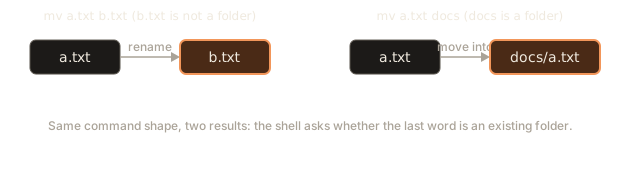
mv has two jobs and one command shape. It moves a file into a folder, and it renames a file, depending on the destination.
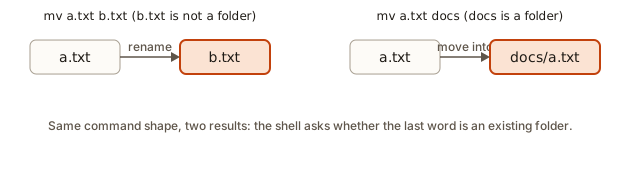 mv renames when the target is a file name and moves when the target is an existing folder
$ mv a.txt first.txt
$ mv first.txt notes
$ ls notes
first.txt  fruit.txt
$ mv b.txt notes/second.txt
$ ls notes
first.txt  fruit.txt  second.txt
Line 1 renames a.txt to first.txt, because first.txt is not an existing folder. Line 2 moves first.txt into notes, because notes is an existing folder. Line 3 does both at once: it moves b.txt into notes and gives it the new name second.txt.
This program models the decision. Run it and watch the second call:
renamed forge-lab/a.txt to forge-lab/b.txt
{'notes': {}, 'b.txt': 'alpha'}
moved forge-lab/b.txt into forge-lab/notes/
{'notes': {'b.txt': 'alpha'}}
The same call shape, mv X Y, gave a rename the first time and a move the second. The only difference was whether Y was a folder.
Danger: mv overwrites. If the destination file already exists, it is replaced with no question asked.
$ echo old > x.txt
$ echo new > y.txt
$ mv y.txt x.txt
$ cat x.txt
new
The old content of x.txt is gone. Use mv -i to be asked first.
rm and rmdir: delete
$ rm x.txt
$ rm x.txt
rm: cannot remove 'x.txt': No such file or directory
rm removes a file. Run it again and it tells you the file is already gone. To remove folders:
$ rm notes
rm: cannot remove 'notes': Is a directory
$ rmdir notes
rmdir: failed to remove 'notes': Directory not empty
$ rm -r copy-of-notes
rm refuses folders unless you pass -r (recursive: delete the folder and everything inside it). rmdir is the careful alternative: it removes a folder only if it is empty, which is a good safety check when you expect it to be.
There is no Recycle Bin
When rm succeeds, the file is gone. Not "in the trash": gone. The system removes the name that points to the data and marks the space as reusable. Recovery tools exist but you cannot count on them. This model shows why a trash folder is a habit worth having:
removed report.txt (gone for good)
rm: cannot remove 'report.txt': No such file or directory
moved draft.txt to trash
disk : {} trash: {'draft.txt': 'todo'}
restored draft.txt
disk : {'draft.txt': 'todo'} trash: {}
A trick that works for real: use mv file ~/trash/ (make that folder once) when you are not sure, and empty it now and then.
Safe deletion habits
- Look before you delete. If you are going to run
rm *.log, runls *.logfirst. The list you see is exactly what the shell will hand torm. - Use
-iwhile learning.rm -i fileasksrm: remove regular empty file 'file'?and waits fory. - Be careful with
-f. The force flag removes without asking and ignores missing files.rm -rfis the most dangerous short command in the terminal:rm -rf /orrm -rf ~are catastrophes, and a stray space (rm -rf ~ /junkinstead of~/junk) deletes your whole home folder. Never pasterm -rfyou do not understand. - Never run
rm -rf *unless you have just runpwd. The star means "everything in this folder". - Quote names with spaces.
rm my file.txtis two deletions,myandfile.txt, and neither is the file you meant.
Here is the "look before you delete" idea as code:
pattern: *.log
would delete: [ 'f1.log', 'f2.log', 'f3.log', 'app.log' ]
would keep  : [ 'keep.txt', 'notes.log.bak' ]
Notice that notes.log.bak survives: the pattern *.log must end in .log. Seeing the list first would have caught a pattern that matched too much.
Worked example: building a project skeleton
Put the commands together. The goal: a small website folder with a stylesheet, a script, a home page that has some content, and a backup of the page. Follow it one step at a time and say what each command did before reading the explanation.
$ cd ~/forge-lab
$ mkdir -p mysite/{css,js}
$ touch mysite/css/style.css mysite/js/app.js
$ echo "<h1>Hello</h1>" > mysite/index.html
$ echo "<p>Welcome</p>" >> mysite/index.html
$ cp mysite/index.html mysite/index.bak
$ ls -R mysite
mysite:
css  index.bak  index.html  js

mysite/css:
style.css

mysite/js:
app.js
$ cat mysite/index.html
<h1>Hello</h1>
<p>Welcome</p>
Trace it:
mkdir -p mysite/{css,js}: the shell expands the braces, somkdirgetsmysite/cssandmysite/js. The-pcreatesmysitefirst, because it does not exist yet.touchcreates two empty files in those folders, using relative paths from where you stand.- The first
echouses>, so it createsindex.htmlwith one line. The text contains<and>characters, which are safe here because they are inside double quotes: without the quotes the shell would read them as redirections. The secondechouses>>, so the second line is added below the first. cpcopies the finished page toindex.bak. A backup you make before editing is a cheap safety net.ls -Rshows the whole result, andcatconfirms the file has both lines.
Now change your mind: the backup should live in its own folder, and the script should have a better name.
$ mkdir mysite/backup
$ mv mysite/index.bak mysite/backup/
$ mv mysite/js/app.js mysite/js/main.js
$ ls mysite mysite/backup mysite/js
mysite:
backup  css  index.html  js

mysite/backup:
index.bak

mysite/js:
main.js
The first mv has an existing folder as its destination, so it moves. The second has a new file name in the same folder, so it renames. Notice that you never needed to cd into any of these folders: paths let you act on a file wherever it is, from where you stand.
Worked example: sorting a messy download folder
Here is a job that comes up every week: a Downloads folder full of mixed files, to be sorted into folders by type. The commands are the ones you already know, plus a glob (*.pdf, which the shell expands before the command runs) and the -v flag, which prints what mv did.
$ ls
data.csv  notes.txt  photo.jpg  report.pdf  slides.pdf
$ mkdir -p sorted/{docs,images,data}
$ mv -v *.pdf sorted/docs/
renamed 'report.pdf' -> 'sorted/docs/report.pdf'
renamed 'slides.pdf' -> 'sorted/docs/slides.pdf'
$ mv -v *.jpg sorted/images/
renamed 'photo.jpg' -> 'sorted/images/photo.jpg'
$ mv -v *.csv sorted/data/
renamed 'data.csv' -> 'sorted/data/data.csv'
$ mv -v notes.txt sorted/docs/notes.txt
renamed 'notes.txt' -> 'sorted/docs/notes.txt'
$ ls -R sorted
sorted:
data  docs  images

sorted/data:
data.csv

sorted/docs:
notes.txt  report.pdf  slides.pdf

sorted/images:
photo.jpg
Trace it:
mkdir -p sorted/{docs,images,data}makes the three folders in one go.*.pdfis expanded by the shell into the two PDF names.mvreceives both, and sincesorted/docs/is an existing folder, each one moves inside it. The trailing slash is a deliberate habit: it tellsmvthat the target must be a folder.- The same pattern handles the photo and the CSV. Each
mv -vline prints one line per file, so you can check the result as it happens. notes.txthas no glob, so it gets a full destination path, and it is renamed into place as it moves.
Now look at what happens when a pattern matches nothing. The last command in this session was mv -v *.txt sorted/docs/ after every text file had already moved:
$ mv -v *.txt sorted/docs/
mv: cannot stat '*.txt': No such file or directory
$ echo "exit $?"
exit 1
Because the pattern matched nothing, mv received the literal text *.txt and reported that it does not exist. Nothing moved, and the exit code is 1. That message is safe. The dangerous case is a rename, and it happens quietly. Here, report.pdf was moved onto a name that already existed:
$ mv -v sorted/docs/report.pdf sorted/docs/slides.pdf
renamed 'sorted/docs/report.pdf' -> 'sorted/docs/slides.pdf'
$ ls sorted/docs
notes.txt  slides.pdf
The old slides.pdf is gone, and report.pdf no longer exists under its own name. mv printed one line and did not ask. This is why the habit of running ls after every move is worth the second it costs, and why mv -i exists for the times when the target name might already be taken.
Worked example: a release folder
Put cp and mv together and you get a pattern that real teams use every day: make a copy, then rename it into place. Suppose you have a release folder with a program and a readme, and you want to keep a copy named archive. Here is the sequence, with the real output.
$ mkdir -p release/{bin,docs}
$ echo "tool" > release/bin/tool
$ echo "Read me" > release/docs/README.txt
$ cp -r release release-old
$ mv release-old archive
$ ls -R release archive
archive:
bin
docs

archive/bin:
tool

archive/docs:
README.txt

release:
bin
docs

release/bin:
tool

release/docs:
README.txt
Trace it:
mkdir -p release/{bin,docs}createsrelease, thenbinanddocsinside it. The braces expand into two paths, so one command builds the whole shape.- The two
echolines create the files. Each uses>, which is safe here because the files are new. cp -r release release-oldcopies the whole tree. The copy is independent: a change to one does not change the other.mv release-old archiverenames the copy.archivedid not exist, somvrenamed instead of moving. Ifarchivehad been an existing folder, the same command would have moved the copy inside it. This is the rule from earlier in the lesson, now in action.ls -Rshows both trees.releaseis still there, because it was the copy that moved, not the original.
The key point is the order. The original stays in place until the copy is complete, so a failure in the middle leaves you with a working folder. Deployment scripts use this idea when they put a new version of a website in place: a new folder is built and checked, then the rename switches the live name over at once.
Worked example: checking a copy with cmp
A copy is only useful if it matches the original. cmp compares two files byte by byte. When they are identical it prints nothing and exits with code 0. The exit code is the number a command returns when it finishes, where 0 means success and anything else means a problem. Scripts check exit codes instead of reading messages, so it helps to see both.
$ cp fruit.txt fruit-backup.txt
$ cmp fruit.txt fruit-backup.txt; echo "exit $?"
exit 0
$ echo "x" >> fruit-backup.txt
$ cmp fruit.txt fruit-backup.txt; echo "exit $?"
cmp: EOF on ‘fruit.txt’ after byte 20, line 3
exit 1
The first comparison passes. The second one fails after you add a line to the copy. cmp reports where the shorter file ends: fruit.txt is 20 bytes long, and the copy has more bytes after that point. The quote marks in the message are the curly kind some systems print. The lesson for you is simple: after a copy that matters, run cmp on the two files, or compare folders with a tool built for it, before you delete the original.
Edge cases that surprise beginners
A few commands behave in ways that look wrong until you know the rule behind them.
$ echo "data" > keep.txt
$ touch keep.txt
$ cat keep.txt
data
$ mkdir -p notes; echo "exit $?"
exit 0
$ cp keep.txt keep.txt
cp: 'keep.txt' and 'keep.txt' are the same file
$ mv keep.txt keep.txt
mv: 'keep.txt' and 'keep.txt' are the same file
$ rm -f missing.txt; echo "exit $?"
exit 0
$ rmdir notes/keep.txt
rmdir: failed to remove 'notes/keep.txt': Not a directory
Each line teaches one rule:
touchon an existing file leaves its content alone. The file's modified time changes, butcatstill showsdata.mkdir -pon a folder that already exists is not an error. That is what the-ppromises, which makes it safe to run in scripts that may run twice.cpandmvrefuse to act when the source and the destination are the same file. This protects you from a common slip, and the message names the file.rm -fsucceeds even when the file is missing. Use it on purpose in scripts, where a missing file is not a problem. Without-f,rmfails and tells you, which is what you want at a keyboard.rmdironly removes folders. Given a file, it refuses, and says so.
Choosing between cp and mv, and deciding what to delete
A short decision guide, because the verbs sound similar and the stakes differ.
- You want a second copy that can change independently (a backup, a template for a new project):
cp. The original stays. - You want the same file under a new name or in a new place, with nothing left behind:
mv. - You want the file gone:
rm. Ask yourself first whethermvinto a trash folder would do. When the file is source code under Git (a version-control tool you will learn in the next module),rmis much safer, because Git can bring the file back. When the file is not tracked by anything,rmreally is forever.
Another useful idea is dry running in your head. Before pressing Enter on any command that changes files, say aloud what it will do. "This copies every .txt file in this folder into backup." If the sentence has a "but" in it ("...but I am not sure which folder I am in"), stop, and run pwd and ls. The moment you are most likely to lose data is when you are tired and typing fast.
Redirecting errors too
So far > captured what a command normally prints. A command actually has two output channels. Normal results go to standard output (stdout). Error messages go to standard error (stderr). On screen they look the same, but the shell can separate them. Lesson four covers this fully, but you need one piece now: 2> redirects only the errors.
$ ls nonexistent 2> err.txt
$ cat err.txt
ls: cannot access 'nonexistent': No such file or directory
The error never appeared on screen: it went into the file. This is handy when a script should keep its error messages in a separate log. To throw output away completely, send it to the special file /dev/null:
$ echo "you will never see this" > /dev/null
$ echo $?
0
/dev/null is a black hole: anything written to it vanishes, and the command still succeeds.
Typing less when you work with files
A few small habits make file work calmer.
Use Tab on every path. If you type mv notes.txt ar and press Tab, the shell completes to archive/ only if that folder exists. If it does not complete, you have found a typo before it can hurt you.
Reuse the last argument. In bash and zsh, Alt+. (Esc then .) pastes the last word of your previous command. After mkdir mysite/backup, typing cd then Alt+. gives cd mysite/backup.
Use -v while learning. cp -v and mv -v print what they did, so you see the real effect instead of guessing from silence. For example, mv -v a.txt notes/ prints renamed 'a.txt' -> 'notes/a.txt'.
Check the result right away. After any file command, run ls or cat. It takes a second, and it turns "I think it worked" into "I saw it work". This is the habit that separates people who trust the terminal from people who are afraid of it.
Reading the clues in a file listing
ls -l gives you evidence about what happened to a file. After a copy, the new file gets a new modified time (now), while after a move the time is unchanged, because the data was not touched. A size of 0 for a file you expected to hold text usually means a > truncated it, or a command that failed after the shell had already emptied the target. A file whose first character in ls -l is d is a folder. You can use these clues to reconstruct what a script or a teammate did to a directory, even without seeing the commands.
Here is a quick exercise in detective work. You see this listing and want to know how report.txt was created:
-rw-r--r-- 1 anisha anisha     0 Nov  4 15:02 report.txt
-rw-r--r-- 1 anisha anisha  2210 Nov  4 14:40 data.csv
The report has size zero and was made after the data. Most likely a command like process data.csv > report.txt started and then failed. The shell created and emptied the file before the program ran, and the program wrote nothing. The fix is not in report.txt at all: look at the error from the command that was supposed to fill it.
What happens inside
A few facts explain behaviour that otherwise looks like magic.
- A file name is separate from the file's data. A folder is a list of names, each pointing to a stored piece of data.
rmremoves the name (and frees the data if nothing else points to it). mvinside one disk is just a re-labelling. The data does not move: only the folder entries change. That is why renaming a 10 GB file is instant. Moving across different disks has to copy the data and then delete the original, which takes time.cpreally duplicates the data, so the two files are independent: changing one never changes the other.- Redirection is done by the shell before the command starts. That is why
>empties a file even if the command then fails. - Wildcards are expanded by the shell too.
rm *.logis turned intorm f1.log f2.log f3.logandrmjust receives a list.rmhas no idea there was a star.
Worked example: two names, one file
The idea that a file name is separate from its data is easy to say and hard to picture. A hard link makes the idea visible. ln old new gives a second name to the same data, with no copy at all. Here is what it looks like, with the -i flag of ls added so you can see the underlying number.
$ echo "data" > one.txt
$ ln one.txt two.txt
$ ls -li one.txt two.txt
2935425 -rw-r--r-- 2 chiranjeet chiranjeet 5 Nov  4 20:33 one.txt
2935425 -rw-r--r-- 2 chiranjeet chiranjeet 5 Nov  4 20:33 two.txt
$ rm one.txt
$ cat two.txt
data
$ ls -li two.txt
2935425 -rw-r--r-- 1 chiranjeet chiranjeet 5 Nov  4 20:33 two.txt
Read the first column. The number is the inode, the number the file system uses for the data itself. Both names show 2935425, so both point at the same data. The number after the permissions is the link count, the number of names that point at the data. It is 2 while both names exist.
Then rm one.txt removes one name. The data survives, because two.txt still points at it, and cat two.txt prints data. The link count drops to 1. The space is only reclaimed when the count reaches zero. This is why deleting a file does not always free disk space: another name may still hold the data. Symbolic links, which you met in lesson two, work differently. They store a path, not the data, so removing the target breaks the link without touching anything else.
Common mistakes
1. Forgetting -r on folders.
cp: -r not specified; omitting directory 'notes'
rm: cannot remove 'notes': Is a directory
Both messages mean "this is a folder; tell me you want it recursive". For rm, pause before adding -r, and check the name with ls.
2. Using > when you meant >>. Your file's old content is gone. Make a habit of using >> when adding lines, and of running cat file right after to check.
3. Creating a nested path without -p.
mkdir: No such file or directoryThe parent a/b does not exist. This build of mkdir does not even name the folder in its message, which makes the cause harder to see. GNU mkdir prints mkdir: cannot create directory 'a/b/c': No such file or directory. Either way the fix is the same: use mkdir -p a/b/c.
4. Spaces in names.
$ touch "my file.txt"
$ rm my file.txt
rm: cannot remove 'my': No such file or directory
rm: cannot remove 'file.txt': No such file or directory
$ rm "my file.txt"
The first rm looked for two files. Quote the name or press Tab to complete it.
5. Overwriting by accident with cp or mv. There is no warning. If the destination might exist, check with ls, or add -i.
6. Moving into a folder that does not exist. mv notes.txt archive where archive is not a folder silently renames notes.txt to a file called archive. If you wanted a move, make the folder first, or write mv notes.txt archive/ with a trailing slash: then the command fails if archive does not exist, instead of renaming.
7. Deleting from the wrong folder. The command did exactly what you said, in the wrong place. This is why pwd and ls come before rm.
A debugging walkthrough
You run mv report.txt archive and later cannot find report.txt. It is not in the folder you wanted. What do you check?
- Run
lsin the folder you ran the command in. Is there a file calledarchive? If so, that is your report: it was renamed becausearchivewas not a folder. ls -l archiveconfirms it: a plain file-rw-r--r--, where you expecteddfor directory.- Fix it:
mv archive report.txtrenames it back, thenmkdir archiveandmv report.txt archive/. - Prevent it: from now on write the trailing slash
archive/. If the folder is missing, you get an error:mv: cannot move 'report.txt' to 'archive/': Not a directory.
The pattern to take away: when something "disappears", it is almost always renamed, moved to a different folder, or overwritten. Use ls -lt to see recently changed files, and find (lesson four) to search the whole tree.
Worked example: a backup script that refuses to run blindly
Practice exercise 10 asks for a backup script. Here is one, run twice: once while the folder exists, and once after moving it away.
#!/usr/bin/env bash
set -e
src=notes
dest="backup-$(date +%Y-%m-%d)"
[ -d "$src" ] || { echo "no folder named $src"; exit 1; }
mkdir -p "$dest"
cp -r "$src" "$dest"/
echo "backed up $src into $dest"$ bash backup.sh
backed up notes into backup-2026-11-04
$ echo "exit $?"
exit 0
$ mv notes nope-notes
$ bash backup.sh
no folder named notes
$ echo "exit $?"
exit 1Trace the second run. The test [ -d "$src" ] checks that notes is a folder. It is not, so the test fails, and the || runs the braces block: it prints the message and exits with 1. The mkdir and cp lines never run, so the failed run creates nothing. That is the goal of a safe script: when a precondition is missing, it stops before it touches anything. set -e covers the cases you did not check by hand, because any command that fails stops the script at once.
The date in the folder name comes from $(date +%Y-%m-%d), which runs date and inserts its output. On a different day you get a different folder, so each day's backup is kept separately.
Where this shows up in real work
- Scaffolding a new project is a handful of
mkdir -pandtouchcommands, often saved in a script so every new project has the same layout. - Deploy scripts copy build output with
cp -rand replace the live folder withmv, because a rename is instant and nearly atomic: visitors never see a half-copied site. tail -fon a log file is the first thing you do when a server misbehaves.- Redirection (
>and>>) is how scripts write logs and reports, and how you capture a command's output to attach to a bug report. - Interviewers for DevOps and backend roles often ask "what is the difference between
mvandcp?" or "why isrm -rfdangerous?". You now have real answers.
Practice
1. (Easy) In forge-lab, create the folder tree app/src and app/tests using one command.
Solution
$ mkdir -p app/src app/tests-p creates app automatically. Brace expansion also works: mkdir -p app/{src,tests}.
2. (Easy) Create a file names.txt containing the three lines Asha, Ravi, Meera, using echo and redirection.
Solution
$ echo Asha > names.txt
$ echo Ravi >> names.txt
$ echo Meera >> names.txt
The first line uses > to start the file, and the others use >> to add. Check with cat names.txt.
3. (Easy) Rename names.txt to people.txt.
Solution
mv names.txt people.txt. Because people.txt is not an existing folder, mv renames.
4. (Easy) What is the difference between cp a.txt b.txt and mv a.txt b.txt?
Solution
cp leaves a.txt in place and creates a copy called b.txt. mv leaves only b.txt: a.txt no longer exists under that name.
5. (Medium) Show the last two lines of people.txt, then count its lines.
Solution
$ tail -n 2 people.txt
Ravi
Meera
$ wc -l people.txt
3 people.txt
6. (Medium) You have a.txt, b.txt, c.log. Copy all the .txt files into a new folder backup in two commands.
Solution
$ mkdir backup
$ cp *.txt backup/
The shell expands *.txt to a.txt b.txt, then cp copies both into the folder. The trailing slash makes it an error if backup is missing.
7. (Medium) Explain why sort data.txt > data.txt leaves you with an empty file, and give a safe way to sort a file in place.
Solution
The shell opens data.txt for writing, which empties it, before sort starts. sort then reads an empty file. Safe versions: sort data.txt > sorted.txt && mv sorted.txt data.txt, or the sort option -o: sort data.txt -o data.txt, which reads everything before it writes.
8. (Medium) rm -r build deleted more than you expected because you were in the wrong folder. Write the three-step habit that prevents it.
Solution
Run pwd to confirm the folder, run ls build (or ls -R build | head) to see what will be deleted, then run the rm -r build. For extra safety, rm -ri build asks about each item.
9. (Hard) Predict the result of this sequence and say what the final ls d2 shows:
$ mkdir d
$ touch d/one.txt
$ mv d d2
$ mv d2/one.txt d3/
Solution
The third line renames d to d2. The fourth line tries to move one.txt to d3/. d3 does not exist, and the trailing slash tells mv that the target must be a directory, so it fails with an error such as mv: cannot move 'd2/one.txt' to 'd3/': Not a directory (wording varies by system). ls d2 still shows one.txt. Without the slash, the fourth command would have silently renamed the file to d3.
10. (Hard) Write a short script (in bash) that backs up notes into a folder named backup- plus the current date, safely failing if the source does not exist.
Solution
#!/usr/bin/env bash
set -e
src=notes
dest="backup-$(date +%Y-%m-%d)"
[ -d "$src" ] || { echo "no folder named $src"; exit 1; }
mkdir -p "$dest"
cp -r "$src" "$dest"/
echo "backed up $src into $dest"
set -e stops at the first failure. [ -d "$src" ] tests that the folder exists. $(date +%Y-%m-%d) runs a command and inserts its output, giving a name like backup-2026-11-04. The quotes protect against spaces.
11. (Medium) You run ln one.txt two.txt, then rm one.txt. Is the data still there? Show how you would check with ls -li.
Solution
Yes. two.txt is another name for the same data, so cat two.txt prints the content. ls -li two.txt shows the same inode number as before, and the link count is now 1. Before the rm it was 2.
12. (Hard) You want to copy report.txt into a folder backup and be asked before anything is overwritten. Write the command, then say what happens when you answer n.
Solution
cp -i report.txt backup/. The prompt looks like cp: overwrite 'backup/report.txt'? . Answering n leaves the existing file exactly as it was, and cp skips that name. Answering y replaces it. The trailing slash on backup/ also makes the command fail, rather than create a file named backup, if the folder is missing.
What you now know
mkdir(with-pand braces) builds folders, andtouchmakes empty files.>replaces a file and>>appends, and the shell does it before the command runs.cat,head,tail,lessandwcread files.tail -ffollows a growing one.cpcopies,mvmoves or renames depending on whether the destination is an existing folder, and both overwrite silently.rmdeletes forever,rm -rtakes folders,rmdirtakes only empty ones, and the safe habit ispwd,ls, then delete.