Why this matters
In a graphical file manager you always see where you are: the folder name sits at the top of the window. In the terminal, nothing shows it unless you ask. If you do not know where you are, every command that names a file can fail or, worse, act on the wrong file. Navigation is the skill that makes every other command safe.
Paths are also everywhere outside the terminal. Every import line in code, every config file, every Docker volume and every error message that says ENOENT (error, no entry) is about a path. Learn them once here and you will read them for the rest of your career.
The file system is a tree
Picture an office building. The building has a front door, floors, corridors and rooms. To tell a visitor where to go, you can give a full address ("main entrance, third floor, room 305") or directions from where you both stand ("go up one floor, second door on the left"). Both work. The full address works from anywhere. The directions only work from the right starting spot.
Your computer's files are organised the same way, as a tree of folders. A folder inside another folder is a child, and the folder that holds it is its parent. At the very top is a single folder called the root, written as a lone slash: /. Every file on a Linux or macOS machine lives somewhere under the root.
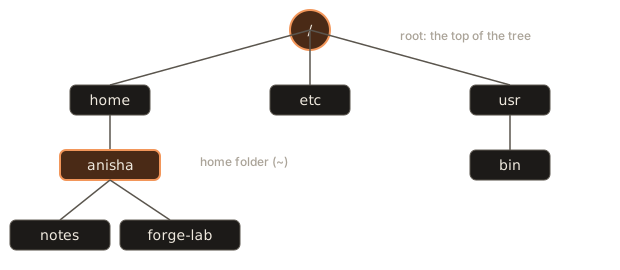
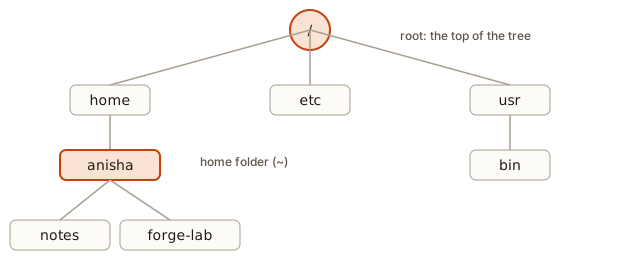 The Linux folder tree starting at the root slash, with the home folder of anisha
A few folders under the root are worth knowing by name:
| Folder | What lives there |
|---|---|
/home | One folder per user. Yours is /home/anisha (on macOS: /Users/anisha). |
/etc | System-wide settings files. |
/usr and /bin | Installed programs, including ls and bash. |
/tmp | Temporary files that may be erased on reboot. |
/var | Data that changes while the system runs, such as logs. |
/mnt | On WSL, your Windows drives appear here, for example /mnt/c. |
Windows users on WSL: keep your code inside your Linux home folder (/home/yourname), not under /mnt/c. Files in the Linux side are much faster for tools like Git and Node.
Your home folder
The folder that is yours is the home folder. You start there each time you open a terminal. It holds your documents, your downloads and your projects. The shell has a shortcut for it, the tilde: ~. So ~ means /home/anisha, and ~/projects means /home/anisha/projects. You can see the expansion yourself:
$ echo ~
<lab>/anisha
$ echo ~/projects
<lab>/anisha/projects
Remember from lesson one that the shell rewrites your line before running it. The tilde is one of the things it expands. The program echo never sees a tilde: it receives the full path.
The three navigation commands
Three commands are enough to move through the whole tree.
| Command | Meaning |
|---|---|
pwd | Print the working directory: where am I? |
ls | List what is here. |
cd | Change directory: go somewhere else. |
The working directory (or current directory) is the folder the shell is standing in. It is real state: the shell holds it in memory, and every program you start inherits it. That is why ls with no argument lists the folder you are in, and why moving with cd changes what the next command sees.
Here is the sandbox we will use for the rest of the lesson. Assume your home folder holds this:
/home/anisha
├── Documents
│   └── my report.txt
├── Downloads
├── forge-lab
├── projects
│   ├── notes
│   │   ├── a.txt
│   │   └── b.md
│   └── shop
│       ├── README.md
│       └── src
│           └── app.js
├── todo.txt
├── .bashrc
└── .profile
The outputs in this lesson were captured in a practice copy of this folder tree, built in a scratch folder. Where a full path appears in an output, we write the location of that copy as <lab>. On your machine the same commands print paths that start with your own home folder. Your owner name and the dates in ls -l will also differ from ours.
pwd: where am I?
$ cd
$ pwd
<lab>/anisha
A bare cd with no argument always takes you home. pwd prints the full address of where you are. When a command misbehaves, pwd is the first thing to run.
ls: what is here?
$ ls
Documents  Downloads  forge-lab  projects  todo.txt
ls sorts names alphabetically and prints them in columns. Without a flag it hides names that start with a dot. Those are hidden files, usually settings files such as .bashrc. The -a flag (all) reveals them:
$ ls -a
.  ..  .bashrc  .profile  Documents  Downloads  forge-lab  projects  todo.txt
Two odd names appear at the front: . and ... They are not real files you created. They are shortcuts that exist in every folder. . means "this folder" and .. means "the parent folder". You will use .. all the time.
The long format: ls -l
The -l flag (long) prints one line per item with details.
$ ls -l
total 4
drwxr-xr-x 2 chiranjeet chiranjeet 60 Nov  4 20:33 Documents
drwxr-xr-x 2 chiranjeet chiranjeet 40 Nov  4 20:33 Downloads
drwxr-xr-x 2 chiranjeet chiranjeet 40 Nov  4 20:33 forge-lab
drwxr-xr-x 4 chiranjeet chiranjeet 80 Nov  4 20:33 projects
-rw-r--r-- 1 chiranjeet chiranjeet  9 Nov  4 20:33 todo.txt
Read one line from left to right, using todo.txt:
-rw-r--r--is the type and permissions. The first character is-for a plain file anddfor a directory. The other nine are permissions, covered in lesson five.1is the number of links. For a file it is the number of names that point at its data. Lesson three shows a case where it is more than one.chiranjeet chiranjeetare the owner and the group.9is the size in bytes. The file holdsbuy milkplus a newline, which is nine characters.Nov 4 20:33is when it was last modified.todo.txtis the name.
Sizes in bytes are hard to read once files are big. The -h flag makes them human-friendly, like 4.0K or 1.2M. Flags can be combined into one word: ls -lah means -l -a -h.
A few more ls forms you will use:
$ ls projects
notes
shop
$ ls -R projects
projects:
notes
shop

projects/notes:
a.txt
b.md

projects/shop:
README.md
src

projects/shop/src:
app.js
$ ls -1
Documents
Downloads
forge-lab
projects
todo.txt
$ ls -d */
Documents/
Downloads/
forge-lab/
projects/
ls projects lists a folder you are not standing in: you can hand ls a path. -R means recursive: it also lists everything inside every folder below. -1 forces one name per line, which is useful when you plan to pass the list to another command. ls -d */ shows only directories, because the pattern */ matches names that end in a slash.
cd: moving
cd takes one argument, a path, and makes it your working directory.
$ cd projects
$ pwd
<lab>/anisha/projects
$ cd notes
$ pwd
<lab>/anisha/projects/notes
$ cd ..
$ pwd
<lab>/anisha/projects
$ cd ../..
$ pwd
<lab>
Read the last step carefully. You were in <lab>/anisha/projects. The first .. goes up to <lab>/anisha, the second up to <lab>, the folder that holds the copy. Each .. is one level up. A common beginner slip is thinking cd .. goes "back to where I was". It does not: it goes to the parent, which is a different idea.
Four special forms:
| Command | Where it takes you |
|---|---|
cd or cd ~ | Your home folder. |
cd .. | The parent folder. |
cd - | The folder you were in just before (and it prints that folder). |
cd / | The root of the whole tree. |
cd - is the true "go back" command. It toggles between your last two places, which is great when you work in two folders at once.
$ cd ~/projects/shop/src
$ cd ~/projects/notes
$ cd -
<lab>/anisha/projects/shop/src
$ cd -
<lab>/anisha/projects/notes
Worked example: one session, step by step
Here is a short session that uses everything so far. Read each command, predict what it does, then compare with the output.
$ cd
$ cd projects
$ ls
notes
shop
$ cd notes
$ pwd
<lab>/anisha/projects/notes
$ ls ../shop/src
app.js
$ cd ../shop
$ pwd
<lab>/anisha/projects/shop
$ cd -
<lab>/anisha/projects/notes
$ cd -
<lab>/anisha/projects/shop
Trace it:
cdwith no argument puts you in<lab>/anisha. Nothing is printed, becausecdprints nothing on success.cd projectsmoves down one level.lsshows the two folders inside it.cd notesmoves down again.pwdconfirms it.ls ../shop/srcdoes not move you at all. It lists a folder by a relative path that starts fromnotes: up toprojects, then down intoshop, thensrc.cd ../shopmoves you sideways, to a sibling folder. Both folders sit underprojects, so..gets you to the shared parent first.- The first
cd -returns you tonotes, the place you were before this move. The secondcd -returns you toshop. It toggles, and never goes further back than the last step.
The lesson in the trace: most of the time you only need to know where you are now. pwd answers that, and cd - answers "where was I just now?".
Absolute and relative paths
A path is the text that names a location. There are two kinds.
An absolute path starts with / (or ~). It begins at the root, so it means the same thing no matter where you are. /home/anisha/todo.txt is the full address.
A relative path does not start with /. It begins at your working directory. notes/a.txt means "inside the notes folder that is right here". ../todo.txt means "go up one folder, then take todo.txt".
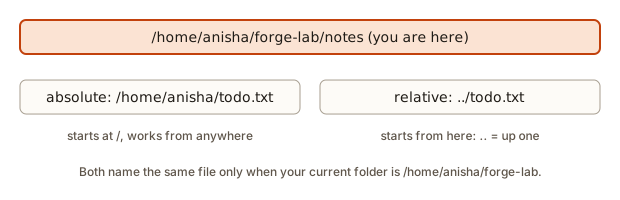 Absolute and relative path to the same file
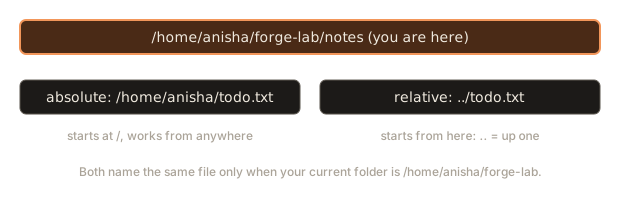
The rule to remember: look at the first character. A slash means absolute. Anything else means relative to where you stand. You can also begin a relative path with ./, which spells out "this folder" and changes nothing: ./a.txt is the same file as a.txt.
Run this program. It does what the shell and the operating system do together: it takes the text you typed, expands the tilde, joins it onto the working directory, and cancels out the .. steps.
a.txt              -> /home/anisha/projects/notes/a.txt
./a.txt            -> /home/anisha/projects/notes/a.txt
..                 -> /home/anisha/projects
../shop            -> /home/anisha/projects/shop
../../todo.txt     -> /home/anisha/todo.txt
~                  -> /home/anisha
~/Documents        -> /home/anisha/Documents
/etc               -> /etc
../../../../..     -> /
Study the last line. You cannot go above the root: the parent of / is / itself, so five .. steps from a folder only three levels deep just stop at /. This is also why cd ../../../../.. never produces an error, even if you climb too far.
Worked example: a relative path from the wrong folder
Relative paths are the most common source of "file not found". Here is the same file asked for from two different places. In the first case we stand in projects/notes:
$ cd ~/projects/notes
$ cat ../../todo.txt
buy milk
$ cat todo.txt
cat: todo.txt: No such file or directory
The first line works. ../../todo.txt climbs from notes to projects, then to your home folder, and finds todo.txt there. The second line fails. The file is in your home folder, but the path todo.txt means "inside notes", where no such file exists. The name is right and the location is wrong. The shell is not confused: it is doing exactly what you told it, from the place you stood.
The fix is to write down where you are before you trust a relative path: pwd, then the path as an absolute one in your head. pwd prints <lab>/anisha/projects/notes, and <lab>/anisha/projects/notes plus todo.txt is <lab>/anisha/projects/notes/todo.txt, which does not exist.
Which kind should you use?
Both have a place.
- Use relative paths for everyday work inside a project. They are short, and they keep working if the whole project folder is moved or copied to another machine.
- Use absolute paths (or
~) in scripts that must work from any folder, and when you are copying a path from one place to another.
The computer can work out the shortest relative path between two places, and this next program does it. Try changing the pairs.
from /home/anisha/projects/notes
   to /home/anisha/todo.txt
   relative path: ../../todo.txt
from /home/anisha
   to /home/anisha/projects/shop/src/app.js
   relative path: projects/shop/src/app.js
from /home/anisha/projects/shop
   to /etc/hosts
   relative path: ../../../../etc/hosts
The third pair shows why long chains of .. are a warning sign. When you need four ups to reach a file, an absolute path is easier to read and harder to get wrong.
Edge cases in path syntax
Paths allow a few forms that look strange at first. All of them resolve the same way: the shell removes repeated slashes and single dots, then applies each .. to the path so far.
$ cd ~
$ cd projects//notes/
$ pwd
<lab>/anisha/projects/notes
$ cd ./../shop/./src
$ pwd
<lab>/anisha/projects/shop/src
$ cd /..
$ pwd
/
$ cd ~/projects/notes/../../../..
$ pwd
<lab>
Two lines matter most. The double slash in projects//notes/ is treated as one slash, and the trailing slash does not change the folder you land in. The line cd /.. ends at /, because the root has no parent. Climbing above the root is never an error, and the same happens if you climb too far from your home folder.
Taking a path apart
Programs often need only the folder part or only the file name. Those are the directory name and the base name. Shell commands dirname and basename do the same as this code:
'/home/anisha/projects/notes/a.txt'
   dirname : '/home/anisha/projects/notes'
   basename: 'a.txt'
   absolute: True
'projects/notes/'
   dirname : 'projects/notes'
   basename: ''
   absolute: False
'/'
   dirname : '/'
   basename: ''
   absolute: True
'todo.txt'
   dirname : ''
   basename: 'todo.txt'
   absolute: False
'.bashrc'
   dirname : ''
   basename: '.bashrc'
   absolute: False
Notice the trailing slash case: projects/notes/ has an empty base name in this library, because the slash means "the thing before me is a folder". The shell command basename behaves differently and strips the slash first. Libraries disagree on small details like this, so check when it matters. Notice also that .bashrc has no "extension": the whole name after the dot is the name.
Spaces and odd characters in names
Remember that the shell splits at spaces. A file called my report.txt therefore needs help. Here it is inside Documents:
$ cd ~/Documents
$ cat my report.txt
cat: my: No such file or directory
cat: report.txt: No such file or directory
$ cat "my report.txt"
Q3 numbers
$ cat my\ report.txt
Q3 numbers
The first line fails because cat received two arguments, my and report.txt, and looked for two files. The fixes are quotes or a backslash before the space. The simplest cure is a habit: use Tab completion. Type cat my and press Tab. The shell completes the name and adds the backslash for you.
Most developers avoid spaces in file and folder names for exactly this reason, using my-report.txt or my_report.txt instead. Do the same for everything you create.
Wildcards: naming many files at once
A wildcard (also called a glob) is a pattern that matches file names. The shell expands it into the list of matching names before the command runs.
| Pattern | Matches |
|---|---|
* | Any run of characters, including none. |
? | Exactly one character. |
[abc] | One character from the set. |
[0-9] | One character in a range. |
$ ls projects/notes/*.txt
projects/notes/a.txt
$ ls projects/*
projects/notes:
a.txt  b.md

projects/shop:
README.md  src
In the second command the shell turned projects/* into projects/notes projects/shop and gave ls two arguments, each a folder, so ls listed both. The program never saw the star. You can model that expansion yourself in JavaScript:
*.txt    ["a.txt","notes.txt","todo.txt"]
*.md     ["b.md"]
?.txt    ["a.txt"]
*        ["a.txt","b.md","notes.txt","photo.jpg","todo.txt","report.pdf"]
n*       ["notes.txt"]
*.csv    []
Three observations:
?.txtmatches onlya.txtbecause?is exactly one character, sotodo.txtandnotes.txtdo not match.- Names that start with a dot are skipped by
*. That is why.hidden.txtnever appears. This protects your hidden settings files from being swept up by accident. - A pattern that matches nothing, like
*.csv, is handled differently by each shell. Bash passes the literal text*.csvon to the program, which then complains that no such file exists. zsh stops before running anything. Both are shown in the common mistakes section below.
What happens inside
It helps to know what cd really does, because it explains behaviour that otherwise feels arbitrary.
The working directory belongs to a process. Each running program has its own current folder, stored by the operating system. When the shell starts a program such as ls, the new process begins with a copy of the shell's folder. That is how ls knows where to look.
cd must be a built-in. If it were a separate program, it would change its own folder and then exit, leaving your shell where it was. Changing the shell's folder requires code that runs inside the shell. That is the reason type cd says "shell builtin":
$ type cd
cd is a shell builtin
$ type ls
ls is /usr/bin/ls
The shell remembers where you are in two variables. Lesson one introduced variables, and two of them track your folder. PWD holds the current folder and OLDPWD holds the folder you left. cd updates both every time it succeeds:
$ cd ~/projects/notes
$ echo $PWD
<lab>/anisha/projects/notes
$ cd ..
$ echo $OLDPWD
<lab>/anisha/projects/notes
This is also the mechanism behind cd -: the shell reads the previous folder from memory and goes there. Notice the second echo. OLDPWD still holds notes, the folder you left, even though the current folder is now projects. Both variables change only through cd. Creating or renaming folders does not touch them, so PWD can be wrong after an outside program has moved a folder around you. pwd asks the operating system directly, so run it when in doubt.
Resolving a path is a walk. To open /home/anisha/todo.txt, the system starts at the root, finds home in the root, finds anisha in that, and finds todo.txt in that. A folder is really a small table mapping names to things. A relative path does the same walk but starts from the working directory instead of the root. .. is an entry in every folder's table that points at the parent. This is also why . and .. appear in ls -a.
The toy shell below keeps the same two pieces of state, a tree and a working directory, and has a cd and an ls that follow the rules above. Watch how cd - uses the remembered previous folder, and what happens on a bad path.
/home/anisha$ ls
Documents  projects  todo.txt
/home/anisha$ cd projects
/home/anisha/projects$ ls
notes  shop
/home/anisha/projects$ cd notes
/home/anisha/projects/notes$ ls
a.txt  b.md
/home/anisha/projects/notes$ cd ../shop
/home/anisha/projects/shop$ ls
README.md  src
/home/anisha/projects/shop$ cd -
/home/anisha/projects/notes$ cd nope
cd: nope: No such file or directory
/home/anisha/projects/notes$ cd ../../..
/home$ ls
anisha
final: /home
Notice that the failed cd nope did nothing: you stay where you were. A failed cd is harmless, but it is a trap inside scripts: if the cd fails and the next line deletes files, it deletes them in the wrong folder. That is why people write cd build && rm -rf * and never cd build; rm -rf *.
Sorting the listing, and shortcuts that point elsewhere
ls has flags that change the order, and three are worth knowing:
-tsorts by modification time, newest first. After a build or a download,ls -ltputs the file you just made at the top.-Ssorts by size, largest first.ls -lhSis the quick way to answer "what is eating my disk space here?".-rreverses whatever order you picked.ls -ltrputs the newest file last, right above your next prompt, which is where your eyes are.
Flags combine freely, so ls -lhS projects means long format, human sizes, largest first, for the projects folder.
Some entries in a listing are symbolic links (symlinks): small files that point at another path, like a shortcut on a desktop. In ls -l they appear with an l as the first character and an arrow. Here is one made on purpose:
$ cd
$ ln -s projects/shop current-shop
$ ls -l current-shop
lrwxrwxrwx 1 chiranjeet chiranjeet 13 Nov  4 20:33 current-shop -> projects/shop
$ cd current-shop
$ pwd
<lab>/anisha/current-shop
$ pwd -P
<lab>/anisha/projects/shop
$ ls
README.md
src
ln -s target name creates the link. The first word after -s is what the link points at, and the second is the name of the new link. The ls -l line shows the arrow and the stored target. When you cd through the link, pwd shows the path you took, which goes through current-shop. pwd -P (physical) shows where the files really live. The ls after the cd lists projects/shop, the real folder, because the link forwards every path to it.
You will meet symlinks in deployment setups, where current points at the newest release folder, and in /usr/bin, where one program often has several names. When a path surprises you, pwd -P tells you the real location.
Inside the tree: folders are tables
The idea of a tree makes more sense once you see what a folder really holds. Every file and folder has an inode number: a number the file system uses internally to find the file's record on the disk. A folder is a list of names with an inode number next to each. ls -i shows those numbers, and ls -ai shows them with the hidden . and .. entries:
$ cd ~
$ ls -ai projects
2935182 .
2935178 ..
2935183 notes
2935184 shop
$ ls -id . projects/.. projects
2935178 .
2935182 projects
2935178 projects/..
Read the numbers. The .. entry inside projects holds 2935178, the number of your home folder. The . in projects holds 2935182, which is the number projects is listed under in the home folder. So projects/.. and . (from home) are the same folder, and so are projects/notes/.. and projects. Your numbers will differ, but the pattern is the same on every machine.
The numbers answer the question "how does .. work?". It is an ordinary entry in each folder's table, like any other name, that happens to point at the parent. No magic is involved. The shell and the operating system just follow entries, one name at a time.
Exploring a machine you have never seen
A skill that sets developers apart is looking around a new server or a new codebase quickly, with no map. Here is a routine you can use anywhere. Suppose you have just logged into a machine and been told "the app is in /var/www".
cd /var/wwwtakes you there. If it fails, the error tells you the folder does not exist, andls /varshows you what does.ls -lashows everything, including hidden files. A file called.envor.gittells you a lot:.gitmeans it is a Git repository, and.envmeans the app has secret settings.ls -ltputs recently changed files first, which answers "what did someone touch last?".pwdconfirms the full path, and you can paste it into a message to a teammate.ls -R | head -40gives a quick overview of the nested folders without flooding your screen. The|is a pipe: lesson four explains it.- When you are lost,
cdwith no argument takes you home, and you start again.
The same routine works on your own laptop after you clone a project: ls -la first, always. The names tell you the technology before you open a single file. A package.json means Node. A pom.xml means Java with Maven. A requirements.txt means Python. A Dockerfile means the project is built as a container.
A useful rule of thumb for any folder: before you act on it, look at it. Running ls costs nothing, and it is the cheapest insurance you have against working in the wrong place.
Tab completion for paths
Complete paths with Tab, always. Type cd pro and press Tab: it becomes cd projects/. Type cd projects/sh and Tab again: cd projects/shop/. Tab saves typing and, more importantly, proves the path exists, because a name that completes is a name that is real. If Tab does nothing, either nothing matches or several things match. Press Tab twice to see the candidates.
A related habit: after cd, run pwd and ls. It costs a second and tells you exactly where you landed and what is there.
Windows, macOS and Linux differences
- On macOS the home folder is
/Users/anisha, andlscomes from the BSD family. Most flags used here work, andls -lahworks. Colours may needls -G. - On WSL, you can reach your Windows files at
/mnt/c/Users/YourName. Reading is fine. Do not put project code there. - Linux file names are case sensitive:
Todo.txtandtodo.txtare different files. macOS (by default) and Windows treat them as the same, which sometimes causes a project to work on one machine and break on another. - Windows paths use a backslash (
C:\Users\anisha). In the Linux shell, a backslash is an escape character, and a path separator is always the forward slash. - Shells differ too. Bash and zsh print different messages for the same mistake. The common mistakes below show both.
Common mistakes
Each mistake below shows the real message from a bash session. Zsh, the default shell on recent macOS, phrases some of them differently, and both forms are shown where it matters.
1. Going to a folder that does not exist (or is spelled differently).
$ cd project
bash: cd: project: No such file or directory
$ cd project
zsh:cd:1: no such file or directory: project
Read it as: the shell is in a folder where nothing named project exists. Press Tab to see what does. The folder is probably projects.
2. Using an absolute path where you meant a relative one.
$ cd /projects
bash: cd: /projects: No such file or directory
The leading slash means "from the root". The projects folder is under your home, not at the top. You wanted cd projects or cd ~/projects.
3. Trying to cd into a file.
$ cd todo.txt
bash: cd: todo.txt: Not a directory
cd only works on folders. A file is not a place you can stand in.
4. Forgetting that names with spaces need quotes. Seen above: cat: my: No such file or directory means the shell split your name in two.
5. Case mismatch.
$ cd documents
bash: cd: documents: No such file or directory
The folder is Documents. On Linux the capital letter matters.
6. Using cat on a folder.
$ cat projects
cat: projects: Is a directory
cat reads files. A folder has no contents to print, only names. Use ls projects to see the names.
7. A pattern that matches nothing. Bash and zsh disagree here, and both messages are worth recognising:
$ ls *.csv
ls: cannot access '*.csv': No such file or directory$ ls *.csv
zsh:1: no matches found: *.csvIn bash the star is passed to ls unchanged, so ls looks for a file literally named *.csv. In zsh the shell stops before running ls. In both cases the pattern matched nothing. If you see an error with a star in it, a wildcard found no files.
8. Thinking cd .. means undo. It means "parent". Use cd - to return to where you were.
9. Using cd and expecting the folder change to survive a script. If a script runs cd somewhere, that only changes the folder inside the script's own process. When the script ends, your shell is still where it was. Remember: each process has its own working directory.
10. Typing a user's home folder wrongly.
$ cd ~nosuchuser
bash: cd: ~nosuchuser: No such file or directory
The ~ followed by a name means "the home folder of that user", not "my home folder". Without the name, ~ alone is yours.
A debugging walkthrough
A teammate sends you this message: "run node src/app.js from the project". You type it and get this output. We ran it in a home folder that has no src folder, and trimmed the stack trace after its first lines:
$ node src/app.js
node:internal/modules/cjs/loader:1568
  throw err;
  ^

Error: Cannot find module '<lab>/anisha/src/app.js'
    at Module._resolveFilename (node:internal/modules/cjs/loader:1564:15)
    ...
The error message already prints the full path Node tried, and that is your clue. You are in <lab>/anisha, so the relative path src/app.js resolved to <lab>/anisha/src/app.js. The file is actually at <lab>/anisha/projects/shop/src/app.js. The stack trace below the first line is noise for this problem. The path in the message is the part to read.
Do this:
pwdshows<lab>/anisha: you are in the wrong folder.cd projects/shopmoves into the project.lsshowsREADME.md src: the structure matches what your teammate described.node src/app.jsnow resolves to the right file. It printshi, the one line the program was written to print.
The general lesson: when a relative path fails, convert it to its absolute form in your head (working directory plus relative path) and compare with where the file really is. Nearly every "file not found" bug is a mismatch between those two.
A second debugging walkthrough: the file that is "not there"
A file exists, you can see it in an editor, and a program still says it is missing. Put a config file in shop and run a command from src:
$ cd ~/projects/shop
$ echo '{"port": 3000}' > config.json
$ cd src
$ cat config.json
cat: config.json: No such file or directory
$ cat ../config.json
{"port": 3000}
The file is there. It is one folder up. Now the same mistake in a program. Node is the JavaScript runtime you will use later, and it reports the same problem in its own words. Node prints a stack trace above its message, and the line with ENOENT is the one to read:
$ node -e 'require("fs").readFileSync("config.json", "utf8")'
Error: ENOENT: no such file or directory, open 'config.json'
ENOENT means "no entry": nothing with that name exists at the path the program tried. The program does not look at your editor's view. It looks at the working directory of its own process, which is src, because you started it there. Steps to fix it:
- Run
pwdin the same terminal that ran the program. It tells you the folder the program really started in. - Compare that folder with the place the file lives.
lsin each folder shows which one holdsconfig.json. - Fix it in one of two ways. Start the program from
shop, or write the path the program receives as a path from where it starts, such as../config.json.
The fix that lasts is the second one, paired with a rule for the project. Many programs resolve config paths from the folder of the file itself, not from where they were started. Check the documentation of the tool before you rely on either behaviour.
Where this shows up in real work
- Every project README begins with
cdinto a folder, and expects you to know the difference between running from the project root and running from a subfolder. - Build tools and test runners resolve file paths relative to where you started them. "Works from the root but not from
src" is a path bug you will meet in your first month. - Config files often contain relative paths (
./data/users.json). Whether it works depends on the directory the program was started in, not where the config lives. - On servers, the absolute paths
/etc,/var/logand/home/deployare where you look for settings, logs and apps, so knowing the tree lets you find things on a machine you have never seen. - Deployments use symlinks such as
current. When a release goes wrong,pwd -Pshows which real folder the link was pointing at.
Practice
1. (Easy) Without running anything, predict the output of cd ~ followed by pwd for a user named ravi on Linux.
Solution
/home/ravi. The tilde expands to the home folder, and pwd prints it.
2. (Easy) You are in /home/anisha/projects/notes. Which folder does cd ../.. take you to?
Solution
/home/anisha. The first .. goes to projects, the second to anisha.
3. (Easy) Name two differences between ls and ls -la in what they show.
Solution
ls hides names that start with a dot. ls -la shows them, plus . and .., and gives one detailed line per item with type, permissions, owner, size and date.
4. (Easy) Is ./todo.txt absolute or relative? What about ~/todo.txt?
Solution
./todo.txt is relative (starts at the working directory). ~/todo.txt is absolute in effect: the shell expands the tilde to /home/anisha, so it begins at the root and works from anywhere.
5. (Medium) From /home/anisha/projects/shop/src, write the shortest relative path to /home/anisha/projects/notes/a.txt.
Solution
../../notes/a.txt. Up one gets you to shop, up two to projects, then down into notes. You can confirm with posixpath.relpath("/home/anisha/projects/notes/a.txt", "/home/anisha/projects/shop/src").
6. (Medium) You run ls *.txt in a folder that has no .txt files. In bash, what does the error say and why?
Solution
ls: cannot access '*.txt': No such file or directory. The pattern matched nothing, so bash left it as the literal text *.txt, and ls looked for a file with that exact name. (In zsh the shell itself fails first with zsh: no matches found: *.txt.)
7. (Medium) You are in /home/anisha. In order, you run cd projects, cd notes, cd -, cd ... Where are you at the end?
Solution
Step by step: after cd projects you are in /home/anisha/projects. After cd notes you are in /home/anisha/projects/notes. cd - goes back to /home/anisha/projects. cd .. then goes to the parent, /home/anisha.
8. (Medium) Write one command that lists only the folders in your home folder, one per line.
Solution
ls -d */ prints them in columns. For one per line, add -1: ls -1d */. The pattern */ matches only names that are directories.
9. (Medium) You made a symlink with ln -s projects/shop current-shop in your home folder. You cd current-shop and then run pwd -P. What does it print, and why is it different from pwd?
Solution
It prints the real location, /home/anisha/projects/shop. Plain pwd prints the path you walked through, /home/anisha/current-shop. The link forwards the path to the real folder, but pwd keeps the name you used. pwd -P resolves every link on the way.
10. (Hard) Extend the JavaScript glob function so that [ab]* works, meaning "starts with a or b". Test it on the files array.
Solution
Stop escaping [ and ] in the pattern. In the replace character class, remove \[ and \], so the regular expression engine treats [ab] as a set. With the sample files, [ab]* returns ["a.txt","b.md"]. A full glob implementation also handles [!ab] (negation, which becomes [^ab]), but the idea is the same: the shell translates your pattern into a matcher and tests each name.
11. (Hard) A script contains cd deploy on line 3 and rm -rf * on line 4. Explain the danger, and rewrite it more safely.
Solution
If deploy does not exist, cd fails, but the script keeps going, so rm -rf * deletes everything in whatever folder the script started in. Safer: cd deploy && rm -rf ./*, so the delete only runs when the cd succeeded. Even better is to add set -e at the top of the script, which stops it at the first failing command, and to avoid blanket deletes whenever you can.
12. (Hard) Run ls -id projects projects/shop/.. projects/notes/... Which entries print the same number, and what does that prove about shop and notes?
Solution
All three lines print the same number, because projects/shop/.. and projects/notes/.. both lead to projects. So shop and notes are two different folders (different inode numbers from each other) that sit side by side inside projects. The check uses the .. entries, not the names, which is the same reasoning that makes cd ../notes from shop work.
What you now know
- The file system is a tree under the root
/. Your home folder is~. pwdsays where you are,ls(with-l,-a,-h,-R,-i) shows what is there, andcdmoves you.cd -goes back to the last folder.- Absolute paths start at
/and work anywhere. Relative paths start at your working directory, with.for here and..for the parent. - The shell expands
~and wildcards like*.txtbefore the program runs, and quotes or Tab handle names with spaces. - A symlink is a name that forwards to another path.
pwdshows the path you took, andpwd -Pshows the real one. - The working directory belongs to each process, which is why
cdis a built-in and why a wrong folder is behind most "file not found" errors.