Why this matters
Almost every tool you will use as a developer is started from a text window: Git, Node, Python, Docker, the Java compiler, database clients, deployment tools. Many of them have no buttons at all. When you rent a server in the cloud, the only way in is a text window. When a job posting says "comfortable with the command line", this is what it means.
This lesson builds the foundation: what the window is, what the program inside it does with each line you type, and how to read what comes back. The next four lessons add the commands you will use every day.
Two ways to talk to a computer
You already know one way: the graphical user interface, or GUI. You click folders, drag files, and press buttons. Think of a restaurant with a picture menu. You can only order what has a picture, but you never have to learn any words.
The other way is the command-line interface, or CLI. You type a sentence, press Enter, and the computer does exactly what the sentence says. Think of writing a note to the chef: you can ask for anything the kitchen can make, including things no menu lists, and you can hand the chef the same note tomorrow and get the same dish.
That last point is the real reason developers use the terminal. A typed command can be:
- Repeated. Run it again tomorrow, or on a hundred files, with no extra clicking.
- Saved. Put ten commands in a file and you have a script that does a whole job.
- Shared. You can paste a command into a chat or a README, and a teammate gets the identical result. "Click the third tab, then the gear icon, then..." does not survive being copied.
- Combined. The output of one command can become the input of the next. You will do this in lesson four, and it is where the terminal becomes powerful.
- Run remotely. A server in a data centre has no screen. You reach it over a network and type commands.
The terminal is not better than a GUI for everything. Looking at a photo is a job for a GUI. Renaming 300 photos, or finding which of 2,000 files contains a certain word, is a job for the terminal.
Terminal, shell, prompt and command
Four words get mixed up. Here is each one, in plain terms.
- The terminal (also called a terminal emulator) is the window. It shows text and sends your key presses along. It does not understand commands. It is like the screen and keyboard of an old computer.
- The shell is the program running inside that window. It reads each line you type, works out what you mean, and starts the right program. Common shells are
bash(the long-time default on Linux),zsh(the default on macOS since 2019) andfish. Think of the shell as a receptionist: you tell the receptionist what you want, and the receptionist finds the right person and passes the request on. - The prompt is the short piece of text the shell prints to say "ready for your next line". It usually ends with
$(or%in zsh). - A command is one line you type at the prompt and run by pressing Enter.
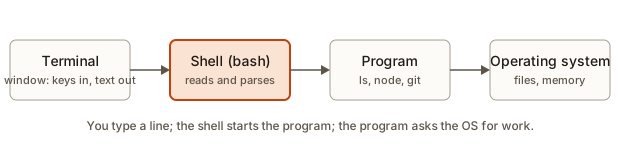 Terminal, shell, program and operating system as four boxes in a row
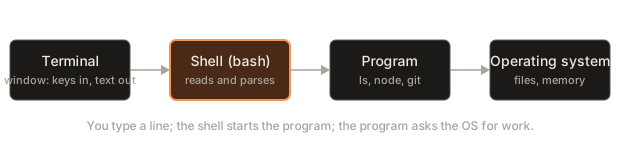
The diagram shows the chain. Your key presses go to the terminal, the terminal hands the line to the shell, the shell starts a program, and the program asks the operating system (the core software that manages files, memory and hardware) to do the real work. When the program finishes, the output travels back along the same path to your screen.
This course uses bash commands, which also work in zsh. Everything you learn here transfers to any server you will ever log into.
Opening a terminal
You need a Unix-style shell. Where you find it depends on your machine.
Linux. Press Ctrl+Alt+T on most distributions, or search "Terminal" in the applications menu.
macOS. Press Cmd+Space, type "Terminal", press Enter. The shell is zsh. Almost every command in this course behaves the same. Where macOS differs, the lesson says so.
Windows. Windows has its own shells (Command Prompt and PowerShell) with different commands. Do not try to translate this course into them. Instead install WSL, the Windows Subsystem for Linux, which runs a real Linux system inside Windows. Open PowerShell as administrator, run wsl --install, restart when asked, and open the "Ubuntu" app from the Start menu. You will be asked to create a username and password for your Linux account. From then on, "the terminal" means that Ubuntu window.
Inside your editor. VS Code has a built-in terminal: press Ctrl+` (the backtick key, under Esc). It opens in your project folder, which is handy. On Windows, set its default profile to Ubuntu (WSL) so it uses Linux commands.
When the window opens you see something like this:
anisha@laptop:~$Read it left to right. anisha is your username. laptop is the computer's name. The ~ is your current folder (more in the next lesson; ~ is shorthand for your home folder). The $ means the shell is waiting. Your prompt may look different, and that is fine. You never type the $ yourself.
In this course, a line that starts with $ is something you type, and the lines below it are what the computer prints. Do not type the $.
The anatomy of a command
Every command has the same shape.
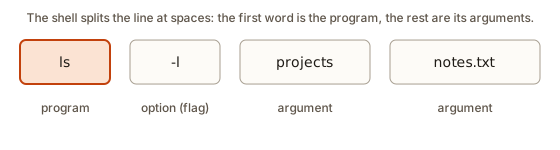 A command line split into program, option and two arguments
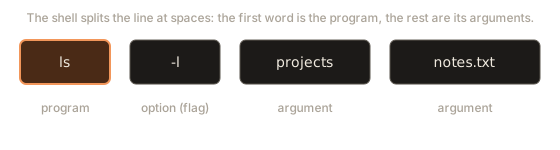
- The first word is the program to run (also called the command name).
- Words starting with a dash, like
-l, are options or flags. They change how the program behaves. - Everything else is an argument: the thing the program should work on, such as a file name.
The shell cuts the line into words at the spaces. The first word is the program, and the rest are handed to it as a list. That list is why a space matters so much: it is the only thing that separates one word from the next. Run the program below, which does the same cutting the shell does, and look at how each line is split.
The output:
ls -l projects
   program: ls
   args   : ['-l', 'projects']
echo hello   world
   program: echo
   args   : ['hello', 'world']
echo "hello   world"
   program: echo
   args   : ['hello   world']
cp notes.txt backup/notes.txt
   program: cp
   args   : ['notes.txt', 'backup/notes.txt']
mkdir -p a/b/c
   program: mkdir
   args   : ['-p', 'a/b/c']
Two details to take from this. First, the extra spaces in echo hello world vanish: the shell throws away spaces between words, so echo receives two words, not three spaces' worth. Second, quotes group words: "hello world" is one argument, spaces included. You will rely on that whenever a file name has a space in it.
Your first commands
Open a terminal and type each of these. Press Enter after each one. The output below each is what you should see.
echo: print text
echo prints its arguments, separated by single spaces.
$ echo hello
hello
$ echo hello   world
hello world
$ echo "hello   world"
hello   world
Step by step for the second line: you typed three words with extra spaces; the shell split them into echo, hello, world; echo printed the two arguments with one space between. In the third line the quotes made one argument, so the spaces survived.
pwd: where am I?
pwd means print working directory. A directory is a folder; the working directory is the folder the shell is currently "standing in". Commands that use relative file names look there first.
$ pwd
/home/anisha
Your path will differ. The next lesson explains paths properly.
ls: what is here?
ls lists the files and folders in the working directory.
$ ls
Desktop  Documents  Downloads  projects
The names you see depend on your computer. On a brand new WSL install, ls may print nothing, and that is fine: an empty folder lists as nothing.
whoami and date
$ whoami
anisha
$ date
Wed Nov  4 09:30:12 IST 2026
whoami prints your username. date prints the current date and time from the computer's clock, so your output will differ. These look trivial, but they show the pattern: a command name, Enter, an answer.
clear: tidy the screen
clear (or Ctrl+L) scrolls the old text out of view. Nothing is deleted. It only gives you a clean page.
A command that makes numbers
seq counts. seq 1 5 prints the numbers from 1 to 5, one per line.
$ seq 1 5
1
2
3
4
5
You will use seq later as a quick way to make test data.
Reading the output: success, errors and exit codes
Programs report whether they succeeded in a way that is easy to miss: a number called the exit code. By convention, 0 means success and any other number means some kind of failure. The shell stores the exit code of the last command in a special variable called $?. Print it with echo.
$ ls /home
anisha
$ echo $?
0
$ ls /nonexistent
ls: cannot access '/nonexistent': No such file or directory
$ echo $?
2
The error message is for you. The number is for other programs and scripts, which use it to decide what to do next. Two tiny programs exist just to give a fixed answer: true always succeeds and false always fails.
$ true; echo "exit: $?"
exit: 0
$ false; echo "exit: $?"
exit: 1
When a command is not found at all, the shell itself reports it, with code 127:
$ nosuchcmd
bash: nosuchcmd: command not found
$ echo $?
127
Here is a toy shell that tracks exit codes the same way. It cannot run real programs, but it shows the logic: run a command, remember its code, and replace $? with that code in the next line.
Output:
$ echo hello
hello
$ whoami
anisha
$ false
$ echo status was 1
status was 1
$ nosuchcmd
toyshell: nosuchcmd: command not found
$ echo status was 127
status was 127
Notice that false printed nothing at all. A failure does not have to be loud. Silent commands can still fail, which is why the exit code exists.
What happens inside when you press Enter
Knowing the sequence makes every later surprise easier to explain. When you press Enter, the shell does this:
- Read the whole line.
- Split it into words, respecting quotes.
- Expand special things:
$NAMEbecomes the variable's value,*.txtbecomes a list of matching file names,~becomes your home folder path. This happens before the program starts, so the program never sees the$or the*. It sees the result. - Find the program. If the first word contains no slash, the shell looks it up (explained next).
- Start the program as a new process, handing it the words as arguments. A process is a running copy of a program. Technically the shell makes a copy of itself and the copy turns into the new program.
- Wait until the program finishes, then record its exit code, and print the prompt again.
Step 3 is the one that surprises beginners, and it is the cause of most "why did that do something odd" moments in later lessons. Keep it in mind: the shell rewrites your line first, then runs it.
How the shell finds a program: PATH
You type ls, but where is the ls program stored? The shell has a variable called PATH: a list of folders separated by colons. It checks each folder from left to right and runs the first match.
$ echo $PATH
/usr/local/bin:/usr/bin:/bin
$ which ls
/usr/bin/ls
which prints where the shell found a program. The same search, written out in Python:
ls         -> /usr/bin/ls
python3    -> /usr/local/bin/python3
node       -> /usr/local/bin/node
bash       -> /bin/bash
pytohn3    -> command not found
Two lessons hide here. python3 exists in two folders, but the one in /usr/local/bin wins because it comes first. That is how you can install a newer version of a tool and have it take over without deleting the old one. And the misspelled pytohn3 is found nowhere, so the shell gives up with "command not found". Most "command not found" errors are typos or a tool that is not installed yet.
Programs versus built-ins
Not every command is a separate program on disk. A few are built-ins, part of the shell itself. cd must be a built-in: a separate program could only change its own folder, not the shell's. The type command tells you which is which.
$ type cd
cd is a shell builtin
$ type ls
ls is /usr/bin/ls
$ type echo
echo is a shell builtin
(Some systems print ls is aliased to 'ls --color=auto' because of an alias, a shortcut the shell expands. Do not worry; the idea is the same.)
Quotes decide where a word ends
Because spaces split words, you need a way to say "this space is part of a name". Quotes do that. There are two kinds, and they differ in one important way.
- Double quotes (
"...") group words, but the shell still expands$VARIABLEinside. - Single quotes (
'...') group words and switch off all expansion. What you type is what you get.
$ echo 'single $HOME' "double $HOME"
single $HOME double /home/anisha
Without quotes, a name with a space becomes two arguments, and mkdir my notes creates two folders named my and notes. The JavaScript below counts the words the shell would see in four lines:
echo hi there        3 ["echo","hi","there"]
echo "hi there"      2 ["echo","hi there"]
mkdir my notes       3 ["mkdir","my","notes"]
mkdir 'my notes'     2 ["mkdir","my notes"]
A good habit: put quotes around any argument that contains a space or a $, and use single quotes unless you want a variable expanded.
Variables, a first look
A variable is a named box holding text. You set one with NAME=value (no spaces around the =) and read it with $NAME.
$ NAME=Anisha
$ echo "Hello $NAME"
Hello Anisha
Expansion happens before the command runs. This Python model shows exactly that: the line is rewritten first, and echo only sees the result. An unset variable becomes an empty string, not an error, which is a classic source of silent bugs.
echo Hello Anisha from Pune
echo Hello Anisha from
echo '$NAME'
Lesson five covers variables in depth.
Running more than one command
Three symbols join commands on one line. They look at the exit code.
| Written | Meaning |
|---|---|
a ; b | Run a, then run b, whatever happened. |
a && b | Run b only if a succeeded (exit code 0). |
a || b | Run b only if a failed. |
$ echo one; echo two
one
two
$ echo one && echo two
one
two
$ false && echo never
$ false || echo fallback
fallback
The && form is the one you will use most. mkdir build && cd build means "make the folder, and only if that worked, go into it". If the first step fails, the second does not run on top of a broken state.
Keys that save hours
Typing is the cost of the terminal. These shortcuts remove most of it.
- Tab completes a file or command name. Type
Doc, press Tab, and it becomesDocuments/if that is the only match. Press Tab twice to see all matches. This also prevents typos, so use it constantly. - Up and Down arrows walk through your earlier commands. Edit one and press Enter to run it again.
- Ctrl+R searches your history: press it, type part of an old command, and it shows the latest match. Press Enter to run it.
- Ctrl+C stops the running program. If something hangs or prints forever, this is your emergency stop. (It does not copy text in a terminal.)
- Ctrl+D at an empty prompt ends the shell session, the same as
exit. - Ctrl+L clears the screen.
- Ctrl+A and Ctrl+E jump to the start and the end of the line you are typing.
- Ctrl+W deletes the word before the cursor.
Type history to see a numbered list of your earlier commands. !! repeats the last command, which is handy in the form sudo !! (you will meet sudo in lesson five).
Getting help without leaving the terminal
You will never memorise every flag. You look them up, and the terminal has the manual built in.
$ ls --help
Usage: ls [OPTION]... [FILE]...
List information about the FILEs (the current directory by default).
...
--help works on most programs and prints a short summary. For the full manual, use man:
$ man lsA manual page opens in a viewer. Press the spacebar to go down a page, /word then Enter to search, n for the next match, and q to quit. Pressing q is the part people forget, and then they feel stuck. If a program ever seems to trap you, try q, then Ctrl+C, then Ctrl+D, in that order.
On macOS, man works the same, but the BSD version of ls has different flags from the Linux one, and --help may not be supported. Use man ls there.
A first session, traced line by line
Here is a short, realistic session. Read it as if you were the shell, and say for each line what happened.
$ NAME=Anisha
$ echo "Hello $NAME"
Hello Anisha
$ echo 'Hello $NAME'
Hello $NAME
$ echo Hello $NAMES
Hello
$ echo $?
0- Line 1 stores the text
Anishain a variable namedNAME. Nothing is printed, because an assignment is not a program that produces output. A quiet command is not a broken command. - Line 2: the shell sees double quotes, so it expands
$NAMEfirst and runsechowith the single argumentHello Anisha. - Line 3: single quotes switch expansion off.
echoreceives the literal textHello $NAME. - Line 4: the typo
$NAMESnames a variable that was never set. The shell does not complain. It replaces it with nothing, soechoreceives onlyHello. This is the most common silent mistake with variables: a misspelled name does not fail, it just vanishes. - Line 5 prints
0:echosucceeded, even though the output looked wrong. The exit code tells you whether the program ran, not whether you meant what you typed.
The lesson from the trace: the shell does what you wrote, not what you intended. When output surprises you, ask "what did the shell turn my line into before the program saw it?"
bash, zsh and the rest
You will hear several shell names, so here is how they relate.
shis the old, minimal standard. Scripts written forshrun almost everywhere.bashisshplus many conveniences. It is the default on most Linux servers and in WSL Ubuntu.zshis similar to bash with nicer completion. It is the default on macOS.fishis a friendlier shell that is not compatible with bash scripts.- PowerShell and Command Prompt belong to Windows, and use different command names. That is why we use WSL.
Check which one you are in with echo $SHELL, which prints your default shell, such as /bin/bash or /usr/bin/zsh. Everything in this course works in both bash and zsh. Differences only appear in advanced features, and the course will tell you when one matters.
Your shell reads a startup file when it opens (~/.bashrc for bash, ~/.zshrc for zsh). People put aliases and settings there. You will edit one in lesson five.
History and editing, in more detail
The shell keeps your commands in a history. This matters for two reasons: it saves typing, and it is a record you can search when you forget how you did something last week.
$ history | tail -3
  101  echo hello
  102  ls /nonexistent
  103  history | tail -3
Each line has a number. Typing !102 re-runs entry 102. Use that carefully, and prefer Ctrl+R, which shows you the command before it runs.
Two more habits that pay off:
- Edit instead of retyping. Press the up arrow, move left with the arrow keys or jump with
Ctrl+A, fix the mistake, press Enter. A long command with one wrong letter takes five seconds to repair this way. - Read before you press Enter. A command you pasted from the internet can do anything. Read it. If you do not understand a part of it, look it up with
manor leave it alone. A good rule: never paste a command that starts withsudoor containsrmunless you know what each piece does.
Your first script
A script is a text file containing commands, one per line, that the shell runs from top to bottom. It is the "saved note" idea from the start of the lesson. Create a file named hello.sh with this content (you will learn the editors and cat in lesson three; for now use any text editor):
#!/usr/bin/env bash
echo "Hello from a script"
date +%Y
echo "Arguments: $#"
The first line, starting with #!, is called a shebang. It tells the system which program should run the file. A line starting with # is otherwise a comment, ignored by the shell. $# is the number of arguments you gave the script.
Run it by naming the shell explicitly:
$ bash hello.sh a b
Hello from a script
2026
Arguments: 2
The date +%Y part asks date for just the four-digit year, so your output shows the current year. You passed two arguments, a and b, and $# counted them.
Now try to run the file directly:
$ ./hello.sh
bash: ./hello.sh: Permission denied
The file is not marked as runnable, so the system refuses. Lesson five explains permissions and the fix, chmod +x hello.sh. After that, ./hello.sh works. The ./ means "the file named hello.sh in the current folder". Without it, the shell would search PATH and not find your script.
This is the whole path from one-off typing to automation: a command you ran by hand gets saved in a file, marked as executable, and from then on it is a new command of your own.
Common mistakes
Every beginner hits these. The messages below are real. Learn to read them, because the message almost always names the problem.
1. A typo in the command name.
$ sl
bash: sl: command not found
Read it: the shell looked in every PATH folder and found nothing called sl. Check the spelling, or check whether the tool is installed (which name). On Ubuntu, a missing program often comes with a hint such as "Command 'xyz' not found, but can be installed with: sudo apt install xyz".
2. Typing the prompt. If you copy $ ls including the dollar sign:
$ $ ls
bash: $: command not found
The first $ is the prompt. The second is a command that does not exist. Type only what comes after the prompt.
3. Spaces around = in a variable.
$ NAME = Anisha
bash: NAME: command not found
The shell read NAME as a program and = and Anisha as its arguments. Write NAME=Anisha.
4. Forgetting that a program is waiting. After running a command like cat with no file name, the cursor sits there and nothing happens. The program is waiting for input from your keyboard. Press Ctrl+C to stop it, or Ctrl+D to say "no more input".
5. An unclosed quote.
$ echo "hello
>
The > prompt means the shell is still waiting for the closing quote. Type " and Enter, or press Ctrl+C to cancel.
6. Running a command in the wrong folder. ls shows different things in different folders, and many "file not found" errors are only "wrong folder". Run pwd when in doubt.
A debugging walkthrough
You are told to run ls -l project, and you see:
ls: cannot access 'project': No such file or directoryWork through it in order, as an experienced developer would.
- Read the message.
lsran fine (the shell found it). It says it cannot accessproject. So the program exists and the problem is the argument. - Check your assumption. Run
pwdto see where you are, andlsto see what is there. Suppose it printsprojects, with ans. - Fix and retry.
ls -l projectsworks.
The general method: the first line of an error usually starts with the program name, then says what failed. If the error starts with bash:, the shell had the problem (not found, syntax). If it starts with the program's own name, the program ran and could not do its job. Knowing which side failed halves your search.
Where this shows up in real work
- In an interview or a first day at a job, someone will say "ssh in and tail the logs". That is a terminal sentence: connect to a server and watch a log file grow.
- Every project's README tells you to run commands:
npm install,git clone,python -m venv. You will read and run a dozen commands before you write a line of code. - Build pipelines (CI) are just lists of terminal commands that a server runs when you push code. If you can write a command on your laptop, you can automate it.
- Debugging in production is rarely done with buttons. It is
ps,grep,curland logs, all terminal tools you start learning here.
Practice
Try each one in a real terminal before opening the solution.
1. (Easy) Print the text ForgeStack and then your username on separate lines, using two commands on one line.
Solution
$ echo ForgeStack; whoami
ForgeStack
anisha
The semicolon runs the second command after the first, whatever the result.
2. (Easy) What is the difference between echo hi there and echo "hi there"? Predict the output of each.
Solution
The first prints hi there with one space, because the shell splits the line into two words and echo joins them with a single space. The second prints hi there with three spaces, because the quotes make it one argument.
3. (Easy) Find out whether cd is a program or a built-in, and where ls lives.
Solution
Use type cd and type ls (or which ls for the path). cd reports "shell builtin". ls reports a path such as /usr/bin/ls.
4. (Easy) Run a command that fails, then print its exit code. Then do the same with a command that succeeds.
Solution
$ ls /nonexistent
ls: cannot access '/nonexistent': No such file or directory
$ echo $?
2
$ ls /
$ echo $?
0
Any non-zero number is failure. ls uses 2 for "cannot access".
5. (Medium) Predict what this prints, then run it: false && echo A || echo B.
Solution
It prints B. false fails, so && echo A is skipped. The result of the whole left part is still "failed", so || echo B runs.
6. (Medium) Set a variable GREETING=hello, then print it inside double quotes and inside single quotes. Explain the difference.
Solution
$ GREETING=hello
$ echo "$GREETING"
hello
$ echo '$GREETING'
$GREETING
Double quotes still expand variables. Single quotes do not expand anything.
7. (Medium) You type mkdir my notes and later find two folders. Why, and what should you have typed? How do you delete the two mistaken empty folders?
Solution
The space split the argument into two words, so mkdir made my and notes. Use mkdir "my notes". Remove the mistakes with rmdir my notes (rmdir only removes empty folders, which makes it safe here). Lesson three covers it in detail.
8. (Medium) A teammate says "the command works on my machine but gives command not found on yours". Give two likely causes and one command that helps you check.
Solution
Either the tool is not installed on your machine, or it is installed in a folder that is not on your PATH. Check with which toolname (no output means not found) and echo $PATH to see the searched folders.
9. (Hard) The Python which function earlier returns the first match. Change it so it returns every match in PATH order, so you can see all copies of python3.
Solution
def which_all(name):
    found = []
    for folder in PATH.split(":"):
        if name in fake_disk.get(folder, []):
            found.append(folder + "/" + name)
    return found

print(which_all("python3"))
With the earlier data this prints ['/usr/local/bin/python3', '/usr/bin/python3']. The shell would run the first one. The real which -a python3 does the same.
10. (Hard) You type a long command, press Enter, and see a > prompt with no output. What happened, and give two ways out.
Solution
A quote (or a backslash at the end of the line) was left open, so the shell is waiting for the rest. Close it by typing the missing quote and pressing Enter, or cancel the whole line with Ctrl+C.
What you now know
- The terminal is the window, the shell reads and runs your lines, and the prompt shows it is ready.
- A command is a program name followed by options and arguments, split at spaces.
- Before running, the shell expands variables and wildcards, finds the program through
PATH, runs it, and records an exit code (0 means success). - Quotes control word splitting and expansion;
;,&&and||chain commands. - Tab, the arrow keys,
Ctrl+C,--helpandmanmake you fast and let you work things out yourself.