Why this matters
By now you can move around and manage files. This lesson is where the terminal stops being "a slower way to click" and becomes something a mouse cannot match. You will answer questions like "how many errors are in this 50,000-line log?", "which files mention this function?" and "which user logs in most often?" in one line each.
The ideas are small: a flag changes what a command does, a pipe feeds one command's output into the next, and a handful of tiny tools each do one job well. Chained together, those tools can process data far faster than you could read it.
The practice data
Create these files in forge-lab so every example here works on your machine. They are small on purpose, so you can check every answer by eye.
$ cd ~/forge-lab
$ printf 'apple\nbanana\ncherry\nbanana\ndate\nbanana\n' > fruit.txt
$ cat > app.log <<'EOF'
2026-11-04 09:00:01 INFO server started
2026-11-04 09:00:05 INFO user=asha login ok
2026-11-04 09:01:10 WARN slow query 1200ms
2026-11-04 09:02:44 ERROR payment failed user=ravi
2026-11-04 09:03:00 INFO user=meera login ok
2026-11-04 09:03:30 ERROR timeout calling db
2026-11-04 09:04:12 INFO user=asha logout
EOF
$ cat > people.csv <<'EOF'
name,city,age
Asha,Pune,31
Ravi,Delhi,27
Meera,Pune,35
Kiran,Mumbai,27
EOF
$ mkdir -p projects/shop/src projects/notes
$ echo 'console.log("hi")' > projects/shop/src/app.js
$ echo "TODO fix" > projects/shop/README.md
$ echo "TODO later" > projects/notes/a.txt
$ echo x > projects/notes/b.md
printf is like echo, but it understands \n as a new line. The cat > file <<'EOF' form is the here-document from lesson three. A CSV is a "comma-separated values" file: one record per line, fields separated by commas.
Flags: changing what a command does
A flag (also called an option) is a word that starts with a dash and changes how a program behaves. You have already used ls -l and mkdir -p. The rules are consistent across almost every command:
- A short flag is a dash and one letter:
-l,-a,-r. - Short flags can be combined:
ls -lahis the same asls -l -a -h. - A long flag is two dashes and a word:
--all,--help,--recursive. They are longer to type but easier to read in a script. - Some flags take a value:
head -n 3means "first 3 lines". Some tools accept the value attached (-n3) or with an equals sign for long flags (--lines=3). - A lone
--means "no more flags after this point". This lets you handle a file whose name begins with a dash:rm -- -weird-name.txt.
The first word is the program, flags come next, and the things to work on come last. The order of flags rarely matters, but a flag's value must follow its flag.
Here is how a program might split what it receives into flags and arguments. It is a simplified version of what real argument parsers do:
{ flags: [ 'l' ], args: [ 'projects' ] }
{ flags: [ 'l', 'a', 'h' ], args: [ 'projects' ] }
{ flags: [ 'all', 'l' ], args: [ 'a', 'b' ] }
{ flags: [], args: [ '-weird-name.txt' ] }
Notice that -lah became three flags, and that after -- the weird name is treated as a normal argument even though it starts with a dash.
Finding the right flag
You do not need to memorise flags. Three habits will find any of them:
command --helpprints a quick summary.man commandshows the full manual (qto quit,/wordto search inside it).- A web search for "linux
commandhow to ..." usually lands on a short answer. Read it, and check it againstman, because answers for macOS and Linux sometimes differ.
Standard input, standard output, standard error
Every program starts with three connections to the outside world, called streams.
| Stream | Number | Default | Purpose |
|---|---|---|---|
| standard input (stdin) | 0 | the keyboard | What the program reads. |
| standard output (stdout) | 1 | the screen | Normal results. |
| standard error (stderr) | 2 | the screen | Error messages. |
Think of a program as a workshop with one door for raw material coming in, and two chutes for output: one for products, one for waste notes. By default both chutes end at your screen, which is why you cannot tell them apart. The shell can reroute them.
command > filesends stdout to a file (replacing it).command >> fileappends stdout to a file.command 2> filesends stderr to a file.command < filefeeds a file in as stdin.command 2>&1sends stderr to the same place stdout is going.command > /dev/nulldiscards stdout, andcommand 2> /dev/nulldiscards the errors.
Try the difference between the two output streams:
$ ls fruit.txt nonexist
ls: cannot access 'nonexist': No such file or directory
fruit.txt
$ ls fruit.txt nonexist 2> err.txt
fruit.txt
$ cat err.txt
ls: cannot access 'nonexist': No such file or directory
In the second command the error vanished from the screen because 2> caught it. Only the good output remained. You will see in a moment why this matters for pipes.
Pipes: connecting commands
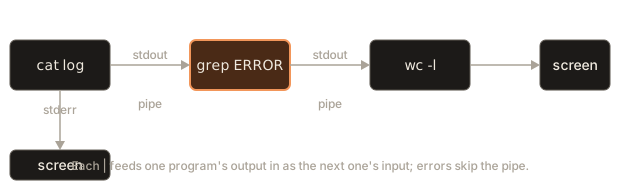
A pipe, written |, connects the stdout of the command on the left to the stdin of the command on the right. The picture to hold: water pipes joining tanks. Whatever one program prints flows straight into the next, with no file in between.
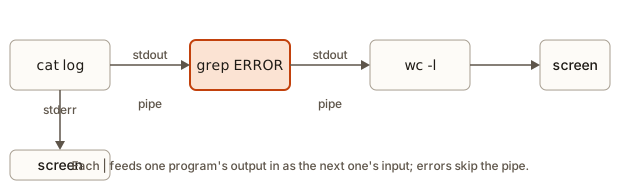 Three commands joined by pipes with stdout flowing right and stderr going to the screen
$ ls | wc -l
4
ls produces a list of names, and wc -l counts lines, so together they count the items in the folder. Neither command knows about the other. Each one just reads text in and writes text out, and that is why they combine so well. This idea is called the Unix philosophy: small programs that do one thing, joined by text.
You can chain as many as you like. Each | adds a stage.
$ cat app.log | head -n 2
2026-11-04 09:00:01 INFO server started
2026-11-04 09:00:05 INFO user=asha login ok
$ head -n 3 app.log | tail -n 1
2026-11-04 09:01:10 WARN slow query 1200ms
The second line shows a classic trick: head -n 3 keeps the first three lines and tail -n 1 keeps the last of those, so you get line 3 exactly.
Here is a pipeline built from scratch. Each stage is a function that takes lines and passes lines on, exactly like the commands do.
      1 apple
      3 banana
      1 cherry
      1 date
The pipe and the error stream
Remember that errors go through stderr, not stdout. A pipe only carries stdout. So errors skip the pipe and appear on your screen:
$ ls fruit.txt nonexist | wc -l
ls: cannot access 'nonexist': No such file or directory
1
The 1 counts only fruit.txt. The error message went straight to the screen. To pipe errors as well, merge them first with 2>&1:
$ ls fruit.txt nonexist 2>&1 | wc -l
2
The model below shows the same logic.
on screen (stderr, not piped): ["ls: cannot access 'nonexist': No such file or directory"]
wc -l counts (stdout only)   : 1

with 2>&1 both streams are merged into the pipe:
wc -l counts                 : 2
The filter toolbox
A small group of commands does most of the work in a pipeline. Learn these and you will rarely need more.
wc: count
wc counts lines, words and bytes. The flags are -l (lines), -w (words) and -c (bytes).
$ wc -l fruit.txt app.log
  6 fruit.txt
  7 app.log
 13 total
$ wc -l < fruit.txt
6
$ cat fruit.txt | wc -l
6
Notice that wc -l fruit.txt prints the file name, while wc -l < fruit.txt and the piped version print only the number: the program does not know a file name when its input comes from stdin. This is useful when you want only the number, for example inside a script.
sort and uniq: order and repeat
sort sorts lines alphabetically. uniq collapses adjacent identical lines into one. The word adjacent is the trap: if the same line appears in two separate places, uniq will not notice. That is why the pair almost always appears together, with sort first.
$ sort fruit.txt | uniq
apple
banana
cherry
date
$ sort fruit.txt | uniq -c
      1 apple
      3 banana
      1 cherry
      1 date
$ sort -u fruit.txt
apple
banana
cherry
date
$ sort fruit.txt | uniq -d
banana
uniq -c prefixes each line with how many times it appeared. sort -u does sort and unique in one step. uniq -d prints only the lines that were duplicated.
By default sort compares text, so the number 10 sorts before 2 (the character 1 comes before 2). Use -n for numeric order:
$ seq 1 10 | sort | head -n 4
1
10
2
3
$ seq 1 10 | sort -n | head -n 4
1
2
3
4
Other useful flags are -r (reverse), and -k with -t for sorting by a column of a delimited file: sort -t, -k3 -n sorts a CSV by its third comma-separated column, numerically.
The famous counting pipeline
Put the pieces together to answer "what appears most?". sort | uniq -c | sort -rn | head is one of the most useful lines in all of computing. Step by step on the fruit file:
$ sort fruit.txt | uniq -c | sort -rn
      3 banana
      1 date
      1 cherry
      1 apple
$ sort fruit.txt | uniq -c | sort -rn | head -n 1
      3 banana
Read it as a recipe: sort so that equal lines touch, count the runs, sort the counts from biggest to smallest, keep the top one. When counts tie, sort falls back to comparing the whole line, which is why the one-count lines come out in reverse alphabetical order. If you want to see it as ordinary code, here it is for a sentence:
    3 the
    2 and
cut and tr: slicing text
cut picks columns. With -d you give the delimiter, and with -f the field numbers.
$ cut -d, -f2 people.csv
city
Pune
Delhi
Pune
Mumbai
$ cut -d, -f1,3 people.csv | head -n 3
name,age
Asha,31
Ravi,27
tail -n +2 means "start at line 2", which skips a header line. So counting people per city, ignoring the header, is:
$ cut -d, -f2 people.csv | tail -n +2 | sort | uniq -c
      1 Delhi
      1 Mumbai
      2 Pune
tr translates or deletes characters. It reads only stdin, so you always pipe into it.
$ echo "hello world" | tr a-z A-Z
HELLO WORLD
$ echo "a,b,c" | tr ',' '\n'
a
b
c
Turning spaces or commas into newlines, as in the second line, is the usual way to make "one item per line", which is the format all the other tools like.
grep: search inside files
grep prints the lines that contain a pattern. The name comes from an old editor command, but you can read it as "search for". It is the tool you will use most.
$ grep banana fruit.txt
banana
banana
banana
$ grep ERROR app.log
2026-11-04 09:02:44 ERROR payment failed user=ravi
2026-11-04 09:03:30 ERROR timeout calling db
Flags that matter:
| Flag | Meaning | Example |
|---|---|---|
-i | Ignore case | grep -i error app.log |
-n | Show line numbers | grep -n banana fruit.txt |
-v | Invert: lines that do NOT match | grep -v banana fruit.txt |
-c | Count matching lines | grep -c banana fruit.txt |
-r | Search all files in a folder, recursively | grep -r TODO projects |
-l | Print only the names of files that match | grep -rl TODO projects |
-w | Match whole words only | grep -w user app.log |
-E | Use extended patterns (like a|b) | grep -E "ERROR|WARN" app.log |
$ grep -n banana fruit.txt
2:banana
4:banana
6:banana
$ grep -v banana fruit.txt
apple
cherry
date
$ grep -c banana fruit.txt
3
$ grep -E "ERROR|WARN" app.log
2026-11-04 09:01:10 WARN slow query 1200ms
2026-11-04 09:02:44 ERROR payment failed user=ravi
2026-11-04 09:03:30 ERROR timeout calling db
$ grep -rn TODO projects
projects/notes/a.txt:1:TODO later
projects/shop/README.md:1:TODO fix
$ grep -rl TODO projects
projects/notes/a.txt
projects/shop/README.md
With -r, each result is prefixed by the file it came from, then the line number (with -n), then the line. That output format, file:line:text, is the same one your editor uses for "search in project".
Here is a model of how the flags work, so you can see that -v simply flips the yes-or-no test:
grep ERROR       ['09:02 ERROR payment failed', '09:04 ERROR timeout']
grep -i info     ['09:00 INFO server started', '09:03 info user login']
grep -v ERROR    ['09:00 INFO server started', '09:03 info user login']
grep -n ERROR    ['2:09:02 ERROR payment failed', '4:09:04 ERROR timeout']
grep -c ERROR    ['2']
A real grep pattern is more powerful than plain text (it is a regular expression, a small language for describing text shapes, which you will meet when you learn a programming language). For now, plain words and -E "a|b" for "either" go a long way.
Quote your patterns. grep -E "ERROR|WARN" needs the quotes: without them the shell would treat | as a pipe and break your command into two.
Pipelines that combine everything
$ grep ERROR app.log | wc -l
2
$ grep ERROR app.log | cut -d' ' -f2
09:02:44
09:03:30
$ cut -d' ' -f3 app.log | sort | uniq -c | sort -rn
      4 INFO
      2 ERROR
      1 WARN
The last one answers "how many log lines of each level?". cut -d' ' -f3 takes the third space-separated field, which is the level. Then the counting pipeline ranks them. Writing this took ten seconds and would take far longer in a spreadsheet.
Worked example: keep the result and count it
Sometimes you want two things from one command: a saved list for later, and a count right now. tee does both. It copies what passes through it into a file, and it also passes the same lines on to the next command in the pipe:
$ grep ERROR app.log | tee errors.txt | wc -l
2
$ cat errors.txt
2026-11-04 09:02:44 ERROR payment failed user=ravi
2026-11-04 09:03:30 ERROR timeout calling db
The name comes from the letter T in a pipe fitting, which splits one flow into two. The file gets the full lines, and wc counts the same lines. This is a good habit when a long search is slow and you want to keep its result without running it again.
Notice what wc printed. The first command printed only the number, 2, and no file name. That is because wc read from the pipe, and a pipe has no name to show. Compare it with a file given by name:
$ wc -l app.log
7 app.log
$ wc -l < app.log
7
$ cat app.log | wc -l
7
All three counts are the same. Only the first shows the name, because only the first received it as an argument. When you write a script that uses the number, prefer the forms without a name, so the output is a bare number that the next command can use.
Redirection can also send the error stream to the same file as the normal output, which keeps a complete record of a run:
$ ls app.log nope.log > both.txt 2>&1
$ cat both.txt
ls: cannot access 'nope.log': No such file or directory
app.log
The 2>&1 means "send stderr wherever stdout is going". The order of the two lines is not guaranteed in general. Here the error came first, but a program that writes both streams quickly can produce them in another order, so do not depend on it.
Worked example: how many events per minute?
Say you want to know when the server was busiest, counted per minute. Each log line has the time at a fixed position, so cut -c can slice by character position. The -c flag counts characters, where -d and -f count fields. In our log, the 09:00 in each line starts at character 12, and 16 is the last character of the minute.
$ cut -c12-16 app.log | sort | uniq -c
      2 09:00
      1 09:01
      1 09:02
      2 09:03
      1 09:04
Trace it:
cut -c12-16keeps characters 12 to 16 of every line. The date and the seconds are dropped, and each line becomes just its minute.sortputs equal minutes next to each other, whichuniqneeds.uniq -ccounts each run of equal lines.
Read the result as: 09:00 and 09:03 had two events each, and the other minutes had one. To count by hour, change the range:
$ cut -c12-13 app.log | sort | uniq -c
      7 09
Every event in this file happened in the 09 hour, so one line answers the question. The same pattern works on a file with a million lines. The time it takes grows with the file, not with what you can read on screen, which is why these pipelines are worth learning.
Choose the slicing tool to match the file's format. cut -c depends on exact positions, so it breaks if the log format changes width. cut -d depends on separators such as spaces or commas, so it survives changes in width but not in the order of fields. Look at a few real lines before you pick.
find: search for files
grep looks inside files. find looks for files by their properties: name, type, size or age. Its shape is find where tests.
$ find . -name "*.txt"
./fruit.txt
./projects/notes/a.txt
$ find projects -name "*.md"
projects/notes/b.md
projects/shop/README.md
$ find . -type d
.
./projects
./projects/notes
./projects/shop
./projects/shop/src
$ find . -type f -name "*.js"
./projects/shop/src/app.js
The first argument is where to start looking (. is the current folder), and everything after is a test. -name matches the file name with wildcards, and the pattern needs quotes so the shell does not expand it first. -type f means plain files and -type d means directories. Results come out in no particular order, so pipe through sort when you need a stable list.
Other tests you will use: -mtime -1 (modified in the last day), -size +10M (bigger than 10 megabytes), -empty, and -not -name "*.log" to exclude. The -exec action runs a command on each result:
$ find . -name "*.txt" -exec wc -l {} \;The {} stands for each file found and \; ends the command. A cleaner pipeline form uses xargs, which turns lines of input into arguments of another command:
$ find . -name "*.txt" | xargs wc -l
 7 ./fruit.txt
 1 ./projects/notes/a.txt
 8 total
This works as long as the names contain no spaces. Here is what a space does to it, and the fix:
$ touch "my notes.txt"
$ find . -name "my*" | xargs wc -l
wc: ./my: No such file or directory
wc: notes.txt: No such file or directory
0 total
$ find . -name "my*" -print0 | xargs -0 wc -l
0 ./my notes.txt
xargs splits its input at every space, so ./my notes.txt became two arguments, ./my and notes.txt. Neither exists, which is why wc complains twice. (xargs also exits with code 123 when a command fails, which a script can check.) The fix needs two changes that go together. find -print0 ends each name with a null character instead of a newline, and xargs -0 splits on those null characters. Null cannot appear in a file name, so the split is always correct. For names with spaces, use find ... -print0 | xargs -0 ..., or -exec, which hands each name over without any splitting.
Command substitution and combining commands
A command wrapped in $( ... ) is run first, and its output replaces it in the line. This is called command substitution.
$ echo "files here: $(ls | wc -l)"
files here: 4
$ mkdir "backup-$(date +%Y-%m-%d)"
The second command makes a folder named with today's date. It is how scripts create dated backups.
Two more building blocks:
teecopies its input to a file and also passes it on:echo "x" | tee out.txt | wc -cwritesxtoout.txtand still letswccount it. It is a "T" in the pipe.&&and||from lesson one decide what runs next based on success:grep -q ERROR app.log && echo "errors found". The-qflag means quiet: no output, just an exit code (0 if found).
Exit codes: how a command reports success
Every command ends with an exit code, a small number from 0 to 255. Zero means success. Anything else means a problem, or, for some tools, a particular answer. grep is the classic case: 0 means it found a match, 1 means it found none, and 2 means something went wrong, such as a missing file. Finding nothing is not a crash, but a script has to tell the two apart.
The shell stores the last exit code in the variable $?. Combined with -q (quiet, which prints nothing), it lets you ask a yes-or-no question:
$ grep -q ERROR app.log; echo "found: $?"
found: 0
$ grep -q nothing app.log; echo "found: $?"
found: 1
Put the test in an if and the script reads like a sentence:
$ if grep -q ERROR app.log; then echo "errors found"; fi
errors found
A pipeline has one exit code, and it belongs to the last command. That can hide a failure early in the chain. This pair of runs shows it, with false (which always fails) on the left and true (which always succeeds) on the right:
$ bash -c "false | true; echo \$?"
0
$ bash -c "set -o pipefail; false | true; echo \$?"
1
Without pipefail, the failure of false is lost, and the pipeline reports true's success. With pipefail, the pipeline reports the rightmost command that failed. Put set -o pipefail near the top of any script that uses pipes, so an early failure is never silent.
Reading a manual page without fear
A manual page looks dense the first time, but they all share the same layout, and you only ever need two parts. Open one with man grep.
- NAME is a one-line description. It confirms you opened the right page.
- SYNOPSIS shows the shape of the command. Square brackets mean "optional", and
...means "can repeat". Forgrepit reads likegrep [OPTION...] PATTERNS [FILE...]: any flags, then the pattern, then any number of files. - DESCRIPTION and OPTIONS list every flag with an explanation. Do not read this top to bottom. Press
/and type the flag you are curious about, for example/-v, then Enter. The viewer jumps to the first match, andngoes to the next. - EXAMPLES (when present) are the fastest way to learn.
- EXIT STATUS tells you which exit codes the program uses, which matters in scripts. For
grep, 0 means a line matched, 1 means none matched, and 2 means an error such as a missing file.
Two shortcuts when man is too heavy: command --help | less gives the same quick summary in a pager, and man -k word (also called apropos) searches manual page titles when you remember what you want to do but not the command name.
Choosing the right tool
When you face a new question, ask what you are looking for. The answer picks the tool.
| You want to... | Use |
|---|---|
| Find which files exist, by name, type or age | find |
| Find which files contain some text | grep -r or grep -rl |
| Show lines in a file that match | grep |
| Count lines, words or matches | wc, or grep -c |
| Take a column out of delimited text | cut |
| Rank or deduplicate values | sort, uniq -c |
| Reshape text (swap characters, one per line) | tr |
| Look at the start or end of a long file | head, tail, less |
A useful habit is to say the question as a sentence and then map each noun and verb to a tool. "Of the lines mentioning ERROR, how many come from each user?" becomes: filter to ERROR (grep), pick the user column (cut), group (sort | uniq -c), rank (sort -rn). The sentence is the pipeline.
Worked example: where did the disk space go?
Here is a second realistic job, different from log reading. A project folder feels heavy, and you want to know which files are the biggest. The tools you already know can find out.
$ cd ~/forge-lab
$ find . -type f | wc -l
7
$ du -sh projects/* | sort -h
8.0K	projects/notes
8.0K	projects/shop
$ du -sh projects
16K	projects
Trace it:
find . -type flists every plain file below the current folder, one per line.wc -lcounts those lines. Seven files in the lab, if you created only the practice data.ls -lSsorts one folder by size, largest first. For a whole tree, combine ideas:find . -type f -exec ls -l {} +lists every file with its size, andsort -k5 -nsorts that listing by the fifth column, which is the size. A shortcut for folders isdu -sh *(disk usage, summary, human-readable), which prints one total per item, anddu -sh * | sort -horders them with human-friendly sizes. The-hflag ofsortunderstands4.0Kand1.2M.- When you find a big folder such as
node_modules, you can decide whether to keep it. That one is rebuilt by a command later in this course, so deleting it is safe, while deletingsrcwould not be. A listing tells you where the weight is. Your knowledge of the project tells you what is safe to remove.
The same loop (list, count, rank, decide) applies to many problems: which log is growing fastest, which folder holds the old backups, which file type dominates a download folder.
What happens inside a pipe
When you type a | b, the shell starts both programs at the same time and connects the output of a to the input of b through a small buffer in memory managed by the operating system. a writes, b reads, and they run in parallel. If a writes faster than b reads, a is paused when the buffer fills. If b finishes early (as head -n 2 does once it has two lines), a is told to stop.
Two consequences follow:
- Pipes handle huge data. Nothing needs to fit in memory at once: lines flow through.
grep ERROR huge.log | head -n 5returns almost instantly, becauseheadends the pipeline as soon as it has five lines. - Each stage must be text in, text out. That is why you reach for
cut,trandsortto reshape data into the one-item-per-line form.
You can watch the early stop happen. yes prints the letter y forever, and head takes three lines and then exits:
$ yes | head -n 3
y
y
y
Without head, yes would run until you pressed Ctrl+C. When head exits, nothing is left to read the pipe, and the writer is stopped by a signal (a message the system sends to a running program) named SIGPIPE. That is why the command finishes at once, even though yes would never end on its own.
The exit code of a whole pipeline is the exit code of its last command. A failure earlier in the chain is hidden unless you set set -o pipefail, which is a good line to put at the top of scripts.
Common mistakes
1. Using uniq without sort. uniq only merges adjacent duplicates. On unsorted data it appears to do nothing. Always write sort | uniq.
2. Forgetting quotes around patterns with special characters.
$ bash -c "grep ERROR|WARN app.log"
bash: line 1: WARN: command not found
The message says line 1 because the command came from bash -c. At a prompt it omits that part. Either way, the shell split the line at |. Quote the pattern: grep -E "ERROR|WARN" app.log.
3. A wildcard in find -name without quotes. find . -name *.txt is expanded by the shell if there are .txt files in the current folder, and find then gets a list of names and complains. In a folder with two .txt files, fruit.txt and b.txt, the command find . -name *.txt prints this:
find: paths must precede expression: `fruit.txt'
find: possible unquoted pattern after predicate `-name'?
Write -name "*.txt", with the quotes, so the star reaches find unchanged.
4. Expecting errors to go through the pipe. See above: stderr bypasses | unless you use 2>&1.
5. Treating counts as text. sort without -n puts 10 before 2. Always use -n for numbers.
6. Redirecting into the file you read from. sort app.log > app.log empties the file before sort reads it. Use sort app.log -o app.log, or write to a new file. The damage is immediate: wc -l app.log after that line prints 0 app.log.
7. Case and whitespace surprises. grep error app.log finds nothing when the file says ERROR. Add -i. And a space at the end of a line makes two "identical" lines different for uniq.
8. grep and no match is "failure". When grep finds nothing it exits with code 1, which is not an error in the pipeline sense. In scripts with set -e, a grep that finds nothing will stop the script.
A debugging walkthrough
You want to count how many different users logged in, from app.log. Your first try counts every line that mentions a user:
$ grep "user=" app.log | wc -l
4
Four lines, but is the answer four users? Work it out stage by stage, running each prefix of the pipeline first. This is the single most useful debugging habit for pipes: build one stage at a time and look at the output before adding the next.
$ grep "user=" app.log
2026-11-04 09:00:05 INFO user=asha login ok
2026-11-04 09:02:44 ERROR payment failed user=ravi
2026-11-04 09:03:00 INFO user=meera login ok
2026-11-04 09:04:12 INFO user=asha logout
Two surprises. asha appears twice (login and logout), and ravi appears in a payment error but never logged in. So four was wrong. Filter on the exact event instead:
$ grep "login ok" app.log | cut -d' ' -f4
user=asha
user=meera
Field 4 is user=asha, the user name. Now count the unique values:
$ grep "login ok" app.log | cut -d' ' -f4 | sort -u | wc -l
2
Two users logged in. The method is: run the first stage, read the output, add the next stage, read again. When a stage gives a surprise, you know exactly which one caused it.
A second debugging walkthrough: the search that finds nothing
You search the log for a word you expect to see, and the screen stays empty:
$ grep error app.log
$ echo "exit $?"
exit 1
Work through it in order:
- Read the exit code first.
1meansgrepran properly and no line matched. A missing file or a bad pattern gives2, and a message on screen. So the tool is fine and the file exists. - Suspect the letter case. The log writes
ERRORin capitals, andgrepis case sensitive unless you ask otherwise. Rungrep -i error app.log. It prints the twoERRORlines, so the case was the problem. - Confirm the count.
grep -ci error app.logprints2, the number of matching lines when the case is ignored. A count you can predict is a good check that you understand the result. - Keep the habit. When a search word might appear in more than one form, add
-i. When a search is part of a script, test its exit code withif, as shown earlier.
The general lesson: a search that prints nothing is information, not a failure. Check the exit code to learn whether the search ran properly. Then check your assumptions about the text, such as case, spelling and spaces, against a few real lines from the file with head, before you blame the tool.
Where this shows up in real work
- On-call and support: "how many 500 errors in the last hour, grouped by URL?" is a
grep,cut,sort,uniq -cpipeline. Engineers answer it in seconds during an incident. - Code search:
grep -rn "functionName" src/finds every use of a function before you rename it. Your editor does the same thing with a nicer face. - Data wrangling: quick looks at CSV and log files before loading them into a tool.
- Automation:
find . -name "*.log" -mtime +30lists logs older than 30 days, and a script deletes them to free disk space. - Interviews: "count the most common word in a file" is a standard warm-up, and the four-command pipeline is a respected answer.
Practice
Use the practice data from the start of the lesson.
1. (Easy) Count the lines in app.log using a pipe.
Solution
cat app.log | wc -l prints 7. (Or wc -l < app.log, which avoids the extra cat.)
2. (Easy) Show only the WARN lines in app.log.
Solution
grep WARN app.log prints the one line 2026-11-04 09:01:10 WARN slow query 1200ms.
3. (Easy) What does ls -lah mean as separate flags?
Solution
-l long format, -a include hidden files, -h human-readable sizes. The three are combined behind a single dash.
4. (Easy) Find every .md file under projects.
Solution
find projects -name "*.md" lists projects/notes/b.md and projects/shop/README.md.
5. (Medium) Print the lines of fruit.txt that appear more than once, each once.
Solution
sort fruit.txt | uniq -d prints banana. The sort is needed so the three banana lines are adjacent.
6. (Medium) List the number of INFO, WARN and ERROR lines in app.log, most frequent first.
Solution
$ cut -d' ' -f3 app.log | sort | uniq -c | sort -rn
      4 INFO
      2 ERROR
      1 WARN
The level is the third space-separated field.
7. (Medium) How many different cities are in people.csv (ignoring the header)?
Solution
$ cut -d, -f2 people.csv | tail -n +2 | sort -u | wc -l
3
The cities are Pune, Delhi and Mumbai (Pune appears twice but counts once).
8. (Medium) Explain the output difference: ls fruit.txt nonexist | wc -l prints an error and 1, while ls fruit.txt nonexist 2>&1 | wc -l prints 2.
Solution
The error message is written to stderr, which a pipe does not carry. In the first command it goes to the screen and only stdout (fruit.txt) is counted. 2>&1 merges stderr into stdout before the pipe, so both lines are counted.
9. (Hard) List the file names (not the lines) under projects that contain TODO, sorted, one per line, in one pipeline without using grep -l.
Solution
$ grep -rn TODO projects | cut -d: -f1 | sort -u
projects/notes/a.txt
projects/shop/README.md
grep -rn prints file:line:text, cut -d: -f1 keeps the file part, and sort -u removes duplicates in case a file has several hits.
10. (Hard) Write a pipeline that prints the three people from people.csv sorted by age from youngest to oldest, skipping the header, showing only names.
Solution
$ tail -n +2 people.csv | sort -t, -k3 -n | cut -d, -f1 | head -n 3
Kiran
Ravi
Asha
tail -n +2 removes the header. sort -t, -k3 -n sorts by the third comma-separated field as a number. Kiran and Ravi are both 27, and sort breaks the tie by comparing the whole line, so Kiran comes first. cut keeps the name and head -n 3 takes three.
11. (Hard) Predict what sort -n and plain sort give for the three lines 9, 10, 100.
Solution
Plain sort compares characters: 10, 100, 9. With -n the numbers are compared by value: 9, 10, 100.
12. (Hard) find . -name "my*" | xargs wc -l fails on a file called my notes.txt. Give a command that counts its lines correctly, and explain what each half of the fix does.
Solution
$ find . -name "my*" -print0 | xargs -0 wc -l
0 ./my notes.txt
find -print0 ends each name with a null character, which cannot occur in a file name. xargs -0 splits its input on null characters, so the space stays inside the name. The two halves must match: -print0 writes null-ended names, and -0 reads them that way.
What you now know
- Flags change a command's behaviour: short (
-l), combined (-lah), long (--help), with values (-n 3), and--ends them. - Every program has stdin, stdout and stderr.
>and>>redirect output,2>redirects errors, and|feeds output into the next command. wc,sort,uniq,cut,tr,headandtaileach do one small job, andsort | uniq -c | sort -rnranks anything.grepsearches inside files (-i,-n,-v,-c,-r,-l,-E), andfindsearches for files by name, type or age.- Build pipelines one stage at a time and read the output at each step.