Why this matters
Two topics in this lesson cause a large share of "it works on my machine" problems. The first is environment variables: the named settings a program reads from the world around it, such as which port to listen on, which database to talk to, and the secret key for a payment service. The second is permissions: the rules that decide who may read, change or run each file.
Almost every real application is configured through environment variables, and almost every deployment hits a "permission denied" at least once. Knowing both well turns hours of confusion into a minute of reading.
Variables in the shell
You met variables in lesson one. A variable is a named piece of text. Set one with NAME=value and read it with $NAME.
$ NAME=Anisha
$ echo "Hello $NAME"
Hello Anisha
Rules for setting a variable:
- No spaces around
=.NAME = Anishais read as running a program calledNAME. - Names are usually UPPER_CASE with underscores, by convention. They are case sensitive:
nameandNAMEare different. - If the value has spaces, quote it:
GREETING="hello there". - Read it with a dollar sign. Put the read in double quotes:
"$NAME". This keeps a value with spaces together as one argument.
A variable that is not set expands to nothing, not to an error. echo "[$NOPE]" prints []. This is convenient and dangerous: a typo in a variable name silently produces an empty string. (In a script, set -u at the top makes unset variables an error. That is a good habit.)
To remove a variable, use unset:
$ unset NAME
$ echo "after unset: [$NAME]"
after unset: []
Shell variables and environment variables
Here is the idea that confuses people most. There are two kinds of variable:
- A shell variable exists only inside the shell. Programs you start cannot see it.
- An environment variable is a shell variable that has been exported. The shell hands a copy of every exported variable to each program it starts.
The command that promotes a variable is export. Watch the difference by starting a second shell (bash -c '...' runs one command in a new bash) and asking it what it sees:
$ NAME=Anisha
$ bash -c 'echo "child sees: [$NAME]"'
child sees: []
$ export NAME
$ bash -c 'echo "child sees: [$NAME]"'
child sees: [Anisha]
Before export, the child printed an empty value. After it, the child saw Anisha. The single quotes around the child's command matter: they stop your shell from expanding $NAME early, so the child shell does it.
The copy is one-way, as the diagram shows. The child gets a snapshot. If it changes its copy, your shell is unaffected:
$ bash -c 'NAME=Changed; echo "child changed it to $NAME"'
child changed it to Changed
$ echo "parent still has $NAME"
parent still has Anisha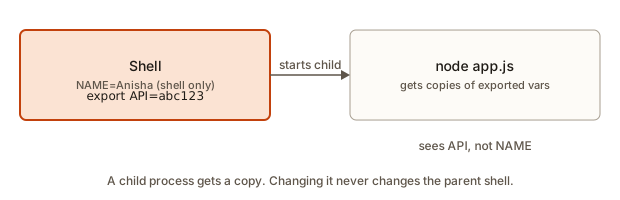 A shell passes exported variables to a child program as a copy
The same rule is modelled below. Run it and read the last two lines:
shell has   : {'NAME': 'Anisha', 'API_KEY': 'abc123'}
child sees  : {'API_KEY': 'abc123'}
child edits its copy: {'API_KEY': 'changed in child'}
shell still has     : abc123
This also explains something that trips up beginners. A script cannot change your shell's variables or folder, because the script runs in a child process with its own copy. Changes made inside it disappear when it ends. Here is a script that tries to change folder, with the real result:
$ cat move.sh
cd /
pwd
$ bash move.sh
/
$ pwd
<lab>/anisha
The script printed /, so inside its own process the folder did change. When the script ended, your shell was still in <lab>/anisha. That is the same rule as for variables, applied to the working directory. It is also why people run a script that should change folders with source (or a dot), which runs the lines inside your current shell instead of a child process.
Clean environments and several variables at once
env -i runs a command with an empty environment. It is a useful test: it shows what a program sees when it inherits nothing from your shell, which is what happens in some automated systems.
$ export API_KEY=abc123 NAME=Anisha
$ env -i bash -c 'echo "[$API_KEY] [$NAME] [$HOME]"'
[] [] []
Even HOME is empty in that child, although the parent shell has it. So a program that depends on a variable must be given it explicitly.
Two more forms are worth knowing. export accepts several assignments on one line, and printenv accepts several names:
$ export A=1 B=2
$ printenv A B
1
2
$ printenv A C; echo "exit $?"
1
exit 1
printenv prints each name it finds and skips the rest, then exits with 1 because C is not set. A script that checks a setting can use that exit code directly.
The environment is also an unordered list. Asking for it with env shows the variables in no particular order:
$ A=9 B=8 env | grep -E "^(A|B)="
B=8
A=9
Do not depend on the order when you read it. Use printenv NAME to ask for one value.
Setting a variable for one command only
Put the assignment directly in front of a command. It applies to that command and then vanishes.
$ GREETING=hi bash -c 'echo "one-shot: $GREETING"'
one-shot: hi
$ echo "after one-shot: [$GREETING]"
after one-shot: []
This is how you test a setting without changing anything permanently, for example PORT=4000 node server.js.
Reading variables
$ export API_KEY=abc123
$ printenv API_KEY
abc123
$ printenv NOPE; echo "code $?"
code 1
printenv NAME prints one variable's value, and exits with code 1 if it is not set. printenv or env with no name prints every environment variable, which is a long list, so filter it: printenv | grep -i home.
A few variables the system sets for you:
| Variable | Meaning |
|---|---|
HOME | Your home folder, such as /home/anisha. |
USER | Your username. |
PWD | The current directory. |
SHELL | Your login shell. |
PATH | The folders searched for programs. |
EDITOR | The editor programs should open, such as nano. |
You can see them with echo $HOME, echo $USER and echo $PWD.
How programs read them
Every language can read the environment. In Node.js it is process.env.NAME, in Python os.environ["NAME"] or os.environ.get("NAME"). The values are always strings, even when they look like numbers. Run this, which stands in for process.env:
port: 8080
debug: true
dbUrl: undefined
error: DATABASE_URL is not set
typeof PORT: string (everything in env is a string)
Two habits are visible here. Convert strings to the type you need (Number(...)), and compare booleans against the exact string ("true"), because the string "false" is truthy in JavaScript. And always check for a missing value and fail loudly: "DATABASE_URL is not set" is far better than a crash ten lines later with a confusing message.
The same effect with a real Node program:
$ cat > show.js <<'EOT'
console.log("API_KEY is", process.env.API_KEY);
console.log("OTHER is", process.env.OTHER);
EOT
$ OTHER=1 node show.js
API_KEY is abc123
OTHER is 1
$ unset API_KEY
$ node show.js
API_KEY is undefined
OTHER is undefined
The first run saw the exported API_KEY and the one-shot OTHER. After unset, neither is present.
Worked example: a service that reads its settings
Here is a small program that does what many real services do at startup: read a setting from the environment, fall back to a default when it is missing, and report the value it chose. The program is a one-line Node command, so you can run it directly in the shell.
$ node -e "console.log('port:', Number(process.env.PORT || 3000))"
port: 3000
$ PORT=4000 node -e "console.log('port:', Number(process.env.PORT || 3000))"
port: 4000
$ export PORT=5000
$ node -e "console.log('port:', Number(process.env.PORT || 3000))"
port: 5000
Trace the three runs:
- Nothing is set, so
process.env.PORTisundefined, the||picks the default3000, and the program prints it. - The one-shot form,
PORT=4000placed before the command, sets the variable only for that run. The program reads4000, and the shell keeps no memory of it. - The
exportputsPORTinto the shell's environment for good, until you close the terminal or rununset PORT. Every later program now sees5000.
Two details matter in real services. First, the value is always a string, so the program converts it with Number(...) before it does arithmetic, which is what the lesson's earlier example showed. Second, the default is a decision the program makes. Some settings, such as a database address or a secret key, should have no default at all, because a silent fallback can send data to the wrong place. In that case the program should stop with a clear message. The code earlier in this lesson, which prints DATABASE_URL is not set, is that pattern.
Run unset PORT before you go on, so the examples below start from a clean environment.
Worked example: a .env file from start to finish
Here is the whole path a secret takes in a small project, using the commands from this lesson. The file holds two settings. Its values are invented for practice, and the second line includes a colon, which is common in connection addresses.
$ printf "DATABASE_URL=postgres://localhost:5432/forge\nAPI_KEY=abc123\n" > .env
$ cat .env
DATABASE_URL=postgres://localhost:5432/forge
API_KEY=abc123
Now run a program that reads API_KEY in three ways. First with no help:
$ node -e "console.log(process.env.API_KEY)"
undefined
The file exists, but nothing has loaded it, so the program sees no value. Next, with Node's --env-file option, which reads the file before the program starts:
$ node --env-file=.env -e "console.log(process.env.API_KEY)"
abc123
$ node --env-file=.env -e "console.log(process.env.DATABASE_URL)"
postgres://localhost:5432/forge
The option works for both lines, so the program receives the whole file. Finally, the shell way, which you saw earlier: set -a, then . ./.env, then set +a. After it, printenv API_KEY finds nothing in a fresh child process unless you export it, which set -a does. Check that before you assume a setting is live.
What makes this safe is where the file lives, not how it is read. The .env file stays on your machine, and it is listed in .gitignore, so Git never uploads it. The code in your project reads process.env.API_KEY, which contains no secret at all. A teammate who clones the project gets the code, writes their own .env, and runs it. This pattern is what the course relies on from the next module onward.
PATH, revisited
In lesson one you learnt that PATH lists the folders where the shell looks for programs. Now you can change it. This is how you add your own commands.
Say you have a script mytool in ~/bin. Right now, typing mytool does not work, because ~/bin is not on the PATH. Add it at the front:
$ mytool
Command 'mytool' not found, but can be installed with:
sudo apt install yudit
$ echo "exit $?"
exit 127
$ PATH="$HOME/bin:$PATH" mytool
bash: <lab>/anisha/bin/mytool: Permission denied
$ chmod +x bin/mytool
$ PATH="$HOME/bin:$PATH" mytool
hi from mytool
$ PATH="$HOME/bin:$PATH" bash -c "command -v mytool"
<lab>/anisha/bin/mytool
The first message comes from Ubuntu, which suggests a package when a command is missing. On macOS or zsh you will see zsh: command not found: mytool instead. Either way, the shell is saying the same thing: it searched every folder in PATH and did not find a file called mytool. The suggested package is unrelated to your script, so ignore it.
The second message is progress. The folder is now on PATH, so the shell found the file. It refused to run it because the file lacks the execute bit, which the next section explains. The chmod +x fixes that. The last command, command -v, asks the shell which file it would run for a name. It is the quickest way to check that your new folder is the one being used, especially when two programs share a name.
Read the assignment from the inside out: $PATH is the old list, $HOME/bin: puts your folder first, and the whole thing is assigned back to PATH. Always include the old $PATH: writing PATH="$HOME/bin" alone would remove every other folder, and then even ls would fail with command not found. If that happens, close the terminal and open a new one, which restores the normal value. PATH is already exported, so reassigning it keeps it exported.
(The example above also needs the file to be marked executable, which is the permissions half of this lesson.)
Making settings permanent: startup files
Variables you set in a terminal disappear when you close it. To keep them, put the lines in your shell's startup file, which the shell reads each time it starts: ~/.bashrc for bash, ~/.zshrc for zsh.
$ echo 'export PATH="$HOME/bin:$PATH"' >> ~/.bashrc
$ source ~/.bashrc
The single quotes keep $HOME and $PATH from expanding now: they are written into the file as text and expand every time the file runs. source (or a dot: . ~/.bashrc) re-reads the file in the current shell, so you do not have to close the terminal. Note the double >>: a single > would replace the entire file and erase all your existing settings.
Environment variables and secrets
Configuration that changes between machines belongs in the environment, not in code. Your laptop, a test server and the live server all run the same code with different values: a different database address, a different API key, a different port. This idea is called the twelve-factor approach to configuration, and it is standard practice.
Secrets are the sensitive subset: passwords, API keys, tokens. Never write a secret into your source code. If you push it to GitHub, it is public within minutes, and automated bots scan for exactly these strings. Instead:
- Read the secret from the environment in code:
process.env.API_KEY. - Keep the real value in a file named
.envthat lives only on your machine. - List
.envin a file called.gitignoreso Git never uploads it. You will practise this in the next module.
A .env file is plain text with one NAME=value per line:
$ echo 'KEY=value' > .env
$ set -a; . ./.env; set +a; echo "KEY is $KEY"
KEY is value
set -a tells the shell to export every variable defined from now on, . ./.env runs the file, and set +a turns that mode off. Many tools (Node's --env-file option, Python's python-dotenv, Docker) read .env files for you, so you rarely do this by hand, but you now know what they are doing.
Permissions: who may do what
Every file and folder has an owner, a group, and a set of rules about what the owner, the group, and everyone else may do. This is how a shared computer keeps your files private from other users, and how a web server is prevented from overwriting its own code.
You see them in ls -l:
$ ls -l
total 8
-rwxr-xr-x 1 chiranjeet chiranjeet 35 Nov  4 20:53 deploy.sh
-rw-r--r-- 1 chiranjeet chiranjeet  7 Nov  4 20:53 notes.txt
drwxr-xr-x 2 chiranjeet chiranjeet 40 Nov  4 20:53 projects
The owner and dates above come from our practice folder, so yours will differ. The modes are the part to read.
The first column is a ten-character string.
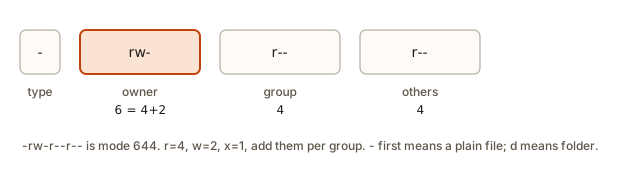 Permission string split into type, owner, group and others with octal digits
- Character 1 is the type:
-for a plain file,dfor a directory,lfor a symbolic link. - Characters 2 to 4 are the owner's permissions.
- Characters 5 to 7 are the group's permissions.
- Characters 8 to 10 are everyone else's (others).
Each group of three is r, w, x in order, with a dash where the permission is missing:
rread: see the file's contents (or list a folder's names).wwrite: change or delete-in-place the file (or add and remove entries in a folder).xexecute: run the file as a program (or enter a folder withcdand reach things inside it).
So -rw-r--r-- is a file where the owner can read and write, the group can only read, and others can only read. -rwxr-xr-x is a program anyone can run, but only the owner may change. The group is a named set of users: on your laptop it is usually just you, but on a server it can be a team.
Numbers: octal mode
Permissions are also written as a three-digit number. Each digit is the sum of the permissions in one group: r is 4, w is 2, x is 1. So rw- is 4 + 2 = 6, r-- is 4, and rwx is 4 + 2 + 1 = 7. The three digits are owner, group, others.
-rw-r--r--  ->  644
-rwxr-xr-x  ->  755
-rw-------  ->  600
-rwxrwxrwx  ->  777
-r--r-----  ->  440
Memorise three numbers and you will cover most real cases:
| Mode | String | Typical use |
|---|---|---|
| 644 | -rw-r--r-- | Ordinary files: owner edits, others read. |
| 755 | -rwxr-xr-x | Programs and folders: everyone can run or enter, only the owner changes. |
| 600 | -rw------- | Private files: SSH keys, .env files. |
Python's standard library can render a number as the familiar string, which shows the same mapping from the other direction:
644 -rw-r--r-- file
755 -rwxr-xr-x file
600 -rw------- file
700 -rwx------ file
444 -r--r--r-- file
drwxr-xr-x directory
chmod: change the mode
chmod (change mode) edits permissions. It has two styles.
Numeric style: give the whole mode as three digits.
$ chmod 600 f.txt
$ ls -l f.txt
-rw------- 1 chiranjeet chiranjeet 0 Nov  4 20:32 f.txt
$ chmod 755 f.txt
$ ls -l f.txt
-rwxr-xr-x 1 chiranjeet chiranjeet 0 Nov  4 20:32 f.txt
Symbolic style: say who, what to do, and which permission. Who is u (owner, "user"), g (group), o (others) or a (all). The action is + (add), - (remove) or = (set exactly).
$ chmod 644 f.txt
$ chmod u+x f.txt
$ ls -l f.txt
-rwxr--r-- 1 chiranjeet chiranjeet 0 Nov  4 20:32 f.txt
$ chmod go-r f.txt
$ ls -l f.txt
-rwx------ 1 chiranjeet chiranjeet 0 Nov  4 20:32 f.txt
$ chmod a+x f.txt
$ ls -l f.txt
-rwx--x--x 1 chiranjeet chiranjeet 0 Nov  4 20:32 f.txt
u+x added execute for the owner only. go-r removed read from both group and others. A bare chmod +x file adds execute for all (subject to a setting called the umask).
Numeric style is quick when you know the exact result you want. Symbolic style is safer for small changes, because it leaves the other bits alone. The program below implements both so you can watch how each step changes the mode:
start       rw-r--r-- 644
chmod u+x   rwxr--r-- 744
chmod go-r  rwx------ 700
chmod a+x   rwx--x--x 711
chmod g=r   rwxr----x 741
chmod 600   rw------- 600
chmod o+w   rw-----w- 602
Look at the last line: rw-----w- means everyone else can write the file while the group cannot do anything. That is a legal and almost always wrong combination, and it shows why you should read the string after any chmod.
Be careful with recursive changes
chmod -R 755 project changes every file and folder under project, not just one. That is almost never what you want. A source file that should stay 644 becomes executable, and a private key that should stay 600 becomes readable by others. The safe pattern is to change only the kind of item you mean. For example, find project -type d -exec chmod 755 {} + changes folders only, and find project -type f -exec chmod 644 {} + changes plain files only. Lesson four showed find and the {} + form. Read the list that find will act on before you run it.
Making a script runnable
The most common reason to use chmod is to let you run a script. In lesson one you met Permission denied when running ./hello.sh. Here is the full cycle:
$ printf '#!/usr/bin/env bash\necho "hi from mytool"\n' > mytool
$ ls -l mytool
-rw-r--r-- 1 chiranjeet chiranjeet 42 Nov  4 20:32 mytool
$ ./mytool
bash: ./mytool: Permission denied
$ chmod +x mytool
$ ls -l mytool
-rwxr-xr-x 1 chiranjeet chiranjeet 42 Nov  4 20:32 mytool
$ ./mytool
hi from mytool
Without the x bits, the system refuses to run the file. After chmod +x, it runs. The #!/usr/bin/env bash line (the shebang) tells the system to hand the file to bash. You can always bypass the executable bit by naming the interpreter yourself: bash mytool works with or without x, because then the file is only being read.
Permissions on folders
Folders use the same letters with slightly different meanings, and this is a favourite interview topic.
ron a folder lets you list its names (ls).xon a folder lets you pass through it:cdinto it, or reach files inside it by path.won a folder lets you create, rename and delete entries inside it.
A folder with r but not x shows you its names but does not let you read the files:
$ mkdir d
$ echo "hi" > d/inner.txt
$ chmod -x d
$ ls d
inner.txt
$ cat d/inner.txt
cat: d/inner.txt: Permission denied
Without r but with x, you can reach a file if you already know its name, but you cannot list the folder:
$ chmod +x d
$ chmod -r d
$ ls d
ls: cannot open directory 'd': Permission denied
A folder needs x for almost everything, which is why web servers need 755 on folders and not 644.
sudo: borrowing administrator power
Some actions are reserved for the root user (also called the superuser), who can ignore permissions: installing software, editing system files in /etc, changing other users' files. sudo (superuser do) runs one command as root, after asking for your password.
$ sudo apt updateUse it only when a command genuinely needs it, and never to "fix" a permission error you do not understand. Running a development tool with sudo often creates files owned by root inside your project, which then block your normal account from changing them. If Permission denied appears on your own files, the right fix is almost always chmod or chown on those files, not sudo.
chown (change owner) hands a file to a different user: sudo chown anisha notes.txt. Check who owns a file with ls -l: the third column is the owner and the fourth the group.
What happens inside
When a program tries to open a file, the operating system runs a short check, in a fixed order:
- If you are the root user, allow (almost everything).
- Else if you are the file's owner, use the owner's three bits.
- Else if you are in the file's group, use the group's three bits.
- Else use the "others" bits.
Only one group of bits is ever used. That has a surprising consequence: if you own a file with mode 070, you are blocked from it, even though your group has full access, because the owner bits (---) are the ones that count for you. The code below follows the same decision order for a file with mode 640 (rw-r-----) owned by asha in group team:
asha   wants w: allowed
ravi   wants r: allowed
ravi   wants w: Permission denied
meera  wants r: Permission denied
Default permissions: umask
When you create a new file, who decides its mode? A setting called the umask removes bits from a starting mode (666 for files, 777 for folders). The common umask is 022, which removes write from group and others. That is why new files come out as 644 and new folders as 755:
$ umask
0022
$ touch newfile; mkdir newdir
$ stat -c '%a %n' newfile newdir
644 newfile
755 newdir
stat -c '%a %n' prints the numeric mode and the name (on macOS the form is stat -f '%Lp %N'). On a shared server you may see a umask of 077, which makes new files private by default.
Worked example: what umask does to a new file
The umask section above gave the normal result. A stricter umask gives private files by default, which is the setting many shared servers use. Here it is for one command, in a subshell, so your own umask does not change:
$ (umask 077; touch private.txt; mkdir privdir; stat -c "%a %A %n" private.txt privdir)
600 -rw------- private.txt
700 drwx------ privdir
The parentheses start a subshell, a short-lived copy of the shell. Changes made inside it, including umask 077, end when the parentheses close. So the file and folder get the stricter mode, and every later file you create gets your usual 022.
The arithmetic is the same as before. A umask of 077 removes all bits for group and others from the starting values 666 and 777. That leaves 600 for files and 700 for folders, so nobody else can read what you create. Check the umask with umask before you assume a mode, because the value is set by your shell's startup file and can differ between machines.
Common mistakes
1. Permission denied when running a script.
bash: ./deploy.sh: Permission deniedThe file has no execute bit. Run ls -l deploy.sh, see -rw-r--r--, and use chmod +x deploy.sh.
2. chmod 777 as a fix. It grants everyone full access. It "solves" the error by removing all protection, and it is a real security hole on shared machines and servers. Find which single bit is missing and add only that.
3. A variable that is not exported.
$ API=abc123
$ node app.js
If app.js reads process.env.API, it sees undefined: the variable stayed inside the shell. Use export API=abc123 or API=abc123 node app.js.
4. Quoting that stops expansion, or lets it break. echo '$HOME' prints the literal $HOME. And an unquoted $NAME containing spaces splits into several arguments. Use double quotes around "$NAME" nearly always.
5. Overwriting PATH. PATH=/my/folder removes every standard folder. Always append or prepend: PATH="$PATH:/my/folder". If you break it, open a new terminal.
6. Committing a .env file or hard-coding a key. Once a secret is in a Git history, deleting it later does not un-leak it. Rotate (replace) the key. Add .env to .gitignore before the first commit.
7. sudo everywhere. If npm install or pip install only works with sudo, something is misconfigured. Fix ownership of the target folder instead.
8. Spaces around =. export NAME = Anisha fails with bash: export: =': not a valid identifier. The shell reads NAMEas the command, then=andAnishaas its arguments, andexportrejects=` as a name.
9. Confusing chmod +x on a folder with a file. A folder without x cannot be entered, which shows up as Permission denied on every file inside it.
10. Setting a variable in one terminal and expecting another to see it. Each terminal window runs its own shell, with its own variables. An export in one window does nothing in another. For a setting you want everywhere, put the line in your startup file, as shown earlier. For a setting you want once, put it in front of the command.
A debugging walkthrough
Your teammate says "run ./start.sh". You do, and see bash: ./start.sh: Permission denied. Then, once that is fixed, the app starts and prints Error: DATABASE_URL is not set. Handle them in order.
Problem 1: permission denied.
ls -l start.shshows-rw-r--r-- 1 anisha anisha 85 ... start.sh. There is noxanywhere.chmod +x start.shadds it.ls -l start.shnow shows-rwxr-xr-x../start.shruns.
Problem 2: missing variable.
- The message names the variable:
DATABASE_URL. The program reads it from the environment, so it is not set in this shell. - Check:
printenv DATABASE_URLprints nothing and exits with code 1. It is truly unset. - The README says to copy
.env.exampleto.envand fill in values. You do:cp .env.example .env, edit it, and load it withset -a; . ./.env; set +a. printenv DATABASE_URLnow prints the value, and./start.shworks.
The pattern for both: read the message, look at the evidence with ls -l or printenv, make one small change, and check again. Never jump to sudo or 777.
A second debugging walkthrough: EACCES from a program
A program that writes a report fails with an error from Node:
$ node -e "require('fs').writeFileSync('ro/out.txt', 'x')"
Error: EACCES: permission denied, open 'ro/out.txt'
  code: 'EACCES',
EACCES is Node's name for Permission denied, and the path tells you what failed: writing out.txt inside ro. Work through it in order:
- Look at the folder that the program writes into, not the file. Creating a new file needs write permission on the folder.
ls -ld roshows it:
$ ls -ld ro
dr-xr-xr-x 2 chiranjeet chiranjeet 40 Nov 4 20:52 ro- The folder has no
wbit for anyone, so the owner cannot add a file to it. That explains the error, and it tells you the fix is on the folder. - Add only the missing bit, for the owner, and try again:
$ chmod u+w ro
$ node -e "require('fs').writeFileSync('ro/out.txt', 'x'); console.log('written')"
written
$ ls -l ro
-rw-r--r-- 1 chiranjeet chiranjeet 1 Nov  4 20:52 out.txt
The method is the one from the start of the lesson: read the message, find the one bit that is missing, and add that bit. A chmod 777 would also have worked, and it would have hidden the real rule by opening the folder to everyone. Check the result with ls -l after the change, the same way you checked the first chmod.
Where this shows up in real work
- Every hosting platform (Vercel, Railway, AWS, Docker) has a screen for environment variables. Knowing what they are makes those screens obvious.
- CI pipelines inject secrets as environment variables at run time so they never appear in your repository.
- A deployment failing with
EACCES: permission denied(Node's way of saying "no permission") is nearly always an ownership or mode problem. - SSH refuses to use a private key file that others can read. It reports
WARNING: UNPROTECTED PRIVATE KEY FILE!and requireschmod 600. You will meet that on your first server. - Security interviews ask "what does 755 mean?" and "why is 777 bad?". You can answer both precisely.
Practice
1. (Easy) Set a variable CITY=Pune and print Hello from Pune using it.
Solution
$ CITY=Pune
$ echo "Hello from $CITY"
Hello from Pune
2. (Easy) What are the file type and the three permission groups in -rwxr-x---?
Solution
The leading - is a plain file. Owner rwx (read, write, run). Group r-x (read and run). Others --- (nothing).
3. (Easy) What octal number is rw-r--r--?
Solution
- Owner: 4 + 2 = 6. Group: 4. Others: 4.
4. (Easy) Give the command that makes deploy.sh runnable by its owner only.
Solution
chmod u+x deploy.sh. The u limits it to the owner. Plain chmod +x would normally add it for everyone.
5. (Medium) You run LEVEL=debug and then start node app.js, which prints undefined for process.env.LEVEL. Give two fixes.
Solution
Export it first: export LEVEL=debug, then run the program. Or set it for that one run: LEVEL=debug node app.js. Without export, the variable stays inside the shell.
6. (Medium) Predict the output of each line.
$ X=1
$ bash -c 'echo "[$X]"'
$ export X
$ bash -c 'X=2; echo "[$X]"'
$ echo "[$X]"
Solution
[], then [2], then [1]. The first child sees nothing because X is not exported yet. After export the child sees 1, sets its own copy to 2 and prints that. The parent's value is unchanged at 1.
7. (Medium) A file shows mode -rw-rw-rw-. Remove write access for group and others in one command and give the resulting octal number.
Solution
chmod go-w file gives -rw-r--r--, which is 644.
8. (Medium) A folder is drwxr--r--. You are the owner. Can you cd into it? Can you ls it? Why?
Solution
You can ls it but not cd into it. The owner bits are r--: read (list names) is allowed, but execute (enter) is missing. Fix with chmod u+x folder.
9. (Hard) Write the two lines that add ~/tools to the front of PATH for every future terminal, then apply it to the current one, without opening a new window.
Solution
$ echo 'export PATH="$HOME/tools:$PATH"' >> ~/.bashrc
$ source ~/.bashrc
The single quotes keep the variables unexpanded in the file. Use ~/.zshrc if your shell is zsh. Use >> to append, never >.
10. (Hard) A private key file has mode 644 and SSH refuses to use it. What is wrong, what is the fix, and why does SSH care?
Solution
Group and others can read the key. A private key is a secret that proves your identity, and any other account on the machine could copy it. SSH refuses to use it until you remove their access: chmod 600 ~/.ssh/id_ed25519 (use your key's file name). The mode 600 is rw-------.
11. (Hard) With mode 640, owner asha, group team: can ravi (in team) write to the file? Explain which bits apply and why asha's own group membership does not help her if she is not the owner.
Solution
No. ravi is not the owner, so the owner bits are skipped. He is in the group, so the group bits r-- apply: he can read but not write. The system uses only the first matching category (owner, then group, then others), never a combination.
12. (Hard) A file notes.txt has mode -r--------, and you are its owner. Can you read it? Can you write to it? Can you still change its mode with chmod u+w notes.txt? Explain.
Solution
You can read it, because the owner bits include r. You cannot write to it, because the owner bits have no w. You can still run chmod u+w notes.txt. The chmod command does not check the file's own write bit. It checks that you own the file, and the owner is allowed to change the mode. After the chmod, the file is -rw-------, and writing works. Only the owner (or root) can change a file's mode, so a file you do not own stays locked even if you have some other access to it.
What you now know
- A variable lives in the shell until you
exportit, and then each program you start gets a copy. Children can never change the parent's variables. - Programs read settings from the environment (
process.env), as strings. Secrets belong there and in an ignored.envfile, never in code. PATHis the program search list: prepend to it, never overwrite it, and save permanent changes in~/.bashrcor~/.zshrc.- A permission string has a type, then owner, group and others, each
rwx.ris 4,wis 2 andxis 1, so 644 is ordinary files, 755 is programs and folders, 600 is private. chmodchanges permissions,chmod +xmakes a script runnable, folders needxto be entered, andsudois a last resort, not a fix.
This closes the module. You can now open a terminal, move around, manage files, search and count with pipes, configure programs through variables, and read and set permissions.