Why this matters
Most of your first real bugs will not be about logic. They will be about files: "No such file or directory", "Permission denied", a photo that will not open, a path that works on your laptop and fails on a friend's. These errors look random until you know what a file is, where it lives and how the computer finds it. This lesson gives you that.
You will also learn how data stays put when the power is off, why deleting a file is nearly instant, and why a file called photo.txt is not a text file just because of its name.
Persistent storage
In lesson 1 you saw that RAM forgets everything when the power goes off. Anything you want to keep must be written to storage, also called persistent or non-volatile storage. Two kinds are common.
Solid-state drive (SSD). Tiny electrical cells hold a charge that stays there with no power applied. There are no moving parts. An SSD reads in about a tenth of a millisecond, is quiet and survives being dropped better. Phones, most laptops and many servers use SSDs. A USB stick and an SD card use the same kind of memory, only simpler.
Hard disk drive (HDD). A metal platter spins, thousands of times a minute, under a tiny arm that reads and writes magnetised patterns on its surface. It is slower, because the arm has to move to the right spot and the right part of the platter must come round. It is cheaper for each terabyte, so it is still used for big archives and backups.
The cook-and-pantry analogy from lesson 1 still holds. The pantry (storage) keeps everything and is big and slow. The counter (RAM) holds the current job. Two things follow:
- Storage is addressed in chunks, not single bytes. The drive hands the computer a whole block, often 4,096 bytes (4 KiB), at a time.
- Storage lasts, but not forever. SSD cells wear after many writes and hard disks have moving parts that fail. Drives die, so important data needs a second copy somewhere else. We return to this under backups.
What a file is
A file is a named block of bytes in storage. That is the complete definition. The name tells you where to find it. The bytes are whatever someone put in them. The computer does not know or care whether the bytes are a poem, a song or a program.
Think of a file as a labelled envelope in a filing cabinet. The label says resume.pdf. Inside, there are bytes. A program that knows how to read those bytes (a PDF viewer) can turn them into a page you can see. A program that does not know the format will show you rubbish or an error message.
A file has more than a name and contents. It also carries metadata, which is information about the file, kept by the operating system:
- its size in bytes
- when it was created and last changed
- who owns it and who may read or change it (permissions)
- where its bytes sit on the drive
The metadata is kept apart from the contents. That fact is the key to why deleting is fast and why renaming a huge file takes no time: the OS changes a small record, not the big pile of bytes.
Folders and the tree
Storing a million files in one list would be unusable. So files are grouped into folders, also called directories. A folder is a special file whose contents are a list of names. Each name points to a file or to another folder. Because folders can contain folders, everything forms a tree.
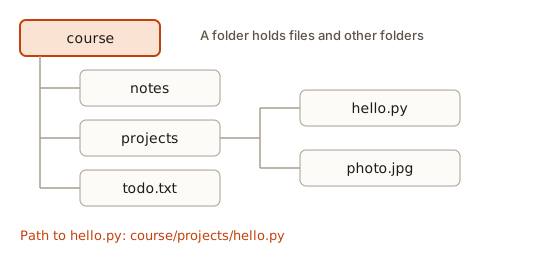 A tree with a folder called course holding notes, projects and todo.txt, with hello.py and photo.jpg inside projects
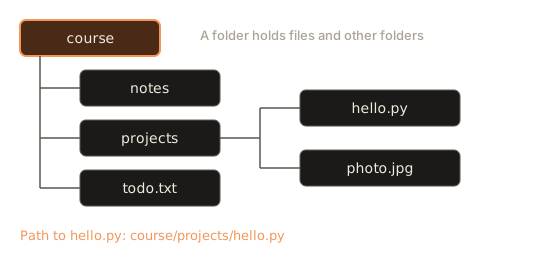
The top of the tree is called the root. On macOS and Linux the root is written /. On Windows each drive has its own root, such as C:\. Your own home folder is where your personal files live: /home/anisha on Linux, /Users/anisha on macOS, C:\Users\anisha on Windows.
Folders are the only tool you need to keep your work tidy. A sensible layout for this course might be:
course/
  notes/
    week1.md
  projects/
    hello.py
    calculator/
      main.py
      README.md
  todo.txt
Paths: the address of a file
A path is the text that says where a file is in the tree. You read it from the left, one folder at a time.
/home/anisha/course/projects/hello.py means: start at the root, go into home, then anisha, then course, then projects, and there is hello.py.
There are two kinds.
- An absolute path starts at the root. It means the same thing wherever you are.
/home/anisha/course/todo.txtis absolute. - A relative path starts from where you are now, which is called the current working directory. If you are in
/home/anisha/course, thenprojects/hello.pypoints to the same file as the absolute path above.
Two special names help with relative paths: . means "this folder" and .. means "the folder above this one". So from /home/anisha/course/projects, the relative path ../notes/week1.md goes up one level to course, then down into notes.
The separator between names is / on macOS, Linux and in web addresses. Windows has historically used \, though most Windows programs also accept /. This difference causes a classic bug that you will see below.
Python has a module that takes paths apart for you. The next program breaks a path into its pieces. It does not touch any real files, it only works on the text, so it runs anywhere.
hello.py
hello
.py
/home/anisha/course/projects
('/', 'home', 'anisha', 'course', 'projects', 'hello.py')
The name is the last piece. The suffix (extension) is the part from the last dot. The stem is the name without the suffix. The parent is everything before the last slash. parts splits the whole path.
Now see .. and . at work. normpath tidies a path by applying them, and relpath works out how to get from one place to another.
/home/anisha/course/notes/week1.md
/home/anisha/course/projects/calculator/main.py
../notes/week1.md
Trace the first line. join glues the pieces to make /home/anisha/course/projects/../notes/week1.md. normpath sees projects/.. cancel itself (go into projects, then back out), leaving /home/anisha/course/notes/week1.md. The third line works the other way round: to get from projects to notes/week1.md you step up once, then down.
The working directory decides what a relative path means
This is the single most common cause of "file not found". Suppose data.txt sits in /home/anisha/course/projects. A script that says open("data.txt") looks for data.txt in the current working directory, wherever that happens to be when you launch it. If you run it from /home/anisha, the lookup fails even though the file is there. The cure is to either run the program from the right folder or use an absolute path. Your terminal can tell you where you are with pwd (print working directory) on macOS and Linux. The terminal module covers this.
Extensions are only part of the name
An extension is the bit after the last dot in a file name: .txt, .jpg, .py. Operating systems use it as a hint for which program should open the file. Double-click song.mp3 and the music player starts because the OS keeps a table: .mp3 goes to the player.
But it is only a hint. The file's contents are what they are. Rename photo.jpg to photo.txt and the bytes inside do not change. The OS now thinks it is text and offers to open it in a text editor, which shows a screen full of strange symbols because the bytes are image data, not letters.
Many formats begin with a fixed signature, called a magic number, that says what they are. A PNG image always starts with the bytes 137, 80, 78, 71: one unprintable byte, then the codes of the letters PNG. A PDF starts with %PDF. A ZIP archive starts with PK. Programs such as the Linux file command read these first bytes and ignore the name entirely.
You can do the same. The program below checks the start of some byte strings against a table of signatures.
photo.txt -> PNG image
report.docx -> ZIP archive
notes.txt -> unknown (maybe plain text)
holiday.jpg -> PDF document
The name photo.txt claims text but its first four bytes say PNG. holiday.jpg claims to be a picture and is a PDF. And report.docx turns out to be a ZIP file, which is true: a modern Word document is a zipped bundle of XML files. Programs that open files usually trust the extension, but the careful ones check the contents, because the extension is easy to fake. That is one reason email systems block attachments named invoice.pdf.exe.
Why you should turn on file extensions
By default Windows and macOS may hide extensions. Then notes.txt shows as notes. A file saved as notes.txt.txt shows as notes.txt, and you cannot work out why a script that opens notes.txt fails. Turn extensions on in your file manager. On Windows, open File Explorer, then View, then Show, then File name extensions. On macOS, open Finder settings, then Advanced, then tick "Show all filename extensions".
Text files and binary files
Files are all bytes, but people split them into two groups.
A text file has bytes that decode to readable characters using an agreed table, as you will see in the next lesson. .txt, .py, .js, .html, .css, .json, .csv and .md are text. You can open them in any editor and read them. Your source code is a text file. This matters because you can edit programs with a plain editor and keep them in version control.
A binary file is not meant to be read as characters. Images, music, video, PDFs, zip files and compiled programs are binary. Open one in a text editor and you see gibberish. You need the right program for the format.
Text files have one more detail: how they mark the end of a line. Unix, Linux and macOS use one character, the line feed (written \n). Windows has traditionally used two, carriage return then line feed (\r\n). Most editors hide the difference, but it can break scripts and make a file look changed in version control.
'line one\nline two\n'
'line one\r\nline two\r\n'
18 20
True
repr shows the hidden characters. The Windows version is two characters longer because each of its two lines has an extra \r. splitlines understands both and returns the same two lines. Languages are good at hiding this, but you should know it exists, because a stray \r at the end of a value is a known source of baffling bugs.
Structured text: CSV and JSON
Because text files are so easy to make and read, programs often store data in them using agreed layouts.
CSV (comma-separated values) is a table. Each line is a row and commas split the columns:
name,score,passed
Anisha,90,yes
Ravi,45,no
JSON (JavaScript Object Notation) holds nested data with names, numbers, lists and true/false. It is how most web services talk to each other. Here is a round trip in JavaScript: turn an object into text, then back into an object.
{"name":"Anisha","scores":[90,85],"active":true}
48 characters
85
JSON.stringify turns the object in RAM into a string of characters. You could save that string in a file, and months later JSON.parse would rebuild the object. This process of turning in-memory data into bytes for storage or sending is called serialisation. Storing data means choosing a format and writing it out.
Sizes, blocks and the gap between them
A file's size is its number of bytes. But a drive hands out space in blocks. If the block size is 4,096 bytes, then even a one-byte file takes a whole block. A 4,097-byte file takes two. The difference between the bytes a file has and the space it takes is wasted ("slack"), and for millions of tiny files it adds up.
1 bytes -> 1 blocks = 4096 bytes on disk
4096 bytes -> 1 blocks = 4096 bytes on disk
4097 bytes -> 2 blocks = 8192 bytes on disk
10000 bytes -> 3 blocks = 12288 bytes on disk
1000000 bytes -> 245 blocks = 1003520 bytes on disk
math.ceil rounds up, because a half-filled block still has to be a whole block. This is why file managers show two numbers for a file: "Size" and "Size on disk". For a big file the two are almost equal. For a folder of tiny files they differ a lot.
The file system: who keeps track
Storage is just a huge sequence of blocks. Something must remember which blocks belong to which file and what its name is. That something is the file system, a bookkeeping scheme that the OS uses. NTFS is the Windows one, APFS the Apple one, and ext4 is common on Linux. They differ in details, but each keeps:
- a directory: a table from names to file records
- a file record: the metadata plus a list of the blocks that hold the contents
- a map of free blocks: which ones are not in use
Reading /home/anisha/todo.txt goes like this. The OS looks up home in the root's table, then anisha in that folder's table, then todo.txt. That gives a file record, which lists blocks, say 9120 and 9121. The OS asks the drive for those blocks, assembles the bytes and gives them to your program. All of this happens in a few microseconds on an SSD.
Why delete is fast and not private
When you delete a file, the OS does not erase the blocks. It removes the name from the directory and marks the blocks as free. That is a tiny update. The old bytes stay on the drive until something else overwrites them. This is why recovery tools can sometimes bring back deleted files, and why selling a laptop requires a proper secure wipe rather than just emptying the bin. It is also why deleting 50 GB takes a second while copying it takes minutes: deleting touches a small record, copying must move every byte.
Fragmentation
A file does not have to sit in one unbroken run of blocks. If free space is scattered, a large file may be split into pieces in different places. This is fragmentation. On a spinning disk it hurts, because the arm has to jump between pieces. On an SSD it hardly matters, because every block is about equally quick to reach.
Journaling: surviving power cuts
If the power fails halfway through writing, the bookkeeping could end up inconsistent: a name pointing at blocks that are marked free, for instance. Modern file systems keep a journal, a small log that notes "about to do X" before doing it. After a crash the OS reads the journal and finishes or cancels the half-done step. You never see it, but it is why a power cut rarely wrecks your whole drive.
Permissions
On shared computers, not everyone should be able to read or change every file. Each file has permissions saying who may do what. On Linux and macOS there are three actions and three groups of people.
- Actions: r read, w write (change), x execute (run as a program, or enter a folder).
- Groups: the owner, the owner's group, and others (everyone else).
They are written as nine characters. rw-r--r-- means: the owner can read and write, the group can only read, others can only read. Each trio is also a number, adding 4 for read, 2 for write and 1 for execute. rw- is 4 + 2 = 6, r-- is 4. So rw-r--r-- is 644. rwxr-xr-x is 755, common for programs and folders.
0o644 -rw-r--r--
0o755 -rwxr-xr-x
0o600 -rw-------
0o400 -r--------
The leading - means "regular file" (a folder would show d). A file with mode 600 is private to its owner: this is how SSH private keys are protected, and the ssh command refuses to use a key that others can read. Windows has a different permission model with similar ideas, set through the Security tab of a file's properties.
When a program tries something it may not do, you get Permission denied on Linux and macOS, or Access is denied on Windows. Do not respond by giving everyone every permission. Find which file and which action is wrong and fix only that.
Hidden files and naming rules
On Linux and macOS a name that starts with a dot, like .gitignore or .env, is hidden by convention. The file manager and plain ls skip it. Programs use these for configuration. You will meet .gitignore in the Git module. To list them in a terminal use ls -a.
A few naming habits will save you pain:
- Avoid spaces. A path like
My Project/final copy.txtneeds quotes in a terminal. Usemy-project/final-copy.txtormy_project. - Avoid unusual characters such as
*,?,:and quotes, which some systems forbid or use for special meanings. - Remember case. On Linux,
Notes.txtandnotes.txtare two different files. Windows and default macOS treat them as the same name. Code that works on one can fail on another because of a capital letter. - Keep names meaningful:
2026-11-invoice-acme.pdfbeatsfinal_FINAL2.pdf.
Compression: fewer bytes for the same content
A .zip or .gz file holds the same data using fewer bytes. The simplest idea is run-length encoding: replace a long run of the same character with a count and the character. WWWWWWWWWWWW becomes 12W.
WWWWWWWWWWWWBWWWWWWWWWWWWBBB
12W1B12W3B
28 -> 10
1a1b1c
Trace the first run. i is 0, j slides right while the characters match, stopping at index 12 where B begins. The run length is 12 - 0 and the character is W, giving 12W. Then i jumps to 12 and the next run is a single B, giving 1B, and so on. The last line shows the catch: text with no repeats gets longer, because abc becomes 1a1b1c. Real compressors such as the one in ZIP use cleverer ideas (they look for repeated phrases, and give short codes to common bytes), but the principle is the same: find patterns and write them down once. Because random data has no pattern, a compressed file does not shrink when compressed again.
Compression comes in two flavours. Lossless gets back exactly what went in: ZIP, PNG, FLAC. Lossy throws away detail people will not miss: JPEG, MP3, most video. Lossy files are far smaller but you cannot get the original back.
Backups and the cloud
Drives fail. Laptops get stolen. Programs delete the wrong thing. The usual advice is the 3-2-1 rule: keep 3 copies of important data, on 2 different kinds of storage, with 1 copy somewhere else (another building, or the cloud). For your code, Git and GitHub (module 4) already give you this: every project lives on your machine and on the server.
"The cloud" is storage on computers run by someone else, reached over the internet. Services such as Google Drive and iCloud use the same ideas you have just learnt, files, folders, paths, but on machines far away. Cloud storage is a copy, not magic. If you sync a folder and then delete a file from it, the delete is copied too.
Following a file through the machine: saving a note
Put it together with one action. You type a line in an editor and press Save on /home/anisha/course/todo.txt.
- The text is in RAM. The editor has it as a string of characters.
- The editor converts the characters to bytes with an encoding (next lesson).
- It asks the OS to write those bytes to the path. The OS checks you have permission.
- The file system finds free blocks, writes the bytes there, updates the file record with the new size and time, and updates the free-space map. The journal records the steps.
- The drive confirms and the OS tells the editor it is done. The "unsaved" dot disappears.
Close the editor and reopen the file next week. The steps run in reverse: the OS finds the blocks through the directory, reads them into RAM and the editor decodes the bytes back to text.
Reading and writing files from code
Your programs will often need to open a file, read it, and close it. The shape is the same in every language: ask the OS to open the path and give you a handle, use the handle to read or write, then close it so the OS can release the file. In Python it looks like this. It is a plain block rather than a runnable one, because it needs a real file on your own machine.
with open("todo.txt", "w") as f:      # "w" means write, and replaces old contents
    f.write("buy milk\n")
    f.write("call Ravi\n")

with open("todo.txt") as f:           # default mode is read
    for line in f:
print(line.strip())buy milk
call RaviThe word with closes the file for you when the block ends, even if an error happens. The mode letters matter. "w" wipes the file first, so opening an existing file with "w" destroys what it held. "a" appends to the end. "r" reads. A very common accident is to open your only copy of a file for writing by mistake. If the data matters, write to a new name first.
Why must you close? The OS limits how many files one program may hold open, and data you write is often held in a small buffer in RAM and only pushed to storage on close or flush. A program that crashes before closing can lose the last few lines it thought it had written.
Sizes: KB, KiB and why your drive looks smaller
Drive makers count in thousands: a "500 GB" drive holds 500,000,000,000 bytes. Operating systems sometimes count in powers of two, where a "GiB" is 1,073,741,824 bytes. The same drive then shows up as about 465 GiB. Nothing is missing. The two sides use different units. The names that avoid confusion are KiB, MiB and GiB for the power-of-two units, and KB, MB and GB for the decimal ones. Some operating systems show GB when they mean GiB, so you will see the gap on some machines and not on others.
Shortcuts, links and mounted drives
Sometimes a file seems to live in two places. A shortcut on Windows and an alias on macOS are small files that point to another path. On Linux and macOS a symbolic link (symlink) is the same idea built into the file system: the path latest can point at releases/2026-11, and when you open latest the OS follows the pointer. A broken link is one whose target has moved. You will see these as No such file or directory even though the link itself is listed.
A new drive, USB stick or network share does not get its own letter in a tree of its own on Linux and macOS. It is mounted: attached at a folder, such as /media/anisha/USB or /Volumes/Backup. After mounting, its files appear under that folder like any others. On Windows the drive gets a letter such as E:. Unmounting (the "eject" button) tells the OS to finish all pending writes before you pull it out. Pulling a stick without ejecting can leave a file half-written, which is why it sometimes comes back as "corrupt".
Locks and temporary files
Two programs writing to the same file at once would scramble it. So operating systems can lock a file. On Windows, if a spreadsheet is open in one program, another cannot delete it and says "The process cannot access the file because it is being used by another process". On Linux and macOS the rules are looser, but programs often leave a small marker file next to the real one, such as .~lock.report.odt#, to say "someone is editing this".
Programs also make temporary files for scratch work, in a folder the system cleans up now and then (/tmp on Linux, the system's Temp folder on Windows). Do not keep anything important there. If your editor shows an odd ~$report.docx file beside your document, that is a temporary file and it vanishes when the document closes.
Common mistakes
FileNotFoundError. The message you will see most:
FileNotFoundError: [Errno 2] No such file or directory: 'data.txt'In Node.js it looks like Error: ENOENT: no such file or directory, open 'data.txt'. ENOENT means "error, no entry". Read it literally: the path you gave does not lead to a file from where the program is running. Check three things in order: is the spelling and case right, are the extensions what you think (data.txt.txt), and is the working directory what you think.
PermissionError.
PermissionError: [Errno 13] Permission denied: '/etc/hosts'You tried to write to a file that your user may not change. The fix is almost never chmod 777. Work in your own home folder instead.
IsADirectoryError. [Errno 21] Is a directory: 'projects' means you tried to open a folder as if it were a file. You wanted a file inside it.
Windows backslash escapes. In most languages a backslash inside a string starts a special code. \n is a newline and \t a tab. A Windows path written naively gets quietly changed:
D:
ewfile.txt
D:\newfile.txt
D:\newfile.txt
D:/newfile.txt
The first line prints D:, then a line break, then ewfile.txt, because \n became a newline. The three fixes are a raw string (the leading r), a doubled backslash, or a forward slash, which Windows accepts in nearly all programs. Forward slashes also make the code portable.
Editing the wrong copy. You download a file, edit it, but it opens from a zip preview or a temporary folder, so your changes land where you cannot find them. When a change "does not take effect", check the full path of the file that the program is really using.
Assuming the extension is the format. If a program says a .png is "corrupt", look at the first bytes. It may be a web page saved under the wrong name.
Debugging walkthrough: the script cannot find my file
Your friend runs this and gets an error:
with open("scores.csv") as f:
print(f.readline())FileNotFoundError: [Errno 2] No such file or directory: 'scores.csv'"But the file is right there in my folder!" Work through it like a detective.
- Name the working directory. In the terminal, run
pwd(macOS, Linux) orcdwith no arguments (Windows) to see where you are. Suppose it prints/home/anisha. The script was started from there. - Locate the file. Run
lsto list what is in that folder. Ifscores.csvis not listed, the file is somewhere else, perhaps/home/anisha/course/scores.csv. - Check the real name.
lsmight showscores.csv.txtorScores.csv. A capital letter matters on Linux. - Fix. Either
cd coursefirst and run the script there, or use a path that no longer depends on where you are, for exampleopen("/home/anisha/course/scores.csv"). In bigger programs you build the path from the script's own location.
This sequence is the same for every language. Say it to yourself: "what folder am I in, what is the file called, do they line up?"
Interview-style questions
- What is the difference between an absolute and a relative path? An absolute path starts at the root and always means the same file. A relative path starts at the current working directory.
- What happens when you delete a file? The directory entry is removed and its blocks are marked free. The bytes remain until overwritten, which is why it is fast and why recovery sometimes works.
- Is a file's type decided by its extension? No. The extension is a hint in the name. The format is decided by the bytes, and tools can detect it from the signature at the start.
- Why might a script work on your laptop and fail on the server? Different working directory, different path separators, a case-sensitive file system, a missing file, or different permissions.
- What is serialisation? Turning in-memory data into a sequence of bytes or text, such as JSON, so it can be stored or sent, and later turned back.
What you now know
- Storage keeps data with the power off. SSDs use electrical cells, HDDs use spinning platters, and both hand out data in blocks.
- A file is a named run of bytes plus metadata. A folder is a file that lists names, and folders nest in a tree.
- Absolute paths begin at the root. Relative paths begin at the working directory, and
.and..mean here and up. - An extension is a hint. The magic number in the first bytes shows the real format.
- Text files hold characters, binary files hold other data. Line endings differ between systems.
- The file system tracks names, blocks and free space. Deleting only unlinks the name.
- Permissions are read, write and execute for owner, group and others.
- You can read the common errors:
ENOENT,Permission denied,Is a directory.
Practice
1. (easy) What is the difference between RAM and an SSD for keeping data? Give one example of data that must be in the SSD.
Solution
RAM loses its contents when power goes off. An SSD keeps them. A saved document, a photo or an installed app must be on the SSD to still exist after a restart.
2. (easy) For the path /home/anisha/course/notes/week1.md, give the name, the extension and the parent folder.
Solution
Name: week1.md. Extension: .md. Parent: /home/anisha/course/notes.
3. (easy) You are in /home/anisha/course/projects. Write a relative path to /home/anisha/course/todo.txt.
Solution
../todo.txt. One .. goes up from projects to course, where todo.txt lives.
4. (easy) Is Report.PDF the same file as report.pdf on Linux? On Windows?
Solution
On Linux they are two different files, because names are case-sensitive. On Windows (and default macOS) names are treated as the same, so you cannot keep both in one folder.
5. (medium) A coworker renames diagram.png to diagram.pdf to "convert" it. What does the PDF viewer show, and why?
Solution
An error such as "file is damaged" or "not a PDF". Renaming changes only the name. The bytes still start with the PNG signature, and a PDF viewer expects %PDF. To convert, you need a program that reads the image and writes a real PDF.
6. (medium) Use the block program as a model. A drive uses 4096-byte blocks. How much disk space do 1000 files of 100 bytes each take, and how much do they hold in real data?
Solution
Each file takes one block of 4096 bytes. 1000 files take 4,096,000 bytes (about 3.9 MiB) on disk. The data is 100,000 bytes. About 97.6 percent of the space is slack.
7. (medium) Write a short Python program that prints the permission string for mode 0o640, and say who can do what.
Solution
It prints -rw-r-----. The owner can read and write. The group can read. Others have no access.
8. (medium) Extend compress into decompress that turns 12W1B12W3B back into the original. Assume the characters being repeated are not digits.
Solution
Digits are gathered into count. A non-digit marks the end of a number, so that many copies of it are added. The output is WWWWWWWWWWWWBWWWWWWWWWWWWBBB.
9. (hard) A script open("notes\todo.txt") on Windows fails with a strange name in the error. Explain the problem and give two fixes.
Solution
\t inside a normal string is a tab, so the path becomes notes, then a tab, then odo.txt. Fix with a raw string, open(r"notes\todo.txt"), or with a forward slash, open("notes/todo.txt"). Doubling the backslash also works.
10. (hard) Your program saves user data as JSON text. A new version adds a field called email. What problem can appear when the new program reads an old file, and how would you guard against it?
Solution
Old files do not have an email key, so reading it may give undefined in JavaScript or a KeyError in Python. Guard by supplying a default when the key is missing, for example data.get("email", "") in Python. Many programs also store a version field in the file so they know which layout to expect.