Why this matters
Every web app you will ever build is two programs talking over a network. One asks, one answers. If you do not know who asks, who answers, and how the question finds its way across the world, every bug in that conversation looks like magic. After this lesson it will look like a short list of places to check.
This lesson builds the picture from the ground up: what the internet physically is, what a client and a server are, how a computer is named on a network (the IP address), why messages are cut into pieces (packets), and how one computer runs many network programs at once (ports).
The internet is a network of networks
A network is two or more computers connected so they can send data to each other. Your phone and your laptop on the same Wi-Fi are a network. Every computer in a school is a network. A bank's computers are another.
The internet is what you get when you connect all those separate networks to each other. The word comes from "inter-network": a network of networks. No single company owns it. Thousands of companies, universities, governments and internet providers own pieces of it, and they agree on shared rules so that the pieces fit together.
An everyday picture: think of the road system of a country. Your street belongs to the city. The city roads join a state highway. State highways join national highways. No one person owns "the roads", but you can drive from your front door to a house in another state because every road follows the same conventions about lanes, signs and addresses.
It matters to keep two words apart:
- The internet is the roads: cables, radio links, routers, and the rules for moving data over them.
- The web is one kind of traffic on those roads: pages, images and apps that your browser fetches. Email, video calls, online games and software updates are other kinds of traffic on the same roads.
When someone says "the internet is down" they usually mean the road is broken. When they say "the site is down" they usually mean one destination is closed while the roads are fine. That difference is the first debugging question you will ask in your career: is it the road, or the destination?
The physical roads are real. Under the oceans there are fibre-optic cables (glass threads that carry light pulses) that connect continents. On land, fibre runs along roads and railways. At the last few metres, your data travels over a Wi-Fi radio link or a phone tower. Nothing about "the cloud" is weightless. It is buildings full of computers connected by cables.
Clients and servers
Most conversations on the internet follow one pattern: one side asks, the other side answers.
- A client is a program that starts a conversation by sending a request. Your web browser is a client. So is a phone app that loads your messages.
- A server is a program that waits for requests and sends back responses. A server is not a special kind of machine. It is a program that is always listening.
- The computer that runs a server program is usually also called a server, because that is its main job. A data-centre computer with no screen that runs web servers all day is a "server" in both senses.
The analogy is a restaurant. You (the client) sit down and ask for a dish. The kitchen (the server) is always open, waits for orders, and brings back food. You do not walk into the kitchen and cook, and the kitchen does not walk to your table and push food at you without an order. The kitchen can serve hundreds of tables, and one table can order from several restaurants in the same evening.
Three facts are worth memorising:
- The client speaks first. A server never calls you out of the blue. (There are tricks that look like it, such as push notifications, but underneath, your device opened a connection first and keeps it open.)
- Client and server are roles, not machines. The same laptop can run a browser (client) and a development server (server) at the same moment, and the browser can talk to the server on the same laptop. You will do exactly that in every web project.
- A server can be a client of another server. When you load a shop page, the shop's server may ask a payment company's server for something. For that moment, the shop server is the client.
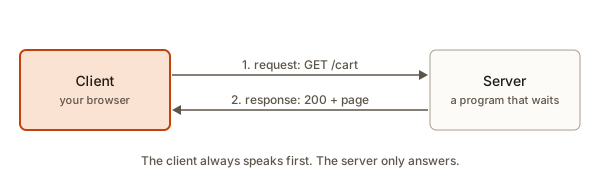 A client sends a request and a server sends a response
A tiny client and server
To make this concrete without a network, here is a toy version in Python. The "server" is a function that takes a request and returns a response. The "client" builds a request, calls the server, and prints the answer. Real clients and servers are far bigger, but the shape is the same: a request goes in, a response comes out.
Press Run. You should see:
client asks for /
server says 200 - Welcome to the shop
client asks for /cart
server says 200 - Your cart is empty
client asks for /checkout
server says 404 - Nothing here
Trace the third call. The client asks for /checkout. The server looks the path up in its pages dictionary, finds nothing, and returns status 404. The number 404 is a convention that means "I looked, and there is nothing at that address". You will meet it properly in the HTTP lesson. For now notice that the server decided the answer, and the client simply reported it.
How computers find each other: addresses
For the client to send a request, it must know where the server is. On a network every computer needs an address, the same way every house needs one so the postal service can deliver a letter.
That address is the IP address. IP stands for Internet Protocol. A protocol is an agreed set of rules for how two sides communicate, like the rule "letters have an address on the front and a stamp in the corner". The Internet Protocol's main rule is: every message carries the address of where it is going and where it came from.
The most common kind of address is IPv4 (version 4). It looks like this:
192.168.1.10It is four numbers separated by dots. Each number is between 0 and 255. Why those limits? Under the hood a computer stores everything as bits, the 0s and 1s you met in the first module. Each of the four numbers is stored in 8 bits (one byte), and 8 bits can hold 256 different values: 0 to 255. Four bytes make 32 bits, so an IPv4 address is a 32-bit number written in a friendly way.
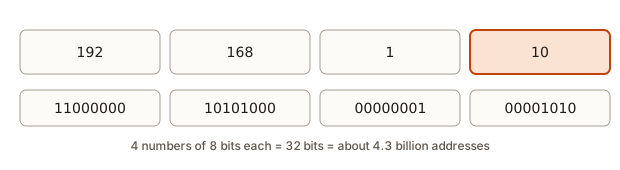 An IPv4 address shown as four decimal numbers and four 8-bit groups
Run this to see one address as text, as a single big number and as raw bits. The ipaddress module ships with Python, so there is nothing to install.
Output:
text   : 192.168.1.10
number : 3232235786
binary : 11000000101010000000000100001010
private: True
loop   : False
The text form and the number are the same address. The dotted form is only for humans. To convince yourself, do the conversion by hand. Each step shifts what you have so far left by one byte (multiply by 256) and adds the next part. This is exactly how you read the decimal number 305 as "3 hundreds, 0 tens, 5 ones", except the base is 256 instead of 10.
Output:
parts  : [192, 168, 1, 10]
  after 192 -> 192
  after 168 -> 49320
  after 1 -> 12625921
  after 10 -> 3232235786
binary : 11000000.10101000.00000001.00001010
max    : 4294967295
Check the middle line: 192 times 256 is 49152, plus 168 gives 49320. The last line is the biggest 32-bit number. It means IPv4 has at most 4,294,967,296 addresses (about 4.3 billion). That sounded like plenty in the 1980s. It is not enough for every phone, laptop, watch, light bulb and camera in the world today, and that fact explains three things you will see below: private addresses, NAT and IPv6.
Public, private and special addresses
Not every address means the same thing. Some ranges are reserved.
| Range | Meaning |
|---|---|
127.0.0.0 to 127.255.255.255 | Loopback: "this very computer". 127.0.0.1 is the usual one. |
10.0.0.0 to 10.255.255.255 | Private: only valid inside one local network. |
172.16.0.0 to 172.31.255.255 | Private. |
192.168.0.0 to 192.168.255.255 | Private: the range most home routers use. |
169.254.0.0 to 169.254.255.255 | Link-local: a computer gives itself one when it asked for an address and nobody answered. |
| Everything else (roughly) | Public: reachable from anywhere on the internet. |
Private addresses are the trick that stretched IPv4 so far. Your home has one public address from your provider, and every device inside (phone, laptop, TV) gets a private one. Many homes and offices can use the same private numbers, because those numbers never travel across the internet as they are.
Let the computer classify a few for you. Look at 172.32.0.1: the private block ends at 172.31.255.255, so one step past it is public.
Output:
127.0.0.1       loopback (this computer)
10.4.0.9        private (home or office network)
172.16.5.5      private (home or office network)
172.32.0.1      public (reachable from the internet)
192.168.0.1     private (home or office network)
8.8.8.8         public (reachable from the internet)
93.184.216.34   public (reachable from the internet)
169.254.1.1     link-local (no DHCP answer)
The order of the if checks matters. Python's is_private also returns True for loopback and link-local addresses, so the code asks the more specific questions first. This is a general habit: test the narrow case before the broad one.
localhost: the address you will use every day
127.0.0.1 never leaves your computer. When a program sends data to it, the operating system hands the data straight back to another program on the same machine. The friendly name for it is localhost. When you start a development server and open http://localhost:3000 in your browser, your browser (the client) is talking to your own program (the server) through this loopback address. No cable is involved and no one else can see it. This is why you can build websites on a plane.
Networks, masks and CIDR
An IP address has two jobs squeezed into it: it names the network and it names the host (the device) inside that network. It is like a phone number with an area code, or a street address with a street name and a house number.
To say how many leading bits are the network part, we write a slash and a number after the address. This is CIDR notation (pronounced "cider"). 192.168.1.0/24 means: the first 24 bits (the first three numbers) name the network, and the last 8 bits (the last number) are free for devices. 8 free bits give 256 combinations, so the network has 256 addresses, 192.168.1.0 to 192.168.1.255.
Output:
network  : 192.168.1.0/24
addresses: 256
first    : 192.168.1.0
last     : 192.168.1.255
netmask  : 255.255.255.0
192.168.1.77 is in 192.168.1.0/24 -> True
192.168.2.5 is in 192.168.1.0/24 -> False
10.0.0.1 is in 192.168.1.0/24 -> False
The netmask 255.255.255.0 is the same idea written as a pattern: the 255 parts are "network", the 0 part is "host". A device decides where to send a packet by checking: is the destination in my own network? If yes, hand it straight to that device. If no, hand it to the router (also called the gateway) and let the router figure it out. That is the whole rule, and it is why 192.168.2.5 is not reachable directly from 192.168.1.77 without a router in between.
The first address of a network (.0) names the network itself, and the last (.255) is the broadcast address, "everyone on this network". Those two are not given to devices, so a /24 network holds 254 usable devices. You do not need to memorise that. You need to recognise a slash number and know that a smaller number after the slash means a bigger network: a /16 has 65,536 addresses, a /8 has about 16.7 million.
How a device gets its address
You rarely type an address into a laptop. When it joins a network, it asks "who can give me an address?" and the router answers with one. The protocol for that is DHCP (Dynamic Host Configuration Protocol). The address is leased for a while, such as a day, and may change later. If DHCP gets no answer at all, the laptop invents a 169.254.x.x address, and you will see that range in a "no internet" situation.
Servers need a stable address, so they get a static (fixed) address instead. Your laptop's address changes; a bank's server address does not.
NAT: sharing one public address
Your home router has one public address. All your devices have private ones. When your laptop sends a request out, the router rewrites the "from" address to its own public address and remembers which device asked. When the answer comes back, it rewrites the "to" address and delivers it to the right laptop. This is NAT, network address translation. It is why every device in your house seems to have the same address when you "search my IP" on a website: that site sees the router's address.
A practical consequence: a server running on your laptop is not reachable from the internet by default. The router has no idea which device inside should receive an unrequested connection. That is a feature (random strangers cannot reach your laptop) and a nuisance (you cannot show a friend your localhost app without a tunnel or a deployment).
IPv6
The long-term fix for running out of IPv4 addresses is IPv6. Its addresses are 128 bits long, written in hexadecimal groups, like 2001:db8::1. 128 bits is about 3.4 followed by 38 zeros of addresses, enough to give every grain of sand its own. IPv6 is in wide use today, and most phones and many sites use it already, but IPv4 still carries a large share of traffic. The lessons that matter are the same for both: an address names a device, and the numbers are just a way to write bits.
Packets: why data travels in pieces
A web page or a video is far larger than what a network sends in one go. And the internet has no single wire from you to the server. There are many possible routes, and some may be busy or broken.
So the Internet Protocol sends data in small pieces called packets. Each packet carries a chunk of your data plus a label: the destination address, the sender address, and a sequence number. This is like sending a long book by post: you tear it into chapters, put each chapter in its own envelope, write the address and "page 3 of 12" on each, and post them separately. They may take different trucks and arrive out of order. The receiver sorts them by number and rebuilds the book. If envelope 7 never turns up, the receiver asks for 7 again.
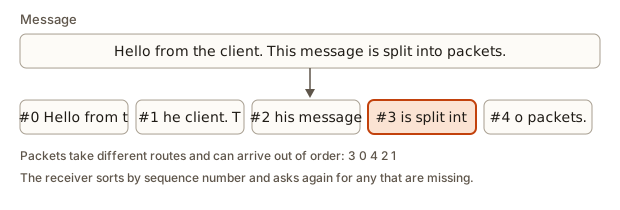 A message cut into five numbered packets
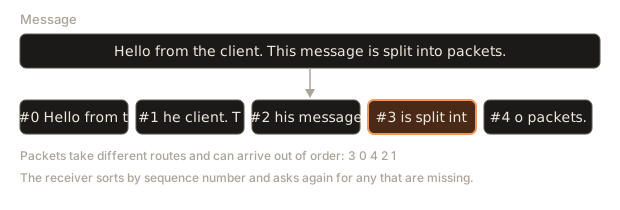
Here is that idea in JavaScript. A message is split into 12-character chunks, delivered in scrambled order, then rebuilt by sorting on the sequence number.
Output:
sent in order:
0 "Hello from t"
1 "he client. T"
2 "his message "
3 "is split int"
4 "o packets."
arrival order: 3 0 4 2 1
rebuilt: Hello from the client. This message is split into packets.
same as original: true
Notice that packet 2 ends with a space and packet 3 starts with the next word. The cutting points are arbitrary. Real packets are cut by size (typically up to about 1,500 bytes of payload on an Ethernet link), not by words, and the receiver never needs to understand the content to put them back together. Only the sequence numbers matter.
Routers and hops
Between you and a server there are many routers: boxes whose only job is to look at a packet's destination address and decide which neighbour to hand it to next. Each handoff is a hop. A packet to a server on the other side of the world might take 10 to 20 hops. No single router knows the whole route. Each knows only "for addresses like this, send it that way", a bit like a postal sorting office that only knows which truck goes to which region.
Each packet carries a counter called TTL (time to live) that starts at a number like 64 and drops by one at every hop. If it reaches zero, the router throws the packet away. This stops packets from circling forever if routers disagree about where to send them. You can see the hops yourself with a command-line tool. On macOS or Linux it is traceroute example.com; on Windows it is tracert example.com. Each output line is one hop, with the time in milliseconds it took to get there.
TCP and UDP
The Internet Protocol alone is "best effort": packets can be lost, duplicated or reordered. Two protocols sit on top of it and decide how much to fix.
- TCP (Transmission Control Protocol) adds numbering, acknowledgements and re-sending. It first sets up a connection with a short exchange called the handshake (three messages: "can we talk?", "yes, can we?", "yes"). After that, every chunk is acknowledged, lost ones are sent again, and the receiving program sees one clean, ordered stream of bytes. Web pages, email and file downloads use TCP, because a page with a missing piece is a broken page.
- UDP (User Datagram Protocol) adds almost nothing: just send it and hope. It is faster and has less overhead. Video calls, live games and some streaming use UDP, because a late packet is useless anyway, and a brief glitch is better than a delay.
For this course you will almost always use TCP, because HTTP (the web's language) runs on it. Know the difference as an interview answer: TCP is reliable and ordered, UDP is fast and lossy.
Ports: many programs, one address
An IP address finds the computer. But one computer runs many network programs at once: a browser, a chat app, a database, a music player. When a packet arrives, which program gets it?
The answer is a port: a number from 0 to 65535 that names one door on that computer. An IP address is the street address of an apartment building; the port is the apartment number. A full destination is written with a colon:
93.184.216.34:443A server program tells the operating system "give me everything that arrives at port 443" (this is called listening on a port). A client picks a random high-numbered port for itself, so replies know where to return.
Some ports are conventions that everyone agrees on, called well-known ports:
| Port | Used for |
|---|---|
| 22 | SSH (secure remote login) |
| 25 | SMTP (sending email) |
| 53 | DNS (turning names into addresses) |
| 80 | HTTP (unencrypted web) |
| 443 | HTTPS (encrypted web) |
| 5432 | PostgreSQL (a database) |
When you type https://example.com your browser quietly uses port 443, and for http:// it uses port 80. That is why you almost never see them. Ports below 1024 are reserved for well-known services (on most systems only privileged programs may listen on them). Your own projects use higher numbers, such as 3000, 5173 or 8080, so no special permission is needed.
Output:
93.184.216.34 port 443: HTTPS
127.0.0.1 port 3000: custom program
10.0.0.5 port 22: SSH
10.0.0.5 port 5432: PostgreSQL
10.0.0.5 port 99: reserved, unknown
Two details about the code. rsplit(":", 1) splits at the last colon only, which is the safe habit when the left part might itself contain colons (IPv6 addresses do). And well_known.get(port) returns None when the key is missing, rather than crashing like well_known[port] would.
What happens inside: one request, end to end
Put everything together and follow one request. You type http://93.184.216.34/cart (we skip the name lookup for now; the next lesson covers it).
- Your browser decides the destination is address
93.184.216.34, port 80 (the default forhttp). - The operating system opens a TCP connection to that address and port. Packets with the handshake flow out. Your laptop's private address is on the "from" label.
- Your laptop checks: is the destination in my network? No. So it hands every packet to the home router.
- The router does NAT: it rewrites the "from" address to the public address and passes the packet to your internet provider.
- About ten routers pass the packet along, hop by hop, each looking only at the destination address.
- The packet reaches the server's network. The server's operating system sees "port 80" and delivers the data to the web server program that is listening there.
- The web server reads the request, builds a response, and sends it back. The same trip happens in reverse, in several packets.
- Your operating system reassembles the packets in order and gives the bytes to your browser. The browser draws the page.
Total time for a nearby server is often 20 to 50 milliseconds. For a server on another continent it is 150 milliseconds or more, and the limit is physics: light in fibre travels at about two thirds of the speed of light, so a round trip from India to California cannot be much below 200 ms however good the hardware is. This is why websites put copies of their content in many countries (a CDN, covered later in the course).
Common mistakes
1. Saying "the internet is down" when one site is down. Test a second site. If other sites load, the roads are fine and the problem is that one destination.
2. Using the wrong port. You start a server on port 3000 and open http://localhost or http://localhost:8000. The browser connects to a different port, where nothing is listening. The error:
This site can't be reached
localhost refused to connect.
ERR_CONNECTION_REFUSED
"Refused" means the computer answered, but no program is listening on that port. The fix is to match the port in the URL to the port the server prints at startup.
3. Starting two servers on the same port. A port can only have one listener. In Node you will see:
Error: listen EADDRINUSE: address already in use :::3000EADDRINUSE means "error: address in use". An old copy of your server is probably still running in another terminal. Stop it (Ctrl+C in that terminal) or choose another port.
4. Confusing "refused" with "timed out". Refused is fast: the destination exists and said no. Timed out is slow: nothing answered at all.
ERR_CONNECTION_TIMED_OUTTimeouts usually mean a wrong address, a machine that is off, or a firewall silently dropping packets.
5. Trying to reach a private address from outside. A friend cannot open http://192.168.1.10:3000 from their own house. That address only exists inside your network, and their router would look for it in theirs.
6. Thinking localhost is the same as the server. localhost always means the computer that is running the program asking. Inside a deployed server, localhost means that server, not your laptop.
7. Treating the IP address as a person's location. It is the address of a network connection and can be shared (NAT), changed (DHCP) or hidden (VPN). Rough location lookups are guesses.
8. Believing a packet is "the file". A packet is a tiny part. If a lesson or an error talks about packet loss, it means some of those parts did not arrive and the protocol is working to repair it.
A debugging walkthrough
Scenario: you run your project and open http://localhost:3000. The browser says ERR_CONNECTION_REFUSED. Work from the bottom of the stack up, asking one question at a time.
- Is the server running? Look at the terminal where you started it. If it has exited with an error, read the last lines. A crashed server means nothing is listening, and "refused" is the correct answer.
- Which port did it print? Servers usually print a line like
Server listening on port 5000. If it says 5000 and you typed 3000, that is the whole bug. - Test with a different client. In a second terminal run
curl http://localhost:5000.curlis a command-line client. If it works, the server is fine and only the URL in your browser was wrong. If it fails the same way, the server really is not listening. A failure looks likecurl: (7) Failed to connect to localhost port 5000. - Check that the address matches. If the server binds to
127.0.0.1only, other devices on your network cannot reach it. If it binds to0.0.0.0it listens on all network interfaces. For a phone test on the same Wi-Fi you want0.0.0.0and the laptop's private address, such ashttp://192.168.1.10:5000. - Check whether the port is taken. If starting the server printed
EADDRINUSE, find and stop the other process, or pick a new port.
Notice the method. Each step splits the problem space in half: is it the server, the URL, or the network? That is the habit that makes debugging fast.
Variations and edge cases
- One name, many machines. Large sites run thousands of servers behind a single name. A load balancer receives each request and passes it to one of them. The client never knows.
- One machine, many sites. A single server can host hundreds of small sites on one address, telling them apart by the name in the request (you will see this as the
Hostheader in the HTTP lesson). - Peer to peer. Not everything is client-server. In file-sharing systems and some video calls, computers talk straight to each other and each acts as both client and server. The rules about addresses and packets still apply.
- Multiple addresses per computer. A laptop on Wi-Fi with a VPN has more than one. It has a private Wi-Fi address, a VPN address and
127.0.0.1. Programs choose which one to use. - Fragmentation. If a packet is too big for a link, it may be cut into smaller pieces on the way. Modern systems usually avoid this by discovering the largest size that fits.
Where this shows up in real work and interviews
- Every deployment question starts here: "which port does the app listen on, and is that port open to the world?" Cloud firewalls are lists of "allow this port from these addresses".
- Interviewers ask "what is the difference between TCP and UDP?", "what is a port?", "what is localhost?" and "what is a private IP address?". You can now answer each in one or two sentences.
- A classic question is "what happens when you type a URL into a browser and press Enter?". You now hold the lower half of the answer (addresses, packets, ports). The next lessons add names, URLs, HTTP and HTTPS.
- Database setup instructions say "PostgreSQL listens on port 5432". You now know that is a door number on an address.
- When a teammate says "it works on my machine", the difference is often that your code talks to
localhostand theirs does not have a server there.
Practice
Work through these in order. Hidden solutions are under each question. Try first, then open them.
1. (Easy) In one sentence each, say what a client is and what a server is.
Solution
A client is a program that starts a conversation by sending a request. A server is a program that waits for requests and sends back responses. Both are roles that programs play, and one computer can play both at once.
2. (Easy) Which of these is not a valid IPv4 address, and why? 10.0.0.1, 192.168.1.256, 172.16.0.0, 8.8.8.8.
Solution
192.168.1.256 is invalid. Each of the four parts is stored in 8 bits, so it can only be 0 to 255. 256 does not fit.
3. (Easy) You open http://localhost:3000 and see ERR_CONNECTION_REFUSED. Name two possible causes.
Solution
The server is not running (it never started or it crashed), or it is running on a different port than 3000. In both cases the computer answered the connection attempt but no program was listening on that port. Check the terminal output for the real port.
4. (Easy) Classify each as loopback, private or public: 127.0.0.1, 192.168.0.14, 8.8.4.4, 10.200.1.1.
Solution
127.0.0.1 is loopback. 192.168.0.14 is private. 8.8.4.4 is public. 10.200.1.1 is private (anything starting with 10 is).
5. (Medium) A network is 10.0.5.0/24. How many addresses does it have, which is the first and which is the last, and is 10.0.6.7 inside it?
Solution
A /24 leaves 8 bits for hosts, so 2 to the power 8 is 256 addresses, from 10.0.5.0 to 10.0.5.255. 10.0.6.7 is not inside: the third number is 6, but the network fixes the first three numbers as 10.0.5. A router is needed to reach it.
6. (Medium) Write a Python function to_int(text) that converts a dotted IPv4 address into its 32-bit number, without using the ipaddress module. Check to_int("10.0.0.1") against what you expect.
Solution
Multiply the running total by 256 for each part and add the part, the same loop as in the lesson:
def to_int(text):
    number = 0
    for part in text.split("."):
        number = number * 256 + int(part)
    return number

print(to_int("10.0.0.1"))
10.0.0.1 is 10 times 16,777,216 plus 1, which is 167772161, and that is what the program prints.
7. (Medium) Your friend runs a server on their laptop at 192.168.1.20:8080 and gives you that URL. It does not load on your computer at home. Explain why, and name two ways to let you see it.
Solution
192.168.1.20 is a private address that only exists inside your friend's home network. Your computer sends the request to your own router, which looks for that address in your network and finds nothing (or finds a different device). Ways to fix it: you join the same Wi-Fi, or your friend deploys the app to a public server, or uses a tunnelling tool that gives it a public URL, or sets up a VPN that puts you both on one private network.
8. (Medium) Why does the internet split data into packets instead of sending a whole file as one block? Give two reasons.
Solution
First, many senders share each link, and small packets let them take turns, so one big file cannot block everyone else. Second, if something is lost or corrupted, only the affected packets are re-sent, not the whole file. A third reason: packets can take different routes, so the network keeps working when one route fails.
9. (Hard) A server listens on port 8080 and the machine's address is 10.0.0.5. From another machine in the same network curl http://10.0.0.5:8080 times out, while on the server itself curl http://localhost:8080 works. Give two likely causes and how you would tell them apart.
Solution
Cause one: the program is bound only to 127.0.0.1, so it accepts connections from the same machine but not from the network. Cause two: a firewall on the server (or in the cloud) drops traffic to port 8080.
To tell them apart, run a command on the server that lists listening sockets and look at the address column. If it shows 127.0.0.1:8080, it is a binding problem; if it shows 0.0.0.0:8080, the program is fine and you look at the firewall. A binding problem usually gives "connection refused" from outside, while a firewall that silently drops packets gives a timeout, which matches what you saw, so the firewall is the first suspect here.
10. (Hard) Explain, with the steps in order, how a packet from your laptop at 192.168.1.10 reaches a public server and how the reply finds its way back, even though your laptop's address is private.
Solution
Your laptop sees that the destination is outside its own network and sends the packet to the router. The router replaces the source address with its own public address (and records which device and port made the request, in a NAT table), then forwards the packet to the provider. Routers pass it hop by hop to the server. The server replies to the router's public address. When the reply arrives, the router looks it up in the NAT table, rewrites the destination back to 192.168.1.10 and delivers it to your laptop. Devices outside only ever see the public address.
What you now know
- The internet is a network of networks. The web is one service that runs on it.
- A client starts a conversation with a request. A server waits and responds. They are roles, not machines.
- An IPv4 address is a 32-bit number written as four numbers from 0 to 255. Some ranges are private or reserved, and
127.0.0.1(localhost) means this computer. - A slash number such as
/24says how many leading bits name the network. Devices outside your network are reached through the router. - Data travels in numbered packets that may take different routes. TCP makes the stream reliable and ordered. UDP trades reliability for speed.
- A port picks one program on a computer. Web traffic uses 80 (HTTP) and 443 (HTTPS), and your own servers use higher numbers.
- When a connection fails, "refused" means nobody is listening, and "timed out" means nobody answered.