Why this matters
This lesson ties the module together. You will follow one page load from the first keystroke to the last pixel, using every idea so far (addresses, DNS, URLs, HTTP), and then learn what HTTPS adds and why it is now required almost everywhere. "What happens when you type a URL and press Enter?" is the most common web interview question for a reason: a good answer proves you understand the whole stack. By the end you will be able to give that answer and, more usefully, to read the Network tab and certificate errors without panic.
The browser is a client with a lot of extras
A browser is the client program for the web. It does the networking you saw in the last lessons, but it also has to turn the bytes it receives into something you can read and click. Four jobs sit inside it:
- Networking: DNS lookups, connections, HTTP requests, caching.
- Rendering engine: reads HTML and CSS and draws the page. Chrome and Edge use an engine called Blink, Safari uses WebKit, and Firefox uses Gecko.
- JavaScript engine: runs the scripts on the page (V8 in Chrome and Edge, JavaScriptCore in Safari, SpiderMonkey in Firefox).
- Storage and security: cookies, saved site data, the cache, and the walls between sites.
The analogy is a restaurant waiter, a chef and a cashier packed into one person: the browser fetches the order, cooks it into a finished plate and keeps track of the bill. You will spend much of your career writing the "order" the browser then cooks.
The whole journey, step by step
Say you type https://shop.example.com/products?id=7 and press Enter. This is what happens, in order.
- Parse the URL. The browser splits it into scheme
https, hostshop.example.com, port 443 (the default), path/productsand queryid=7(URL lesson). - Check local caches. Does the browser already hold a fresh copy of this page? If yes, it can skip the network entirely.
- Resolve the name. The host name must become an IP address. The browser checks its own DNS cache, then the operating system's hosts file and cache, then asks the resolver, which may ask the root, TLD and authoritative servers (DNS lesson). Result: an address such as
203.0.113.20. - Open a TCP connection to that address on port 443. Three small messages set it up: the TCP handshake (lesson 1).
- Do the TLS handshake. Because the scheme is
https, client and server agree on encryption keys and the browser verifies the server's certificate. This is the second half of this lesson. - Send the HTTP request.
GET /products?id=7 HTTP/1.1with aHostheader and the others (HTTP lesson), now inside the encrypted channel. - Receive the response. Status line, headers and the HTML body. Perhaps a redirect first, in which case steps 3 to 7 repeat for the new URL.
- Parse the HTML. The browser builds the page's structure, and discovers more files it needs.
- Fetch those sub-resources: stylesheets, scripts, images, fonts. Each is another request, mostly over the same connection.
- Build, lay out and paint. The browser works out sizes and positions and draws pixels.
- Run the JavaScript, which may fetch more data and change the page.
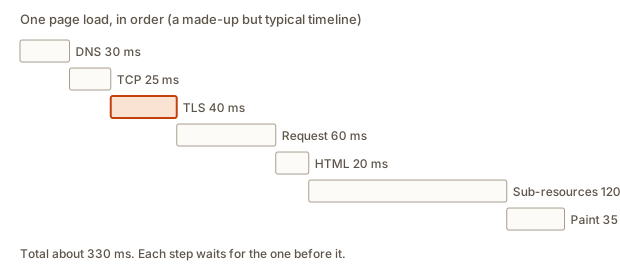 A timeline of the steps in loading one page
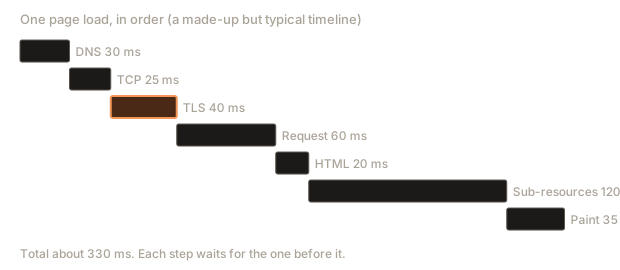
Here is a made-up but typical timeline, so you can see where time goes. The numbers are examples, not measurements of a real site.
Output:
DNS lookup                             30 ms   running total   30 ms
TCP connection                         25 ms   running total   55 ms
TLS handshake                          40 ms   running total   95 ms
HTTP request + first byte              60 ms   running total  155 ms
download HTML                          20 ms   running total  175 ms
parse HTML, fetch CSS, JS, images     120 ms   running total  295 ms
build layout and paint                 35 ms   running total  330 ms
The user sees the page after about 330 ms
The first three rows (DNS, TCP, TLS) are pure setup. Nothing about the page has been sent yet, and the user has already waited 95 ms. This is why caching and keeping connections open matter so much: on a second visit to the same site, DNS is cached and the connection may be reused, and most of that setup disappears. It is also why websites that need many different hostnames feel slower: each new hostname pays the setup cost again.
From HTML to pixels
The HTML the server returns is just text. The browser reads it and builds a tree.
<!doctype html>
<html>
  <head>
    <title>Shop</title>
    <link rel="stylesheet" href="/style.css">
    <script src="/app.js"></script>
  </head>
  <body>
    <h1>Shoes</h1>
    <img src="/img/red.png" alt="red shoe">
    <a href="/cart">Cart</a>
  </body>
</html>
The browser turns each tag into a node, nested exactly as the tags are nested. html holds head and body, and body holds h1, img and a. This tree is the DOM (Document Object Model). JavaScript can read and change it, and the later web modules in this course are mostly about working with it.
While reading, the browser notices tags that point to other files: link for CSS, script for JavaScript, img for images. Each of these needs its own request. The next program plays the browser's role: it reads a page and lists the extra requests it would have to make. It uses Python's HTML parser, which fires an event for every start tag.
Output:
the browser must make 4 more requests:
  css     /style.css
  script  /app.js
  image   /img/red.png
  image   https://cdn.example.org/blue.png
The link /cart is not in the list. A link is only followed when you click it, while stylesheets, scripts and images are needed to show the page. Notice also that the last image sits on another host, cdn.example.org, so it needs its own DNS lookup and connection. One page can therefore trigger dozens of requests to several servers, which is exactly the reason the HTTP protocol was extended to handle many at once.
After the HTML, the browser's rendering pipeline works through these stages:
- DOM from the HTML, and the CSSOM (a similar tree) from the CSS.
- Combine them into a render tree: which elements are visible, and with what styles.
- Layout: work out each element's size and position on the screen.
- Paint: fill in pixels (colours, text, images).
- Composite: stack layers (for example a fixed menu above scrolling content) into the final image.
Two behaviours follow from this that you will need later. A script tag normally stops HTML parsing until the script is downloaded and has run, because the script might change the page. That is why scripts are often placed at the end of the body or marked defer. And CSS blocks painting, so the browser does not show an unstyled flash while it waits for the stylesheet.
The browser cache
Downloading the same logo on every page would be wasteful. The browser therefore keeps copies of what it fetched, in a cache, and the server decides how long a copy may be reused by sending a Cache-Control header: Cache-Control: max-age=3600 means "this is good for an hour, do not ask again".
Output:
t=  0  /logo.png  network request #1
t= 20  /logo.png  cache hit
t= 59  /logo.png  cache hit
t= 60  /logo.png  network request #2
t=100  /logo.png  cache hit
The age is now - stored_at. At time 59 the copy is 59 seconds old, still under the 60-second limit, so it is a hit. At 60 the age equals the limit, so the copy is stale and the browser asks again, which stores a fresh copy at time 60. At 100 the copy is 40 seconds old: a hit again.
When a stale copy is checked, the browser can ask "has it changed?" by sending the stored ETag label in an If-None-Match header. If not, the server sends 304 Not Modified with no body, and the cached copy is used. That check is much cheaper than a download.
Caching is the source of the most common beginner frustration: "I changed my CSS and the page looks the same." The browser is using its saved copy. Fixes: a hard refresh (Ctrl+Shift+R, or Cmd+Shift+R), ticking "Disable cache" in the Network tab while developing, or, in production, putting a version in the file name (app.3f9a1c.js) so a new file means a new URL.
Same-origin rule
A browser runs code from many sites at once. Without limits, a script from a random site could read your bank page in another tab. The same-origin policy is the basic wall. Remember from the URL lesson that an origin is scheme plus host plus port. By default a page may freely read only data from its own origin.
Output:
https://app.example.com/other        true
http://app.example.com/home          false
https://api.example.com/home         false
https://app.example.com:8443/home    false
Only the first matches. The second differs in scheme, the third in host, the fourth in port. The path never matters. The CORS error in the HTTP lesson is this rule at work: when your front end on one origin calls an API on another, the API must explicitly allow it.
Why plain HTTP is a problem
Plain HTTP sends everything as readable text. Everyone between you and the server, the other people on a coffee shop's Wi-Fi, your internet provider, any router on the path, can do three things:
- Eavesdrop. Read your passwords, messages and cookies as they pass.
- Tamper. Change the page on the way (inject ads, malware, or a fake login form) or change the data you send.
- Impersonate. Pretend to be the server, since you cannot prove who you are talking to.
An analogy: plain HTTP is a postcard. Every postal worker who handles it can read it, scribble on it or swap it for another. HTTPS is a sealed, tamper-evident envelope delivered by a courier who checks the recipient's ID before handing it over.
HTTPS is HTTP carried inside TLS (Transport Layer Security), a protocol that sits between TCP and HTTP. The messages are exactly the same as in the HTTP lesson, but wrapped in encryption. (You may see the older name SSL. It is outdated, though people still say "SSL certificate". The modern protocol is TLS.)
TLS delivers three guarantees. Learn their names.
- Confidentiality: no one in the middle can read the data.
- Integrity: no one in the middle can change it without being noticed.
- Authentication: you know you are talking to the real server for that name.
Confidentiality: encryption
Encryption scrambles data using a key so that only someone who has the right key can unscramble it. The following is not real security (it is a toy), but it shows what an eavesdropper sees. The sender mixes every character with a secret number using XOR, a simple operation that is its own undo.
Output:
on the wire: 5a4b59595d45584e17425f445e4f5818
with key   : password=hunter2
wrong key  : sbpptlqg>kvmwfq1
The bytes on the wire are meaningless without the key, and a wrong key produces garbage. Real TLS uses much stronger algorithms (such as AES), but the principle is the same: one shared secret key encrypts and decrypts. This kind is called symmetric encryption, and it is fast.
That raises the awkward question: how do the browser and the server agree on a secret key, when the only road between them is public and watched? If they just send the key, the eavesdropper copies it.
Agreeing on a key in public
Mathematicians found a way. The idea of the Diffie-Hellman key exchange is that each side mixes a private number with some public numbers, sends only the mixed result, and then both sides mix the other's result with their own private number and end up with the same secret. An eavesdropper sees the public numbers and both mixed results, but cannot get the secret, because undoing the mixing is extremely hard for big numbers. Here it is with tiny numbers, so you can follow the arithmetic.
Output:
sent in the open: 8 19
Alice computes: 2
Bob computes  : 2
same secret   : True
pow(g, a, p) means "g to the power a, then take the remainder after dividing by p". Alice sends 8 and Bob sends 19. Alice raises 19 to her private 6, Bob raises 8 to his private 15, and both land on 2. An eavesdropper knows 23, 5, 8 and 19, but with these tiny numbers could simply try every possibility. Real systems use numbers hundreds of digits long (or a variant on elliptic curves), where that guesswork is impossible. Modern TLS also uses a fresh key exchange for every connection, so that recorded traffic cannot be decrypted later even if a server's long-term key leaks.
Integrity: hashes
To detect tampering, TLS attaches a checksum-like tag to each message, built with a keyed hash. A hash function turns any input into a short fixed-size fingerprint. The same input always gives the same fingerprint, and the smallest change gives a completely different one.
Output:
b8c527fa862d5832
437ac502df1bccbb
True
Changing one digit (100 to 900) changed the whole fingerprint. (The code prints only the first 16 of the hash's 64 hex characters.) If an attacker alters a message, the tag no longer matches and the receiver rejects it. Because the tag also uses the shared secret key, the attacker cannot simply recompute a matching one.
Authentication: certificates
Encryption alone is not enough. Suppose an attacker sits in the middle and answers your key exchange themselves. You would have a perfectly encrypted channel to the attacker. You must also know that the other end is the real shop.example.com.
That is the job of a certificate: a digital document that says "this public key belongs to shop.example.com", signed by a certificate authority (CA), an organisation that browsers trust. Your browser and operating system come with a list of trusted root CAs. Usually the server's certificate is signed by an intermediate CA, which is in turn signed by a root. The browser follows this chain and checks:
- The chain leads to a root that the browser already trusts.
- The certificate has not expired.
- The name on the certificate matches the host in the URL.
The next program checks a chain. The issued_by dictionary says who signed each certificate.
Output:
visiting www.example.com    chain: www.example.com -> Mid CA -> Root CA One LOCK
visiting evil.test          chain: evil.test                              WARNING
visiting shop.test          chain: shop.test -> Unknown CA                WARNING
visiting bank.example.com   chain: www.example.com -> Mid CA -> Root CA One WARNING
Four cases. The first chain ends in a trusted root and the name matches: a lock. The second certificate is self-signed, vouching for itself, so there is no trusted authority: a warning. The third chain ends at an authority the browser does not know. The fourth has a perfectly good certificate, but for www.example.com, while the browser is visiting bank.example.com. The names do not match, so it is rejected, which stops an attacker from reusing a real certificate for another site.
Free certificates are available from authorities such as Let's Encrypt, and many hosting platforms set HTTPS up automatically. Certificates are short-lived (a few months), so renewal is automated. The expiry date matters: an expired certificate makes browsers show a full-page warning.
The TLS handshake
Everything above happens in the TLS handshake, right after the TCP connection opens and before the first HTTP byte. A simplified view of TLS 1.3, the current version:
- The browser says hello, lists the encryption methods it supports and sends its half of a key exchange. It also says which host name it wants (so a server that hosts many sites can choose the right certificate).
- The server answers with its chosen method, its half of the key exchange and its certificate.
- The browser verifies the certificate (chain, dates, name). Both sides now compute the shared secret key.
- Both send a "finished" message, proving they derived the same key.
- All further traffic, including the HTTP request, is encrypted with that key.
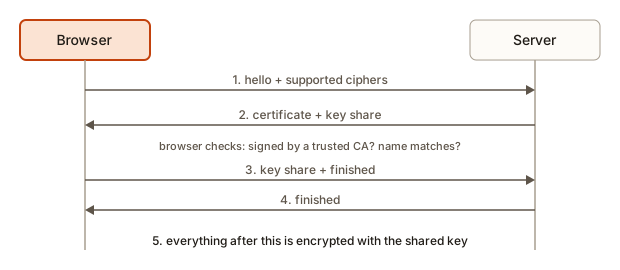 Simplified steps of a TLS handshake between browser and server
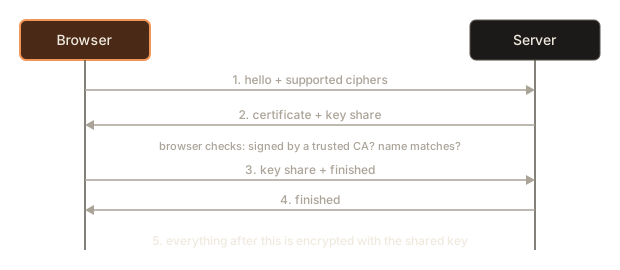
TLS 1.3 completes in one round trip, which is why the "TLS handshake" row in the timeline costs only tens of milliseconds. Browsers can also remember a previous session to resume it faster.
What HTTPS does and does not do
The padlock icon (now often a neutral "tune" icon) means your connection to this server is encrypted and the certificate matched the name. It does not mean:
- The site is honest. A phishing site can have a perfectly valid certificate for its own look-alike name. The lock only proves that you reached
paypa1-login.example, not that it is PayPal. - The page is safe. The site itself may still serve malware.
- You are anonymous. The server still knows who you are if you log in, and an observer can still see which server address you connect to (and usually the host name, since it is sent in the handshake), just not the path or contents.
- The server stores your data safely. HTTPS protects data in transit only. It says nothing about what happens at the other end.
Every site should use HTTPS now, even a blog with no login, because it stops others from tampering with the page, and because browsers mark plain HTTP pages as "Not secure". Search engines also prefer HTTPS.
What happens inside: a closer look at one HTTPS request
Combine all the layers for one request, and notice how each lesson's idea has its own place:
Browser                                        Server
  |  URL -> host, port 443, path (URLs)            |
  |  DNS lookup: name -> IP address (DNS)          |
  |  TCP handshake to IP:443 (lesson 1)  --------> |
  |  TLS handshake, certificate check    <-------> |
  |  GET /products?id=7 HTTP/1.1 (encrypted) ----> |
  |  200 OK + HTML (encrypted)           <-------- |
  |  more requests for CSS, JS, images             |
  v  parse, layout, paint
Each layer only cares about its own job. IP moves packets, TCP orders them, TLS hides and verifies them, HTTP gives them meaning, and HTML gives the page structure. This idea, a stack of layers where each uses the one below, is one of the most important in computing.
Reading the Network tab waterfall
The Network tab in your browser's developer tools draws each request as a horizontal bar on a shared time axis. This picture is called a waterfall, and it is the quickest way to see the page-load steps from this lesson at work on a real site. Open it on any site, reload with the tab open, and look for these things.
- Bar position. A request that starts late was discovered late. The HTML is at the top. The CSS and scripts it names start a moment after it, and images mentioned inside the CSS start later still. A long staircase means the browser could not know what to fetch until the previous file had arrived.
- Bar colours inside a bar. Hovering over one shows its phases: queueing or stalled (waiting for a free connection), DNS lookup, initial connection, SSL (the TLS handshake), request sent, waiting for server response (also called time to first byte), and content download. Each phase is one step you studied. A long "waiting" segment means a slow server. A long "content download" segment means a large file or a slow connection.
- The Size column. It shows how many bytes were transferred, and for cached items it says
(memory cache)or(disk cache), which means no network was used at all. After a reload, most of your static files should say that. - The Status column. Scan for anything that is not 200 or 304. A red row is a 4xx or 5xx, and clicking it shows the real request and response headers.
- The vertical lines. Two coloured lines mark
DOMContentLoaded(the HTML has been parsed into the DOM) andload(every resource, such as images, has finished). A page can look finished well beforeload.
Practise with a concrete question: "Why does my site feel slow?" Reload with the cache disabled, sort by the Time column and look at the top row. If it is a 3 MB image, shrink the image. If one script on another host has a long DNS and connection phase, consider serving it yourself. If the first row, your HTML, has a long wait, the problem is your server and not the front end. One minute of looking replaces an hour of guessing.
Common mistakes
1. Ignoring a certificate warning. The browser says:
Your connection is not private
NET::ERR_CERT_AUTHORITY_INVALID
It means the certificate chain does not lead to a trusted authority. On someone else's site, do not click through. On your own dev server using a self-signed certificate it is expected, and you can proceed knowingly.
2. An expired certificate. NET::ERR_CERT_DATE_INVALID means the certificate is out of date (or your computer's clock is wrong, a surprisingly common cause). On your own site, renew it and automate renewal.
3. A name mismatch. NET::ERR_CERT_COMMON_NAME_INVALID means the certificate is for a different name than the one in the URL. Typical causes: using the bare IP address, visiting example.com when the certificate only covers www.example.com, or the wrong site answering.
4. Mixed content. An HTTPS page that loads a script or image from http:// is blocked or flagged:
Mixed Content: The page at 'https://example.com/' was loaded over HTTPS, but requested
an insecure script 'http://example.com/app.js'. This request has been blocked.
Change the resource URL to https:// (or a relative URL).
5. curl rejecting a certificate. On the command line the same problem looks like:
curl: (60) SSL certificate problem: unable to get local issuer certificateIt means curl could not build a trusted chain. The -k option switches the check off, and is fine for a throwaway local test but is dangerous anywhere real, because it removes the authentication guarantee.
6. Thinking the lock means "trustworthy". See above: it means "encrypted to the named site".
7. Forgetting to redirect HTTP to HTTPS. Someone typing example.com often starts on plain http. The server should answer with a 301 to the https URL. A header called HSTS (Strict-Transport-Security) goes further and tells the browser to use HTTPS only for a stated time.
8. Debugging "the old CSS" with the wrong tool. Before suspecting your code, hard-refresh or disable the cache. A stale copy in the browser is far more likely than a deployment failure.
9. Putting secrets in front-end code. Anything sent to the browser, in HTML, JavaScript or cookies, can be read by whoever opens the developer tools. HTTPS hides it from people on the wire, not from the user.
A debugging walkthrough
Scenario: you deployed your portfolio. On your laptop it loads in about a second. Your friend says "it shows a security warning and then loads slowly". Track it down.
- Reproduce the warning. Open the site in a private window and click the warning for details. Suppose it says
NET::ERR_CERT_COMMON_NAME_INVALID. - Compare names. Click the lock (or "Not secure") and view the certificate. The certificate covers
portfolio.example.com, and the friend typedwww.portfolio.example.com. The second name has no certificate. Fix: add a certificate for both names, or redirect one name to the other at the DNS and server level. - Look at slowness with the Network tab. Reload with the tab open. The waterfall shows each request as a bar. A very long bar at the start labelled "Stalled" or "DNS Lookup" points to the setup. A long "Waiting for server response" (often shown as TTFB, time to first byte) points to a slow server.
- Check sizes. The row for
hero.pngsays 6 MB. That is the real cause. A giant image takes seconds on a phone connection. Resize or compress it. - Check caching. For
app.js, the response lacksCache-Control, so it is downloaded again every visit. Add one. - Reload and compare.
Notice that you found three separate problems, a certificate name, an oversized file and missing caching, by following the page-load steps in order. That is the point of knowing the whole journey.
Variations and edge cases
- HTTP/3 and QUIC. The newest HTTP version runs over a protocol called QUIC (built on UDP) which combines the connection and TLS setup into one step and handles lost packets better on mobile networks. Your code looks the same.
- CDNs. A content delivery network keeps copies of your files in servers around the world and answers from the nearest, cutting distance and load. DNS usually steers each visitor to the closest copy.
- Service workers. A script in the browser can intercept requests and serve them from its own store, making sites work offline.
- Local storage. Browsers can store data on your device (
localStorage, IndexedDB) beyond cookies. It is per origin and readable by any script on the page. - Incognito. A private window starts with an empty cache and no cookies and throws them away afterwards, which makes it useful for testing "fresh visitor" behaviour. Extensions are often off too.
- Proxies and VPNs. A proxy relays requests for you. A VPN wraps all your traffic in an encrypted tunnel to a server elsewhere, so your local network cannot see the sites you visit, but the VPN provider can.
- Mobile apps use the same HTTPS to the same kinds of servers, and many apps are only a native shell around API calls.
Where this shows up in real work and interviews
The standard interview question is "What happens when you type a URL into the browser and press Enter?" With this module you can answer in order and with the right words: parse the URL, check caches, resolve the name through the resolver and the root, TLD and authoritative servers, open a TCP connection, do the TLS handshake and verify the certificate, send an HTTP request, receive the response, parse the HTML into a DOM, fetch sub-resources, then lay out and paint. Give a short sentence for each step, and then offer to go deeper into whichever the interviewer picks.
Other common questions:
- "What is the difference between HTTP and HTTPS?" HTTPS is HTTP over TLS: encrypted, tamper-evident and authenticated with a certificate.
- "How does HTTPS work?" Certificate check, key exchange, then symmetric encryption with the shared key.
- "What is a certificate authority?" A trusted organisation whose signature on a certificate lets the browser believe the key belongs to that name.
- "Symmetric versus asymmetric encryption?" Symmetric uses one shared key and is fast, so it encrypts the bulk data. Asymmetric uses a key pair (a public and a private key) and solves the problem of agreeing on a key, so it is used during the handshake.
- "Why is my page slow?" The Network tab: setup, server time, file sizes, number of requests, caching.
- On the job, the same knowledge sets up every deployment: buy a domain, point DNS at the server, enable HTTPS, add caching headers, and verify with the Network tab and
curl -I.
Practice
1. (Easy) Put these steps in order: TLS handshake, DNS lookup, HTTP request, TCP connection, paint.
Solution
DNS lookup, TCP connection, TLS handshake, HTTP request, paint (the page is drawn after the response arrives and has been parsed).
2. (Easy) Name the three things HTTPS guarantees.
Solution
Confidentiality (nobody can read the data), integrity (nobody can change it unnoticed) and authentication (you are talking to the real server for that name).
3. (Easy) What is the DOM?
Solution
The tree of nodes the browser builds from the HTML, one node for each tag, nested as in the markup. JavaScript can read and change it, and the browser draws the page from it.
4. (Easy) You changed style.css and deployed, but you still see the old look. Name two quick things to try.
Solution
Hard-refresh the page (Ctrl+Shift+R or Cmd+Shift+R), or open the Network tab and tick "Disable cache", or test in a private window. In production, put a version in the file name so a new file is a new URL.
5. (Medium) A cached file has Cache-Control: max-age=120 and was stored at time 500 seconds. At what times is it reused and when does the browser ask again: 550, 619, 620, 700?
Solution
Its age at 550 is 50, at 619 is 119, and both are under 120, so it is reused. At 620 the age is 120, which is not under the limit, so it is stale and the browser asks again (often with a conditional request, and a 304 lets it reuse the copy). At 700 the age is 200, stale as well, unless a new copy was stored in between.
6. (Medium) Is https://app.example.com:443/a the same origin as https://app.example.com/b? And as http://app.example.com/a?
Solution
The first pair is the same origin: scheme https, host app.example.com, and port 443 is the default for https, so both mean 443. The paths differ, but paths do not matter. The second pair is not: the schemes differ (http versus https), and so the ports differ as well (80 versus 443).
7. (Medium) Your HTTPS page shows a padlock but a script on it is blocked with a "Mixed Content" message. What is wrong and how do you fix it?
Solution
The page was loaded over HTTPS but asked for a script at an http:// URL. An attacker could alter that script and so control the whole page, so the browser blocks it. Change the script's URL to https:// (and make sure the host serves it over HTTPS), or use a relative URL.
8. (Medium) Write a Python function that takes a list of (name, seconds) steps, like the page-load timeline, and returns the name of the slowest step. Test it on the timeline from the lesson.
Solution
def slowest(steps):
    return max(steps, key=lambda s: s[1])[0]

steps = [("DNS lookup", 30), ("TCP connection", 25), ("TLS handshake", 40),
         ("HTTP request + first byte", 60), ("download HTML", 20),
         ("parse HTML, fetch CSS, JS, images", 120), ("build layout and paint", 35)]
print(slowest(steps))
It prints parse HTML, fetch CSS, JS, images. The key argument tells max to compare the second item of each pair (the time), and the [0] returns that pair's name.
9. (Hard) Explain why encryption without certificates is not enough. Describe the attack that remains.
Solution
Without authentication, you cannot tell who is at the other end of the encrypted channel. An attacker positioned between you and the server can run one key exchange with you and a second with the real server, and pass messages between the two, reading and changing them as they go. This is a man-in-the-middle attack. Both channels are encrypted, but the attacker holds both keys. A certificate signed by a trusted authority for the exact host name stops it, because the attacker cannot produce one for shop.example.com.
10. (Hard) A user reports "the page loads but all images are broken, and the console shows ERR_CERT_COMMON_NAME_INVALID for cdn.example.org". Where is the problem, and why do the page and the images behave differently?
Solution
The page is served from one host whose certificate is correct, but the images come from another host, cdn.example.org, whose certificate does not cover that name (for example it covers only *.example.com or a different CDN domain). Each host has its own TLS handshake and its own certificate check, so one succeeds and the other fails. Fix the certificate on the CDN host so it includes cdn.example.org, or serve the images from a host whose certificate already covers them.
11. (Hard) Write the full answer to "What happens when you type a URL and press Enter?" in about eight sentences, using the terms from this module.
Solution
The browser parses the URL into scheme, host, port, path and query, and checks its cache for a fresh copy. It resolves the host name to an IP address, asking a recursive resolver, which consults the root, TLD and authoritative servers unless an answer is cached. The browser opens a TCP connection to that address on port 443 (or 80 for plain HTTP). For HTTPS it runs a TLS handshake: the server sends its certificate, the browser verifies the chain, the date and the name, and both sides derive a shared key. The browser sends an HTTP request such as GET /path HTTP/1.1 with a Host header over the encrypted connection. The server runs its code and returns a status line, headers and a body, typically HTML, possibly after a redirect. The browser parses the HTML into the DOM, finds stylesheets, scripts and images, and requests each of them, using the cache where it can. It then lays out the page, paints it, and runs the JavaScript, which may make further requests.
What you now know
- A page load is a chain: parse the URL, check caches, DNS, TCP, TLS, HTTP request, response, parse the HTML, fetch sub-resources, layout, paint.
- The browser builds a DOM from HTML, fetches extra files it finds, and caches them according to
Cache-Control. Stale copies explain most "my change is not showing" problems. - The same-origin policy is a wall around scheme plus host plus port. CORS is how a server opens it deliberately.
- HTTP alone can be read, changed and impersonated. HTTPS is HTTP over TLS and adds confidentiality, integrity and authentication.
- TLS agrees on a shared key through a public key exchange, then uses fast symmetric encryption. Hashes detect tampering and certificates signed by trusted authorities prove the server's identity.
- The padlock means an encrypted connection to the named host, not that the site is trustworthy.
- Read certificate errors by name:
ERR_CERT_AUTHORITY_INVALID,ERR_CERT_DATE_INVALIDandERR_CERT_COMMON_NAME_INVALIDeach point at a different check that failed.
Module summary
- Lesson 1: clients and servers, IP addresses, packets, ports and localhost.
- Lesson 2: DNS, the resolver hierarchy, caching with TTLs and the record types.
- Lesson 3: URL parts, query strings, percent-encoding and relative links.
- Lesson 4: HTTP messages, methods, status codes, headers and cookies.
- Lesson 5: the full page-load journey, caching, origins and HTTPS.