Why this matters
Almost every error message you will read in your first year comes from the operating system, not from your language. "Permission denied", "command not found", "Killed", "Segmentation fault", "Address already in use": each one is the OS saying no, and each has a reason. Developers who know what the OS does read these messages calmly and fix them in a minute. Developers who do not will paste them into a search box and hope.
You also need to choose and set up a machine for the rest of this course. Windows, macOS and Linux differ in ways that matter for code, and you should know which differences are real and which are not.
The building manager analogy
Imagine a large apartment building with hundreds of tenants. The tenants are programs. They each want water, power, a lift and a postbox. Imagine what would happen if each tenant had to run their own pipes and cables. They would collide, use more than their share, and could wander into each other's flats.
So the building has a manager. Tenants do not touch the plumbing. They ask the manager: "I need hot water in flat 12." The manager checks the request, connects the pipe, makes sure no tenant takes everything, and keeps the keys so nobody enters a flat that is not theirs.
The operating system (OS) is that manager for your computer. The hardware is the building, and the programs are the tenants. The OS has these jobs:
| Job | What it does |
|---|---|
| Run programs | Starts them, stops them, and shares the CPU between them |
| Manage memory | Gives each program its own RAM and takes it back when the program ends |
| Manage files | Provides the folders, paths and permissions from lesson 2 |
| Talk to devices | Keyboards, screens, disks, printers, network cards, through small programs called drivers |
| Keep things safe | Separates users and programs so one cannot spy on or break another |
| Offer a way to use it | The desktop, the windows, the touch screen and the terminal |
Without an OS, every program would have to include code for every keyboard, disk and screen ever made. With one, a program says "write these bytes to the file notes.txt" and does not care whether the file lives on an SSD, a USB stick or a network drive.
Layers: programs, OS and hardware
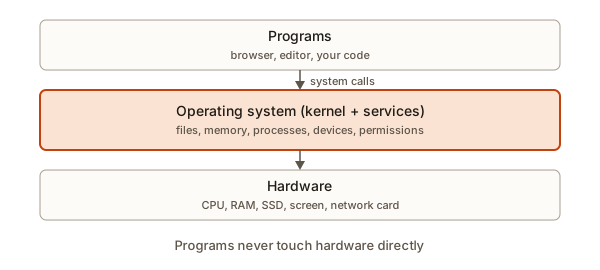 Three stacked layers: programs on top, the operating system in the middle and hardware at the bottom
Programs sit on top. They never touch hardware directly. They ask the OS, and the OS talks to the hardware. This separation is the whole design. It lets thousands of different programs run on thousands of different machines, and it lets the OS protect the machine from the programs.
The core of the OS is the kernel. It is the part that runs in a special privileged mode of the CPU. In this mode, it may use every instruction, touch all of RAM, and talk to devices. Everything else, including your browser, your editor and your own code, runs in the ordinary user mode, where the CPU refuses dangerous instructions. If a user-mode program tries something forbidden, the CPU hands control to the kernel, which usually ends that program.
System calls: how a program asks
A program cannot call the kernel like a normal function, because the kernel lives in the protected zone. Instead the CPU has a special instruction that says "I would like the kernel to do something for me". The request is called a system call, or syscall. The program fills in a number for which service it wants, such as read, write, open or exit. Then it triggers the switch. The kernel checks that the request makes sense and is allowed, does the work, and returns the answer.
Every file you open, every character you print, every network message you send goes through a system call. A handful of the most common ones:
| System call | Meaning |
|---|---|
open | Get access to a file by its path |
read | Copy bytes from a file or device into the program's memory |
write | Copy bytes from the program's memory to a file or device |
close | Say you are done with it |
fork and exec (Unix) | Create a new process and load a program into it |
exit | End this program |
socket, connect, send | Network access |
You almost never write system calls yourself. Your language wraps them. When you call print in Python, a function eventually does a write to a file number called the standard output, which is number 1, usually connected to your terminal. You can see this by calling the thin Python wrapper directly:
hello from a system call
hello from print
os.write(1, ...) goes straight to the write system call on file number 1 and needs bytes (the b in front), not text. The ordinary print does more work: it turns text into bytes, keeps them in a buffer, and eventually makes the same system call. Both end up on the screen. Following a print down to a system call is a good picture of what happens in every program.
A toy kernel
To make the boundary concrete, here is a miniature kernel written in Python. The "program" part can only use the syscall method. It cannot reach into disk directly, in the same way a real program cannot reach into the real drive. In a real OS, the CPU enforces that rule. Here we only pretend.
2
hi
error: no such file
error: unknown call
['write_file', 'read_file', 'read_file', 'format_disk']
Read it as a conversation. Call 1 writes two characters and the kernel replies with how many it wrote. Call 2 reads them back. Call 3 asks for a file that does not exist, and the kernel replies with an error instead of crashing. Call 4 asks for something the kernel does not offer, and is refused. The log shows that the kernel sees every request, which is what lets a real OS check permissions, count resources and, on Linux, let a developer trace them with a tool called strace.
Also notice that every answer is a plain value. Errors come back as results. In a real OS a failed system call returns an error code such as ENOENT ("no such entry"), and your language turns it into an exception or error message. The [Errno 2] in Python's FileNotFoundError is exactly that code.
Drivers: the kernel's translators
A keyboard from one maker and a keyboard from another send slightly different signals. So do disks, graphics cards and Wi-Fi chips. The OS does not know them all in advance. Each piece of hardware comes with a driver, a small program (usually part of the kernel) that knows how to talk to that device. The driver turns the device's own signals into a standard form the rest of the OS understands.
This is why plugging in a USB mouse "just works" on a modern computer: the OS already has a driver for a standard mouse. It is also why a new graphics card might need you to install the maker's driver, and why a broken driver can crash the whole machine: it runs inside the kernel, with full power.
Memory management and isolation
In lesson 1, RAM was a long row of numbered cells. If every program used those real addresses, a bug in your program could overwrite the memory of your browser, or of the OS itself.
The OS prevents this with virtual memory. Each program is given the illusion that it has the whole memory to itself, starting at address 0. These are virtual addresses. The OS and a part of the CPU keep a table that maps each virtual address to a real physical address in RAM. Memory is divided into pages, often 4,096 bytes each, and the table maps whole pages. Two programs can both use address 100 and never meet, because their address 100s map to different places.
Here is a small simulation. Each program has its own page table, mapping a virtual page number to a physical frame number:
A address 100 -> 28772
A address 4100 -> 12292
A address 99999 -> segmentation fault
B address 100 -> 20580
B address 4100 -> 36868
B address 99999 -> segmentation fault
Trace the first line. Virtual address 100 is page 0 (because 100 divided by 4096 is 0) with offset 100. Program A maps page 0 to physical frame 7, so the real address is 7 times 4096 plus 100, or 28,772. Program B maps its own page 0 to frame 5 and gets 20,580. Both programs "used address 100", and they landed in different places. The last line shows what happens when a program uses an address that has no mapping: the lookup fails and the OS stops it, and you see Segmentation fault in the terminal.
Virtual memory has three more benefits.
- Protection. A program cannot name another program's memory, because the table has no entry for it.
- Room to spare. Pages not used lately can be copied to the drive (swap) and brought back when needed, so the system can use more memory than the RAM chips hold. That is the slow case from lesson 1.
- Sharing. Two programs can map the same frame when they use the same library, so it is stored once.
When your program ends, the OS takes back every page it had. This is why a program that leaks memory is only a problem while it runs.
Users, permissions and privilege
Computers have several users, and programs run as a user. The OS keeps a record of who owns what and uses the permissions from lesson 2 to decide each request. One special user, root on Linux and macOS and Administrator on Windows, may do anything. Doing everyday work as root is a bad idea, because one mistake or one malicious program has unlimited power. The rule of least privilege says: give each program and person only the access needed for the job.
When you need a one-off privileged action, you ask for it explicitly: sudo on Linux and macOS ("superuser do"), or the "Run as administrator" prompt on Windows. Make a habit of reading what you are about to run with sudo before you press Enter.
Here is a small model of the permission check the OS performs on every file access, using the owner, group and others scheme:
anisha report.txt write -> allowed
ravi report.txt read -> allowed
ravi report.txt write -> denied
guest report.txt read -> denied
guest run.sh exec -> allowed
Follow the second line. report.txt has mode 640. Ravi is not the owner but is in the file's group staff, so the OS uses the middle digit. (0o640 >> 3) & 7 slides out the owner digit and keeps three bits, giving 4. Read is 4, so Ravi may read. Write is 2 and the bit is missing, so the third line is denied. The guest is neither owner nor in the group, so the last digit (0) applies and nothing is allowed. The shifts and masks are the bit operations from lesson 3, and this is what they are for.
Processes and scheduling, in brief
The OS runs many programs at once on few cores by switching between them very fast. Each running program is a process, and the part of the kernel that decides which one gets the CPU next is the scheduler. Lesson 5 explains this in full. For now, note that scheduling is the OS job that makes a computer feel like it does many things at once.
The boot process: from power button to desktop
How does an OS start, when it lives on a drive and the CPU can only run programs in RAM? The computer solves this in stages, each small stage loading a bigger one. This is a classic "pull yourself up by your bootstraps" trick, so it is called booting.
1. Power on. The CPU starts running a tiny program stored in a chip on the
   motherboard, the firmware (UEFI on modern machines).
2. The firmware checks that the hardware works, then finds a bootable drive.
3. It loads a small program from the drive called the bootloader.
4. The bootloader finds the OS kernel on the drive and copies it into RAM.
5. The kernel starts, sets up memory and drivers, and starts the first process.
6. That process starts background services (network, sound, login screen).
7. You log in and the desktop appears.
That is why a computer takes several seconds to start: it is loading the OS from storage into RAM, and starting dozens of background programs called services (on Unix, daemons) that run without a window. They manage things like Wi-Fi, printing, updates and clocks. Sleep and hibernate modes save time by keeping RAM powered, or by writing RAM to the drive, so the whole sequence can be skipped.
Finding programs: the PATH
When you type python or node in a terminal, the OS has to find the program file. It does not search the entire drive. It reads an environment variable named PATH: a list of folders to look in, in order. The first folder that holds a program with that name wins.
An environment variable is a named setting that the OS hands to every program when it starts. Others you will meet include HOME (your home folder) and LANG (your language). Programs can read them and change their own copy:
not set
on
Setting a variable inside a program changes only that program's own copy (and programs it starts later). It does not change your system. Here is the PATH lookup as a simulation:
node -> /usr/local/bin/node
ls -> /usr/bin/ls
cat -> /bin/cat
python -> None
The first three are found in different folders. python is not in any folder on the list, because only python3 is installed. A real shell answers this in the form command not found, even though Python is on the machine, just not under that name. This is also what is going on when you install a program and then "it is not recognised": the program exists but its folder is not on the PATH. We will use this in the terminal module.
The main operating systems
Most of the world's computers run one of a few families.
Windows (Microsoft) is the most common on desktop and laptop computers and in offices. It has a graphical interface and a strong range of software, including most games. Its file paths use drive letters and backslashes (C:\Users\anisha). It has its own command-line tools, PowerShell and the older Command Prompt, which behave differently from Unix tools.
macOS (Apple) runs on Apple's laptops and desktops. Under its graphical layer it is a Unix system, so it has the same terminal commands and path style as Linux (/Users/anisha). That is why many developers like it.
Linux is a free and open-source kernel, used on nearly all servers, supercomputers and in Android. It comes as distributions, each of them a kernel packaged with tools and a desktop: Ubuntu, Debian, Fedora and many more. When your code runs on a cloud server, it is almost certainly Linux.
Android (Google) and iOS (Apple) are phone systems. Android is built on the Linux kernel. iOS is related to macOS. Apps run with tight permission rules: each app is walled off and must ask for access to the camera, contacts or location.
A short comparison of what matters to a developer:
| Windows | macOS | Linux | |
|---|---|---|---|
| Path style | C:\Users\anisha | /Users/anisha | /home/anisha |
| Default shell | PowerShell | zsh | bash (often) |
| Unix tools built in | No (use WSL) | Yes | Yes |
| Case-sensitive file names | No | Usually no | Yes |
| Line ending in text files | \r\n often | \n | \n |
| Where servers run | Rarely | Rarely | Almost always |
Unix-like means macOS and Linux share ideas and commands: ls, cd, cat, grep, the slash path style, the permission numbers. A skill learnt on one carries over to the other. Windows can get the same environment through WSL, the Windows Subsystem for Linux, which runs a real Linux system alongside Windows. If you are on Windows, installing WSL with Ubuntu is a sensible choice for this course because the rest of the world's server tooling assumes Linux. The terminal module covers it.
You do not need to pick a "best" OS. Any of the three can be used to learn programming. What matters is that you know which one you are on, because commands, paths and some error messages are different.
Graphical interface and command line
You can talk to the OS in two ways. The graphical user interface (GUI) is windows, icons and a mouse. The command-line interface (CLI) is a text prompt where you type a command and read the reply. Both are only programs that make system calls for you. Clicking "New folder" and typing mkdir projects end in the same system call.
The program that reads your typed commands is the shell. The window that shows the shell is the terminal. People mix the two names, and in practice it rarely matters. Why bother with a text prompt when you have a mouse? Because text is exact, repeatable and easy to automate. A command can be saved in a file and run again tomorrow, run on a server that has no screen at all, or pasted into a message to a colleague. Most developer work happens here, so the next module is about it.
What happens when you type a command
Follow one line through the system: you type python hello.py and press Enter.
- The terminal sends your keystrokes to the shell, which is a process waiting for input.
- The shell splits the line into words: the command
pythonand one argumenthello.py. - It searches the
PATHfor a program namedpython, as in the simulation above. - It asks the kernel to create a new process (on Unix, with the system calls
forkandexec) and load the Python program into it, passinghello.pyas an argument. - The kernel allocates virtual memory, copies the program from storage into RAM, and gives the new process to the scheduler.
- Python opens
hello.pythrough theopensystem call, reads it, and runs it. Everyprintis awritecall to standard output, which the terminal shows. - When Python finishes, it calls
exitwith a number. Zero means success. Any other number means failure. The kernel frees the process's memory and tells the shell, which prints a new prompt.
That exit number is useful. You can see the last one in most shells (echo $? on Linux and macOS). Tools such as build scripts and test runners look at it to decide whether to continue. This is why a program that fails should exit with a non-zero code, and why you will see "exit code 1" in logs.
Installing software: package managers
Early on you downloaded and ran installers. Developers usually use a package manager instead: a program that finds, downloads, installs and updates software for you, together with the other software it needs. Each system has its own: apt on Ubuntu and Debian, brew (Homebrew) on macOS, and winget on Windows. Language tools have their own too: pip for Python and npm for JavaScript. They put programs in folders that are already on the PATH, which solves many of the "command not found" problems above, and they make it simple to update or remove things cleanly. You will use npm and pip plenty in later modules.
Looking at what the OS is doing
Every OS ships with a tool that shows its live bookkeeping. Open it now and look around: Task Manager on Windows (Ctrl+Shift+Esc), Activity Monitor on macOS (in Applications, then Utilities), or the System Monitor on most Linux desktops. You will see a list of processes with the CPU and memory each one uses, plus graphs of total memory, disk and network use. A browser with many tabs will show up as many processes. This is the OS's view of the machine, and you will use it any time something is slow or stuck.
In a terminal there are text equivalents: top on Linux and macOS lists processes live, and ps prints a snapshot. On Windows, tasklist does the same. Lesson 5 shows how to read their output.
Choosing a setup for this course
You can use whatever you have. Here is a simple guide.
- Windows laptop. Install WSL with Ubuntu (one command in PowerShell,
wsl --install, from the terminal module), and use VS Code with its WSL extension. You will then have a real Linux environment next to your normal Windows apps. Keep your project files inside the Linux home folder for good speed. - Mac. You already have a Unix terminal. Install Homebrew for packages, and VS Code.
- Linux. You are set. Use your distribution's package manager.
- Chromebook or tablet. Possible with a cloud editor or a Linux container, but expect more friction. A cloud development environment in the browser is a good fallback.
Whatever you choose, write down which OS and version you use at the top of your notes. When you ask for help, that single line saves many questions.
Virtual machines and containers
Sometimes you want to run one OS inside another. A virtual machine (VM) is a pretend computer, complete with its own virtual hardware and its own OS, that runs as a program on your real one. Cloud providers rent VMs by the hour. A container, such as one made with Docker, is lighter: it shares the host's kernel but gets its own private view of files, processes and network, so an app ships with exactly the libraries it needs. These are not required for this module, but the idea builds directly on what you have learnt: the OS can give a program the illusion of its own machine, just as virtual memory gives it the illusion of its own RAM.
Updates and why they matter
Operating systems are huge programs, with millions of lines of code, so they contain bugs. Some bugs let a malicious program do something it should not, such as read another user's files. Updates fix them. Applying updates promptly is one of the best security habits there is. When an update asks for a restart, it is usually because a part of the kernel was replaced and the new copy can only be loaded when the machine boots.
Common mistakes and messages
command not found or 'python' is not recognized as an internal or external command. The OS searched every folder on the PATH and found nothing with that name. Causes: a typo, the program is not installed, it is installed under another name (python3), or its folder is not on the PATH.
Permission denied. On Linux and macOS, your user lacks permission on the file or folder. For a script, the file may not be marked executable: chmod +x script.sh fixes that. On Windows the message is Access is denied.
Operation not permitted. Similar, but for actions that need elevated rights, such as changing system files.
Segmentation fault (core dumped). Your program touched memory the OS had not given it, and the OS ended it. You see it mainly in C and C++ code, from bad pointers or reading past the end of an array. Python and JavaScript rarely produce one because they guard memory for you.
Killed. On Linux, the OS ran out of memory and chose your program to stop, or you sent it a kill signal. Check memory use.
Address already in use. Two programs tried to listen on the same network port, a number that names a service (like 3000 for a development server). The OS allows only one. Stop the first program, or choose another port.
Running everything as administrator. It makes errors disappear, but it also removes the safety net. If a command needs sudo, ask why. Often the real fix is to put your files under your own home folder.
Assuming every machine is like yours. A script that hard-codes C:\Users\anisha\data.csv will fail on every other computer. Build paths from the user's home folder or from the script's own location, and use forward slashes.
Debugging walkthrough: "python is not recognized"
You install Python on Windows. In the terminal you type python hello.py and get:
'python' is not recognized as an internal or external command,
operable program or batch file.
Think about what the OS does when you type a command, and walk through the causes from most to least likely.
- Is it installed? Look in the Start menu or the Python install folder. If not found, install it.
- Was the terminal opened before the install? A terminal reads
PATHwhen it starts. If you installed Python while it was open, it has the oldPATH. Close it and open a new one. This fixes a large share of these cases. - Is Python's folder on the
PATH? The Python installer has a tick box named "Add python.exe to PATH". If you did not tick it, the folder is not listed. Run the installer again and tick it, or add the folder in the system's environment settings. - Is it under another name? On some systems the command is
pyorpython3. Try those. - Check with a lookup command.
where pythonon Windows orwhich python3on macOS and Linux prints the full path the OS found, or nothing.
Every step is a statement about one concept: the OS finds programs only through the PATH. When you know that, the error message is a clear, even helpful, report.
Interview-style questions
- What is an operating system? The software that manages hardware and shares it between programs, providing processes, memory, files, devices, security and a user interface.
- What is the kernel? The privileged core of the OS, which runs with full hardware access and handles system calls.
- What is a system call? The way a user program asks the kernel to do something it is not allowed to do itself, such as read a file or send a network message.
- What is virtual memory and why does it exist? A mapping that gives each process its own private address space on top of the shared physical RAM, for protection, convenience and the ability to use swap.
- Why do servers usually run Linux? It is free, stable, lightweight, secure, and well supported by the tools used in cloud and web work.
- What is the difference between a process and a thread? Covered in the next lesson: a process has its own memory, a thread is a line of execution inside a process that shares its memory.
What you now know
- The OS manages the hardware and shares it among programs, as a building manager serves tenants.
- Programs run in user mode and reach the hardware only through system calls to the kernel.
- Drivers translate between devices and the kernel.
- Virtual memory gives every process a private address space, and a bad address ends in a segmentation fault.
- The OS checks permissions on every file access. Root or Administrator may do anything, so use that rarely.
- Booting loads the OS in stages, from firmware to bootloader to kernel to services.
- The
PATHis the list of folders the OS searches for commands. - Windows, macOS and Linux differ in paths, shells and case rules. macOS and Linux are Unix-like, and WSL brings Linux to Windows.
Practice
1. (easy) In the building analogy, who are the tenants and who is the manager?
Solution
The tenants are the programs. The manager is the operating system, which controls access to the shared hardware.
2. (easy) Name three things the OS does for you every time you save a file.
Solution
Any three of: checks your permission, finds free space on the drive (the file system), talks to the drive through its driver, updates the directory and file record, and reports success or an error code.
3. (easy) A path starts with /Users/anisha. Which family of OS is this most likely?
Solution
macOS. Linux uses /home/anisha and Windows uses C:\Users\anisha.
4. (easy) Why does a user-mode program need a system call to read a file?
Solution
Only the kernel may talk to the drive and read the file system's records. User mode is restricted by the CPU, so the program must ask the kernel, which checks permissions and does it on its behalf.
5. (medium) In the page table simulation, program A has {0: 7, 1: 3}. Work by hand: what physical address does virtual address 5000 map to?
Solution
5000 divided by 4096 is page 1 with offset 904. Page 1 maps to frame 3, so the physical address is 3 times 4096 plus 904, which is 13,192.
6. (medium) Extend the which simulation to print every folder where a command is found, not only the first. Test it with a command that exists in two folders.
Solution
It prints ['/usr/local/bin/python3', '/usr/bin/python3'], then ['/usr/bin/ls'], then []. The first entry is the one the shell would run, because earlier folders win.
7. (medium) A file has mode 0o754. Using the allowed function's logic, what can the owner, a group member and a stranger each do?
Solution
Owner 7: read, write, execute. Group 5: read and execute. Others 4: read only.
8. (medium) A teammate says "Python works on my laptop but the command is not found on the build server." Give three possible causes.
Solution
Python is not installed on the server, it is installed under another name such as python3, or its folder is not on the server's PATH. Another cause is a different version or environment where a tool was installed only for one user.
9. (hard) A program prints Segmentation fault. Explain in terms of virtual memory what happened and say why a Python script is much less likely to show it.
Solution
The program used a virtual address with no page mapped for it (or one it was not allowed to use that way). The CPU raised a fault, the kernel could not satisfy it and ended the program. Python manages memory itself and checks indexes, so an out-of-range access gives an IndexError exception long before it could touch an unmapped address.
10. (hard) Why does installing an update sometimes require a restart, while updating a text editor usually does not?
Solution
The kernel is loaded into RAM at boot and is always in use, so a new kernel can only take over at the next boot. A text editor is an ordinary process: you can close it, replace its files on disk and start it again.