Why this matters
Until now you have met the parts of a computer one at a time. A process is where they meet: the CPU, RAM, files and the OS all come together in the running copy of a program. Every program you write will become a process, and many of your most puzzling problems, an endless loop that freezes the terminal, a server that "cannot start because the port is busy", a script that is fast alone and slow when twenty run together, are really questions about processes.
By the end of this lesson you will be able to say exactly what happens between pressing Enter on python hello.py and seeing the output, and you will know how to stop a process that will not stop.
A program is a recipe, a process is cooking
A program is a file. It sits in storage, does nothing, and costs no CPU time. It is the recipe in a cookbook: a list of instructions. hello.py is a program. So is chrome.exe.
A process is a program that is running. It is the act of cooking: the recipe is being followed, ingredients are on the counter, the stove is hot. A process has memory, a place in the queue for the CPU, and open files.
Two consequences follow from the analogy.
- One program, many processes. Two cooks can follow the same recipe in two kitchens at once. If you open your editor twice, or run the same Python script in two terminals, you get two processes from one file. They do not share variables, because each has its own memory.
- Ending a process does not delete the program. When the meal is cooked the recipe is still in the book. A process that finishes gives its memory back, and the file on disk is untouched.
Programs can also start other programs. When you type a command in the terminal, the shell, which is itself a process, creates a new process to run it. That new process is the shell's child.
What a process contains
When the OS creates a process, it sets up a bundle of things for it. You can picture them as the contents of one kitchen.
- An identity. A number called the process id (PID) that names this process uniquely while it lives. The OS also records which user owns it and which process is its parent.
- Code. A copy of the program's instructions loaded into its memory, as lesson 1 showed.
- Data. Space for global values and constants.
- The heap. A pool of memory the program can ask for while running, for objects and lists that grow and shrink.
- The stack. A region where each function call gets a small frame holding its local variables and the place to return to.
- Open files and connections. A numbered table. By convention 0 is the keyboard input (standard input), 1 is the normal output (standard output) and 2 is the error output (standard error).
- Environment and arguments. The environment variables and the words you typed after the command name.
- A state. Is it running, ready to run, or waiting?
All of this lives in the process's own virtual address space, which lesson 4 explained. That is why one process cannot read another's variables.
The stack, shown
Each time a function is called, a frame is pushed on the stack. When the function returns, the frame is popped. The last call in is the first out, like a pile of plates. A small program shows the shape:
enter main
  enter load_data
    enter open_file
    leave open_file
  leave load_data
  enter show
  leave show
leave main
The indentation is the depth of the stack. main called load_data, which called open_file. The first leave pops open_file (the most recent), then load_data, and so on. The stack is limited in size, which is why infinite recursion gives the "Maximum call stack size exceeded" error from lesson 1. You will study the stack in detail in the recursion lessons.
Processes do not share memory
Because each process has its own address space, a change in one is invisible to the others. On Linux and macOS you can show this with fork, a system call that creates a copy of the running process. The copy is the child. Here the child changes x and the parent's x does not move:
child sees 99
parent sees 1
fork returns twice: in the parent it returns the child's PID, and in the child it returns 0. The code uses that to tell them apart. The child sets its copy of x to 99 and exits. The parent waits for it, then prints its own x, which is still 1. Two processes, two separate boxes named x. If you want processes to cooperate you must send messages between them (through pipes, files or network connections), because they cannot just share variables.
Process states
A process is not always running. At any moment it is in one of a few states.
new  ->  ready  <->  running  ->  terminated
              ^         |
              |         v
+----- waiting- Ready. It could run now, but the CPU is busy with others. It waits in a queue.
- Running. A core is executing its instructions.
- Waiting (also called blocked). It cannot continue until something happens: a key press, a disk read, a network reply, a timer. Waiting processes cost no CPU time.
- Terminated. It is finished, and its memory is reclaimed.
Most processes spend most of their time waiting. A word processor is waiting for you to type. A web server is waiting for a request. This is why your computer can have two hundred processes and still feel idle: only a few are ready or running at any moment, and the monitor graph shows low CPU.
Scheduling: sharing the CPU
A laptop has maybe 8 cores and two hundred processes. The scheduler in the kernel decides who runs. The common method is time slicing: each ready process gets a short turn, a few milliseconds, then the kernel pauses it, puts it at the back of the queue, and runs the next. Switching the CPU from one process to another is called a context switch. The kernel saves the registers and the program counter of the paused process, and loads those of the next one, so that each can resume exactly where it left off, as if it had never been paused.
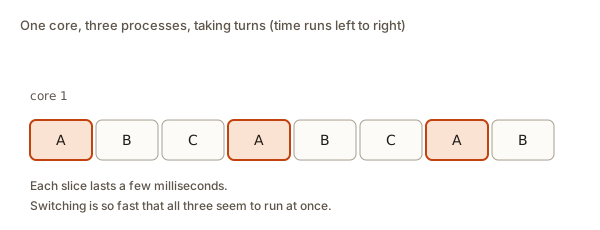 Three processes A, B and C taking turns on one core in equal time slices
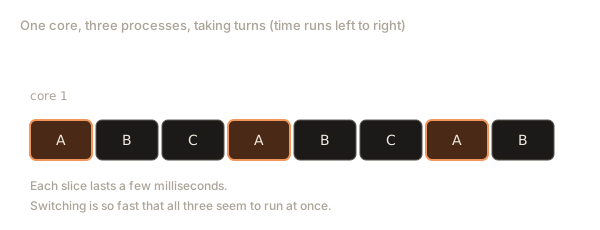
Because slices are so short, and a human cannot notice a pause of a few milliseconds, all the programs seem to run at the same moment. Run this simulation of a simple fair scheduler, called round robin. Each job has some units of work, and a slice is 2 units long:
t= 0  A runs for 2  (3 left)
t= 2  B runs for 2  (1 left)
t= 4  C runs for 2  (2 left)
t= 6  A runs for 2  (1 left)
t= 8  B runs for 1  (finished)
t= 9  C runs for 2  (finished)
t=11  A runs for 1  (finished)
Trace it. The queue starts as A (5 units), B (3), C (4). A runs for a slice of 2 and has 3 left, so it goes to the back: the queue is B, C, A. B runs for 2 and has 1 left. C runs for 2 and has 2 left. A gets another turn. At time 8, B needs only 1 unit, so it uses a short slice and finishes. The total time is 12 units, which is 5 plus 3 plus 4. No time is lost, and no job waits long to get a turn. Real schedulers are more subtle: they favour programs the user is interacting with, give some processes a higher priority, and spread work over many cores, but the idea is the same.
Concurrency versus parallelism
Two words that people mix up.
- Concurrency is about handling many things in overlapping time periods. One cook can handle three dishes by switching between them.
- Parallelism is about doing several things at the same instant. Three cooks make three dishes at once.
A one-core machine can be concurrent but not parallel. A machine with 8 cores can be both. Your programs gain speed from parallelism only if the work can be split into independent parts.
Threads: lines of execution inside a process
A process can have more than one thread. A thread is a single path of execution with its own program counter and its own stack, but all threads in a process share the same memory (code, data and heap). Think of one kitchen with two cooks sharing the same pantry and counter. Starting a thread is cheaper than starting a process, and threads can pass data easily, since they see the same memory.
That sharing is also the danger. Suppose two threads both add 1 to a shared counter. "Add 1" is really three steps: read the value, add one, write it back. If the scheduler pauses a thread between those steps, an update can be lost. This kind of bug is a race condition. You can model it without real threads, by listing the order in which steps happen:
2
1
In the safe order, A finishes before B starts, so the counter goes 0 to 1 to 2. In the unsafe order both read 0 before either writes. A writes 1, then B also writes 1, and one of the two additions is lost. The result depends on timing, so the bug appears only sometimes, which makes it very hard to find. The fix is a lock: a rule that only one thread may do the three steps at a time. Many languages protect against this by design. JavaScript, for instance, runs your code in a single thread, which leads us to the next topic.
Waiting well: the event loop
Many programs spend their time waiting for a disk or the network. A program that sits still while waiting wastes time, so languages give you ways to say "start this, and tell me when it is ready, and meanwhile do something else". JavaScript does this with an event loop. There is one thread. It runs your code to the end, then picks up the next queued task, such as a timer firing or a reply arriving.
A: start
B: end of main code
C: promise
D: timer
The first line prints. The timer is registered for "as soon as possible" and the promise callback is queued, but neither runs yet, because the main code is still going. Line B prints. Only when the main code has finished does the loop take queued work. Promise callbacks come first, then timers. So the order is A, B, C, D even though the timer was written before the promise. You will meet this again in the JavaScript modules. For now take away one idea: the waiting is not done by your code spinning. It is registered with the OS, and your process is woken when the event happens.
Standard input, output and errors
Every process starts with three open channels: standard input (0), standard output (1) and standard error (2). Normally the terminal is attached to all three. Programs that read from standard input and write to standard output are easy to connect. In the terminal, | pipes one program's output into another's input, and > sends output to a file.
Here is a program that reads names from standard input. In the Input box under the code, type a few names, one per line, for example Ravi and Anisha, then press Run:
received 2 names
hello, Anisha
hello, Ravi
With the input Ravi then Anisha, the program reads two lines, strips the newline off each, sorts them and greets each one. This is also how the online judge in this course checks your solutions: it gives your program some text on standard input and compares what you print on standard output.
Standard error is a separate channel for messages about problems, so that they do not mix into the real output. When you write python app.py > result.txt, the results go to the file but errors still appear on screen. Python's tracebacks and JavaScript's uncaught errors go to standard error.
Exit codes
When a process ends, it returns a small whole number to its parent, the exit code. Zero means success. Anything else means failure, and the number can say what kind. Build tools, test runners and the shell rely on it: npm test fails a build if the exit code is not 0. In Python, sys.exit(2) ends with code 2. An uncaught exception ends with 1. You can read the last exit code in the shell with echo $? (macOS, Linux) or echo %ERRORLEVEL% (Windows Command Prompt).
Signals: how processes get interrupted
A signal is a short message that the OS or another process sends to a process. When you press Ctrl+C in a terminal, the OS sends the process a signal called SIGINT (interrupt). By default the process stops. A program can catch it and clean up first. Python turns it into an exception named KeyboardInterrupt:
caught Ctrl+C as KeyboardInterruptThe program sends the signal to itself, which is what the terminal does when you press the keys. Python catches it and the except block runs. If a program ignores your polite Ctrl+C, the shell command kill PID sends SIGTERM ("please stop"). As a last resort kill -9 PID sends SIGKILL, which cannot be caught: the OS ends the process on the spot, with no chance to save files. Use that only when the gentler signals fail.
What happens when you run your code
Now you can answer the question in full. There are two big families of languages, and they differ in what happens at step 3.
- You write source code in a text file:
hello.py,Main.java,app.cpp. That is a program in the sense of "instructions in a file", but the CPU cannot execute it yet. - You run a command, for example
python hello.py. The shell starts a process as described in lesson 4. - The code is turned into something the CPU can execute. How depends on the language.
- The CPU runs it, through fetch-decode-execute, in a process, scheduled with all the others.
- Output goes through system calls to the terminal, a file or the network.
- The process exits, returns its exit code, and the OS frees its memory.
The difference is in step 3.
| Approach | Examples | What happens |
|---|---|---|
| Compiled to machine code | C, C++, Rust, Go | A compiler translates the whole program into CPU instructions ahead of time. You run the result. Very fast, but you must compile again after each change, and the output is tied to one kind of CPU and OS. |
| Interpreted | Python, Ruby | An interpreter, itself a compiled program, reads your source (after turning it into a simpler internal form) and carries out the instructions as it goes. Slower, but you can run code at once and it works wherever the interpreter does. |
| Compiled to bytecode, then run on a virtual machine | Java, C#, also Python internally | The compiler makes a compact, portable "bytecode". A runtime, the Java Virtual Machine for example, runs it, often compiling hot parts to machine code while it runs. |
| Interpreted with just-in-time compilation | JavaScript in a browser or Node.js | The engine parses the code, starts running quickly, and compiles frequently used functions to machine code while the program runs. |
In every row the CPU only ever executes machine instructions, and the process, with its memory and PID, belongs to either the compiled program itself or to the interpreter or runtime that is running yours. When you run python hello.py, the process in the monitor is called python, not hello.py, because Python is the program and hello.py is just data that it reads.
Python's own first step is easy to see with a small experiment. compile turns source text into an internal code object, and exec runs it:
code
30
The source was text. compile analysed it and produced a code object, a list of simple instructions for Python's virtual machine. exec ran them, and the print inside produced 30. A compiled language does the first part ahead of time and saves the result.
Java adds one stage you will meet in the Java track: you run javac Main.java to compile into a file Main.class of bytecode, then java Main to start a process that runs it. C++ goes straight to machine code: g++ main.cpp -o main produces a program file called main, and ./main runs it. The ./ means "the file called main in this folder", which is needed because the current folder is not on the PATH, a point from lesson 4.
Following everything through: one full trace
Let us follow python hello.py from the start, combining all five lessons. The file contains print("Hi!").
- Typing. Your keystrokes arrive as codes (lesson 3), and the terminal shows the characters.
- Shell. The shell, a process waiting in state "waiting", is woken by the input and splits your line.
- Finding the program. It searches the
PATH(lesson 4) and finds/usr/bin/python3. - Process creation. The kernel makes a child process: a new PID, a new virtual address space, a stack and a heap.
- Loading. The interpreter's instructions are copied from the SSD into RAM (lesson 1 and lesson 2). The program counter points at the first.
- Scheduling. The process is marked ready and the scheduler gives it a time slice on a core. It runs, and is paused and resumed as other processes take their turns.
- Reading your file. Python makes
openandreadsystem calls. The file system finds the blocks, and the bytes are copied into RAM. - Decoding. The bytes are decoded as UTF-8 into characters (lesson 3), compiled into a code object, and executed one instruction after another.
- Printing.
print("Hi!")turns the string into bytes and callswriteon file number 1. The OS passes the bytes to the terminal, which asks a font for shapes and draws them as pixels. - Exit. The program ends with code 0. The OS releases the memory. The shell wakes up and draws a fresh prompt.
Ten steps for a one-line program, all of which happen in a few tens of milliseconds. Each one is something you now understand.
Foreground, background and pipes
When you run a command in a terminal, it normally runs in the foreground: the shell waits for it to finish and gives you no prompt until it does. Putting & at the end of a command on Linux and macOS starts it in the background instead, and the prompt returns at once. Long-lived programs such as web servers are often run in the background, or as services that the OS starts at boot with no terminal attached. The process still exists and has a PID, so you can find it with ps and stop it with kill.
A pipe joins the standard output of one process to the standard input of another. cat names.txt | sort starts two processes at the same time. The first reads the file and writes lines to its output. The OS carries those bytes into the input of the second, which sorts them. Neither program knows about the other. Each one just reads from input and writes to output. This is the Unix idea of small tools that do one job and snap together, and it works because every process has the same three channels.
Sometimes a parent ends before its child. The child is then an orphan, and the OS hands it to a system process so that someone can still collect its exit code. A child that has ended but whose parent has not yet read its exit code is a zombie: it uses no CPU and almost no memory, only a line in the process table. You will see the word defunct next to it in ps. It disappears when the parent reads the code or itself ends. Zombies are harmless in small numbers and are a sign of a parent that forgot to wait, as os.waitpid did in the fork example.
Seeing processes
Open the monitor from lesson 4 and find a process. You will see a name, a PID, CPU use and memory use. In a terminal, ps lists processes. Here is a typical line from ps aux on Linux or macOS:
USER     PID  %CPU %MEM    VSZ   RSS TTY   STAT START  TIME COMMAND
anisha  4242  98.5  0.3  21024 11840 pts/0 R    10:41  2:13 python loop.py
Read the columns. USER is the owner. PID is the id: 4242. %CPU is nearly 100, so this process is using almost a whole core, a typical sign of a loop that never ends. %MEM is the share of RAM, small here. RSS is the resident memory in kilobytes, about 11.8 MB. STAT is the state: R for running, S for sleeping (waiting). COMMAND is what was started.
Debugging walkthrough: the server that will not start, and the loop that will not stop
Case 1: an endless loop. You run python loop.py. The terminal does nothing and the prompt does not return. Your program has no way out of a while True loop. Press Ctrl+C. That sends SIGINT and Python stops, printing a KeyboardInterrupt traceback. If Ctrl+C is ignored, open a second terminal and run ps aux | grep loop to find the PID, then kill 4242, and kill -9 4242 if that does not work. Then find the bug: a loop condition that never becomes false, or a variable that you forgot to change inside the loop.
Case 2: the port is busy. You start a development server and see:
Error: listen EADDRINUSE: address already in use :::3000EADDRINUSE means "error, address in use". A network port (here 3000) can be held by only one process at a time, and some process already holds it, perhaps an earlier run of your own server that you forgot to stop. Steps:
- Find who holds the port. On Linux and macOS:
lsof -i :3000. On Windows:netstat -ano | findstr :3000. The output includes a PID. - Check that it is yours. Look at the name in the monitor or
ps. - Stop it:
kill PID(macOS, Linux) ortaskkill /PID 4242 /F(Windows). - Start your server again.
Or choose another port. Both cases come down to understanding that a process is an entity with an id that you can find and stop.
Common mistakes
Mixing up the program and the process. "I deleted app.py but it is still running." The process lives on in RAM with its copy of the code. Stop it with the monitor or kill.
Forgetting to stop servers. Closing the editor does not always stop a program you launched from it. Stale servers cause "port in use" errors and strange behaviour where your new code does not seem to run, because the old process is still answering.
Running a script from the wrong place. The process inherits the working directory from the shell. Paths that are relative will break (lesson 2).
Expecting variables to persist between runs. Each run is a new process with fresh memory. A counter you incremented last time is gone unless you saved it to a file or database.
Thinking more threads always means faster. Splitting work has a cost: switching and coordination. Work that waits on a shared resource does not speed up. Very often the simple single-threaded version is both correct and fast enough.
Treating kill -9 as the normal way to stop something. It gives the program no chance to save work or release resources. Start with Ctrl+C or a plain kill.
Ignoring the exit code. A script that prints "done" even after failure, and exits with 0, will fool every tool that depends on the code.
Interview-style questions
- What is the difference between a program and a process? A program is a file of instructions. A process is a running instance of it, with its own memory, PID and state. One program can be many processes.
- What is the difference between a process and a thread? A process has its own address space. Threads are execution paths inside one process that share its memory.
- What is a context switch? When the OS stops one process and starts another on a core, saving and restoring registers and the program counter. It has a small cost.
- What is a race condition? A bug where the result depends on the timing of operations between threads or processes, such as two threads updating a shared counter. A lock is a common fix.
- What happens when you type a command and press Enter? The shell finds the program on the
PATH, asks the kernel to create a process, the kernel loads and schedules it, the program runs and uses system calls for input and output, and it exits with a code. - Why can many processes run on one CPU core? Time slicing: the scheduler gives each a turn of a few milliseconds, which switches so fast that it looks simultaneous.
What you now know
- A program is a file. A process is a running copy with its own PID, memory (code, data, heap, stack), open files and state.
- One program can run as many independent processes. They do not share memory unless they send messages.
- Most processes are waiting most of the time. The scheduler shares cores by time slicing, with context switches in between.
- Concurrency is overlapping progress, and parallelism is simultaneous work on several cores.
- Threads share memory inside one process, which allows races. JavaScript uses one thread and an event loop.
- Standard input, output and error, and the exit code, connect a process to the world and to other programs.
- Ctrl+C sends
SIGINT.killsendsSIGTERM, andkill -9forces the end. - Running code means: the shell starts a process, the code is compiled or interpreted to machine instructions, and the CPU runs them, with the OS handling every request.
Practice
1. (easy) You open the same text editor twice. How many programs and how many processes is that, probably?
Solution
One program (one file on disk) and two processes (or more, since some editors use several processes each). Each process has its own memory.
2. (easy) What does exit code 0 mean? What does any other number usually mean?
Solution
0 means the program finished successfully. A non-zero number means failure, and different numbers can mean different kinds of failure.
3. (easy) In ps output, a process shows 99 percent CPU and has run for ten minutes. What is a likely cause?
Solution
A loop that never ends or a very heavy calculation. Waiting processes use almost no CPU, so a process pinned near 100 percent is busy doing instructions all the time.
4. (easy) What does the terminal send when you press Ctrl+C?
Solution
The signal SIGINT (interrupt) to the foreground process, which by default ends it.
5. (medium) Change the scheduler simulation to use a slice of 3 and jobs A=7, B=2, C=5. By hand, list the order of runs and the finishing times, then run it to check.
Solution
Queue A7, B2, C5. At t=0 A runs 3 (4 left). t=3 B runs 2 and finishes at 5. t=5 C runs 3 (2 left). t=8 A runs 3 (1 left). t=11 C runs 2 and finishes at 13. t=13 A runs 1 and finishes at 14. Total 14 equals 7 + 2 + 5. Verify with:
It prints B finished at 5, C finished at 13 and A finished at 14.
6. (medium) In the fork example, what would the parent print if you removed os.waitpid(pid, 0)? Would the value of x change?
Solution
It would still print parent sees 1, since the parent's memory is separate. Without the wait, the lines might appear in either order, and the parent could print before the child does. The wait makes the order predictable.
7. (medium) Using the run(schedule) function, write an order of steps for three threads A, B and C each adding 1 that gives a final count of 2 instead of 3.
Solution
One example: A reads, B reads, A writes, B writes, then C reads and writes. A and B both read 0, so both write 1 and one update is lost. C then reads 1 and writes 2. In code: [("A","read"),("B","read"),("A","write"),("B","write"),("C","read"),("C","write")], which run turns into 2.
8. (medium) Predict the output order of this JavaScript and explain.
setTimeout(() => console.log("timer"), 0);
console.log("sync");
Promise.resolve().then(() => console.log("promise"));
Solution
sync, then promise, then timer. The synchronous line runs first as part of the main code. When it finishes, the event loop runs promise callbacks before timers.
9. (hard) Your colleague runs node server.js and gets EADDRINUSE on port 3000. Write the steps on Linux to free the port, and say why you check the owner before killing.
Solution
Run lsof -i :3000 to get the PID. Look at the command name and user. If it is your own stale server, run kill PID and, if it will not stop, kill -9 PID. Start again. Check the owner first, because the port may be used by a legitimate service (a database, another teammate's project), and killing it would break something unrelated. Use a different port if so.
10. (hard) A script prints done at the end, but npm test reports the test step as passed even though an assertion failed earlier in the script. Give a likely cause and fix.
Solution
The script caught the error and kept going, or it printed "done" and ended normally, so it exited with code 0. Test runners and build tools judge success by the exit code. Fix: let the exception propagate, or call sys.exit(1) (or process.exit(1) in Node) when a check fails.
11. (hard) Explain, using the words process, memory and file, why deleting server.py while the server is running does not stop it.
Solution
When the process started, the interpreter read server.py and its instructions are now in the process's own memory. The file on disk is only the source copy. Deleting it removes the directory entry and frees the blocks, but the running process never reads the file again, so it keeps working until it is stopped.