Why this matters
On a team, nobody works directly on the shared, working version of the project. Each person works on a branch, a private line of work, and brings it back only when it is ready. Branches let ten people change the same project at once without stepping on each other. They also let you experiment freely: if the idea fails, you throw the branch away and nothing is harmed.
Merging and merge conflicts are the part of Git that scares beginners most. It should not. By the end of this lesson you will have caused a conflict on purpose and fixed it, so the first real one will feel familiar.
The idea: parallel timelines
Think of a story with a choice point. In one timeline the hero opens the red door, in another the blue door. Both timelines start from the same moment and then diverge. At the end, an editor decides how to combine what is good in each.
A branch is exactly that: a second timeline that starts from the current point of your project. Your work on the branch does not touch the original line, which is usually called main.
Why this is cheap in Git: remember from lesson 3 that a branch is only a pointer, a small label that points to one commit. Creating a branch does not copy any files. It adds one more label. This is why Git developers create branches all day long.
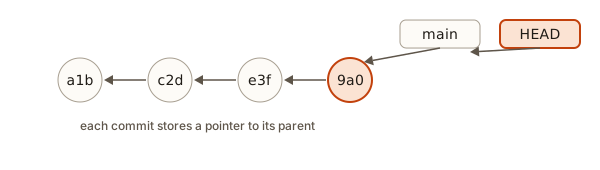 A chain of commits, each pointing to its parent, with main and HEAD pointing at the newest
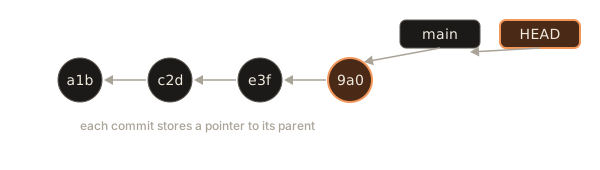
In the picture, main points to the newest commit and HEAD is a pointer that says "this is the branch you are standing on". When you commit, the branch you are standing on moves forward to the new commit. Keep that sentence in your head: committing moves the current branch's pointer forward.
Set up a project to practise on
You will use a small cafe website. Create it:
mkdir site
cd site
git init
printf '<h1>Corner Cafe</h1>\n<p>Open every day.</p>\n' > index.html
git add index.html
git commit -m "Add home page"(printf with \n writes two lines. You can also create the file in an editor.) Now list your branches:
git branch* mainThe star marks the branch you are on. To print only the current branch name:
git branch --show-currentmainCreate a branch and switch to it
You want to add a footer, but you are not sure it will look right. Make a branch:
git switch -c add-footerSwitched to a new branch 'add-footer'git switch changes branches. The -c flag means "create it first". You could do the same in two steps: git branch add-footer creates the label, then git switch add-footer moves onto it. The older command git checkout does the same job and appears in many tutorials. You will see both. This course uses switch, since it has one clear purpose.
Branch names should be short, lower case, and say what the work is, with hyphens between words: add-footer, fix-login-redirect, update-readme. Many teams add a prefix such as feature/ or fix/.
Now make a change and commit. You are on add-footer, so the commit goes there:
echo "<footer>Contact us</footer>" >> index.html
git commit -am "Add footer"(-a stages changes to files Git already tracks, then -m gives the message. It is a shortcut for git add index.html followed by git commit.)
See the picture of the history:
git log --oneline --graph --all* 9934f81 Add footer
* 026fd54 Add home pageWith --all, Git shows every branch, not only the current one. Here both commits are on one straight line, because add-footer simply moved one step ahead of main.
Switching changes your files
Now go back to main and look at the file:
git switch main
cat index.htmlSwitched to branch 'main'
<h1>Corner Cafe</h1>
<p>Open every day.</p>The footer is gone. Not deleted: it lives on the add-footer branch. When you switch branches, Git rewrites the files in your working directory to match the commit that branch points to. Switch back to add-footer and the footer line returns. This is the magic and the thing to watch: the files on disk change when you switch. Always check which branch you are on with git status before you edit.
Merge: bring the work back
Happy with the footer? Bring it into main. First stand on the branch that should receive the work:
git switch main
git merge add-footerUpdating 026fd54..9934f81
Fast-forward
index.html | 1 +
1 file changed, 1 insertion(+)git merge X brings branch X into the branch you are on. Always read it as "merge X into where I stand". The result Fast-forward tells you what kind of merge happened.
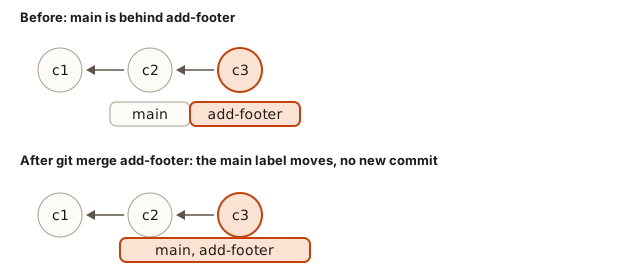 Fast-forward merge moves the main label forward without creating a new commit
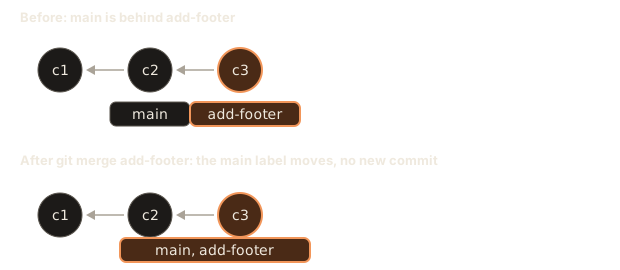
A fast-forward happens when main has not changed since you branched. Git does not need to combine anything: it just slides the main pointer forward to where add-footer is. No new commit is created. The history stays a straight line.
Clean up. A merged branch has done its job, and deleting the label is safe because the commits are now part of main:
git branch -d add-footerDeleted branch add-footer (was 9934f81).When both sides moved: a real merge
A fast-forward is the easy case. In a team, main usually moves while you work. Reproduce this. Create a branch with a new menu page, then go back and add a different file on main:
git switch -c add-menu
echo "<a href=menu.html>Menu</a>" > menu.html
git add menu.html
git commit -m "Add menu page"
git switch main
echo "<p>Closed on Mondays.</p>" > hours.html
git add hours.html
git commit -m "Add hours page"
git log --oneline --graph --all* 50b4873 Add menu page
| * 45fc890 Add hours page
|/
* 9934f81 Add footer
* 026fd54 Add home pageThe graph shows the fork. Both branches grew from Add footer, and they went different ways. Reading it: the |/ joins the two lines back to their shared ancestor, called the common ancestor or merge base. Now merge:
git merge add-menu -m "Merge add-menu"Merge made by the 'ort' strategy.
menu.html | 1 +
1 file changed, 1 insertion(+)
create mode 100644 menu.html("ort" is the name of Git's current merging method, short for "Ostensibly Recursive's Twin". You can ignore it.) Because the two branches changed different files, Git combined them automatically. See the result:
git log --oneline --graph --all* 35dbfcc Merge add-menu
|\
| * 50b4873 Add menu page
* | 45fc890 Add hours page
|/
* 9934f81 Add footer
* 026fd54 Add home page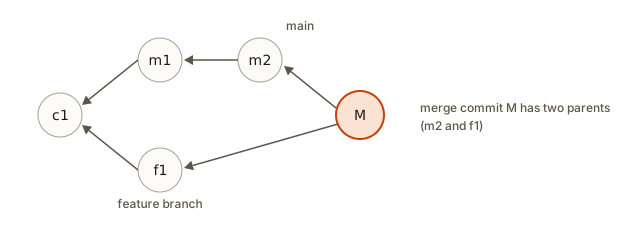 Two branches that each added commits are joined by a merge commit with two parents
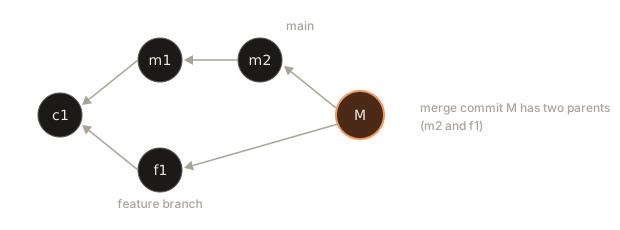
Git created a new commit, called a merge commit, with two parents: one from each branch. This is a three-way merge, so named because Git looks at three commits: the tip of your branch, the tip of the other branch, and their common ancestor. Delete the finished branch with git branch -d add-menu.
How Git decides, line by line
How does Git combine two edits to the same file? It compares each side against the common ancestor.
- If only one side changed a line, take that side's version.
- If both sides made the identical change, take it once.
- If both sides changed the same line to different things, Git cannot choose. That is a conflict.
You can see this logic in a toy that treats each line as a numbered slot:
The output:
1 The Corner Cafe
2 Open daily.
3 Menu
Trace line 1: mine equals the base, so only "theirs" changed it, and the result is theirs. Line 2: theirs equals the base, so only mine changed it, and the result is mine. Line 3: nobody changed anything. The merge is clean because each line was edited by at most one side.
Now make both sides edit the same line:
1 Corner Cafe
2 CONFLICT: Open daily. | Open 7 days a week.
Both sides moved line 2 away from the base, in different directions. No rule can pick the winner, because the right answer depends on what the business wants. Only a human can decide. That is all a merge conflict is: a question Git cannot answer.
Causing and fixing a merge conflict
Practise on purpose. In a fresh repository, create the same file and two competing edits to the title line:
mkdir site2
cd site2
git init
printf '<h1>Corner Cafe</h1>\n<p>Open every day.</p>\n' > index.html
git add index.html
git commit -m "Add home page"

git switch -c fix-title
printf '<h1>The Corner Cafe</h1>\n<p>Open every day.</p>\n' > index.html
git commit -am "Rename title to The Corner Cafe"

git switch main
printf '<h1>Corner Cafe and Bakery</h1>\n<p>Open every day.</p>\n' > index.html
git commit -am "Add Bakery to title"
Both branches rewrote line 1 of index.html. Now merge:
git merge fix-titleAuto-merging index.html
CONFLICT (content): Merge conflict in index.html
Automatic merge failed; fix conflicts and then commit the result.Do not panic. Git did not break anything. It stopped halfway and is waiting for you. The three lines of output say: it tried to merge index.html, found a conflict in the content, and the merge is unfinished. Ask where things stand:
git statusOn branch main
You have unmerged paths.
(fix conflicts and run "git commit")
(use "git merge --abort" to abort the merge)
Unmerged paths:
(use "git add <file>..." to mark resolution)
both modified: index.html
no changes added to commit (use "git add" and/or "git commit -a")both modified is the clue: both branches changed this file. Note the line use "git merge --abort" to abort the merge. You always have an escape hatch, which we will use in a moment. First, look at the file:
cat index.html<<<<<<< HEAD
<h1>Corner Cafe and Bakery</h1>
=======
<h1>The Corner Cafe</h1>
>>>>>>> fix-title
<p>Open every day.</p>Git wrote conflict markers into the file. They look scary and are simple.
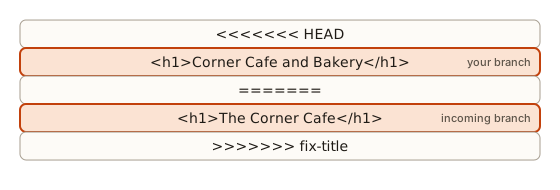 A conflicted file showing the three marker lines and the two competing versions
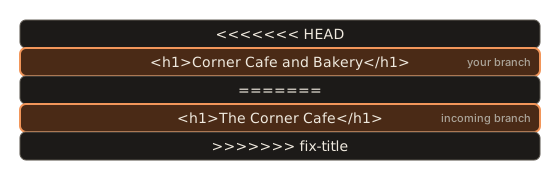
<<<<<<< HEADbegins the conflict. Everything until=======is your side, the branch you are on (main).=======is the divider.- Everything from the divider to
>>>>>>> fix-titleis the incoming side, from the branch you merged. >>>>>>> fix-titleends the conflict.- Lines outside the markers (
<p>Open every day.</p>) merged fine and need no action.
To resolve it, you edit the file so that it contains the text you want, and delete all three marker lines. You can keep one side, keep the other, or combine both. Here the sensible result keeps both ideas:
<h1>The Corner Cafe and Bakery</h1>
<p>Open every day.</p>
Do this in your editor. VS Code highlights conflicts and offers buttons such as "Accept Current Change", "Accept Incoming Change" and "Accept Both Changes". Those buttons just edit the markers for you. Whichever way, the finished file must contain no <<<<<<<, ======= or >>>>>>> lines.
Then tell Git the conflict is resolved by staging the file and committing:
git add index.html
git status -s
git commit -m "Merge fix-title"M index.html
[main 0d2c37f] Merge fix-titlegit log --oneline --graph* 0d2c37f Merge fix-title
|\
| * 7005a53 Rename title to The Corner Cafe
* | 441e469 Add Bakery to title
|/
* 026fd54 Add home pageThe merge commit has two parents, and the conflict is part of the permanent record: anyone can see both original edits and your decision.
The recipe, to memorise:
git merge other-branchand read the CONFLICT lines.git statusto see which files are unmerged.- Open each file, find the markers, decide, and edit.
- Delete every marker line.
git add <file>for each fixed file.git committo finish the merge.
Walking away: git merge --abort
If you open the file and are not sure what to do, you can undo the whole merge and return to how things were before you ran it:
git merge --abort
git statusOn branch main
nothing to commit, working tree cleanNothing is lost on either branch. You can ask the other person what they meant, then try again.
What happens if you try to commit too early
Suppose you forget to resolve and type git commit. Git refuses:
error: Committing is not possible because you have unmerged files.
hint: Fix them up in the work tree, and then use 'git add/rm <file>'
hint: as appropriate to mark resolution and make a commit.
fatal: Exiting because of an unresolved conflict.
Read the hint. It says the same thing as the recipe: fix the files, then add, then commit.
A conflict in a Python merge: see the shape in a program
The conflicted text above is just a file, so a program could even detect it. This one reports whether a text still contains markers:
It prints still conflicted ['<<<<<<<', '=======', '>>>>>>>']. A common beginner disaster is to commit a file while a marker is still inside it, which breaks the code. Some teams add a check that rejects commits containing markers. Before you commit a resolution, search the file for <<<<<<<.
How Git finds the common ancestor
Every three-way merge starts by finding the merge base: the newest commit that both branches share. Because each commit points to its parent (or parents), Git can walk backwards from each branch tip and see where the two walks meet.
This program does the same on a small made-up history. Each commit lists its parents. m1 and m2 are on main, f1 and f2 on the feature branch, and both forked from c2:
main sees   : ['m2', 'm1', 'c2', 'c1']
feature sees: ['f2', 'f1', 'c2', 'c1']
merge base  : c2
Trace it: ancestors("m2") starts at m2, then visits its parent m1, then c2, then c1. The feature walk starts at f2 and reaches c2 too. The first entry on the main list that also appears on the feature list is c2, the merge base. Git then compares c2 to m2 (what did main change?) and c2 to f2 (what did the feature change?), and combines the two sets of changes. You can ask Git for the merge base of any two branches with git merge-base main feature, which prints the full ID.
This also explains why a fast-forward is possible: if the merge base is already the tip of the branch you stand on, then your branch has nothing of its own to combine, and the pointer can simply slide forward.
Other kinds of conflict
Text conflicts, with markers, are the most common. A merge can also stop for other reasons.
One side deleted a file the other side edited. Git cannot decide whether the file should stay. The message reads:
CONFLICT (modify/delete): a.txt deleted in del and modified in HEAD.  Version HEAD of a.txt left in tree.
Automatic merge failed; fix conflicts and then commit the result.
git status -s shows UD a.txt (unmerged, deleted by them). To keep the file, run git add a.txt. To accept the deletion, run git rm a.txt. Then commit.
Both sides added a file with the same name but different content. Git reports CONFLICT (add/add) and writes markers into the file, just like an ordinary text conflict.
A rename on one side and an edit on the other. Git usually handles this alone, by noticing the rename and applying the edit to the renamed file. If it cannot, it reports a conflict and tells you which file.
Whichever it is, the recipe is the same: read the message, look at git status, decide, stage, commit. If the situation becomes confusing, git merge --abort always gets you back to a clean start.
Habits that make conflicts small
Conflicts are normal, but you can keep them tiny.
- Keep branches short-lived. A branch that lives for a day or two has a small gap to bridge. One that lives for a month does not.
- Bring
maininto your branch often. While you work onadd-footer, rungit switch add-footer, thengit merge mainonce a day. Each time, you resolve a few small conflicts instead of one huge one. - Make focused changes. If you reformat a whole file while fixing one bug, you touch every line and conflict with everyone. Change what the task needs.
- Talk to your team. Two people planning to edit the same function should know about each other. A message in the team chat prevents an hour of untangling.
- Commit before merging. Merge only from a clean working tree, so the only differences in play are the ones from the branches.
Resolving conflicts in VS Code
VS Code recognises the markers and shows buttons above each conflict: Accept Current Change (your side, HEAD), Accept Incoming Change (the other branch), Accept Both Changes (keeps both, one after the other), and Compare Changes. Pressing one rewrites the lines for you and removes the markers. Afterwards, read the result as plain text: "Accept Both" often gives two lines that contradict each other, and you must edit them into one sensible line. When the file looks right, stage it with the plus button (or git add) and commit.
The buttons save typing but not thinking. The question is always the same: "What should this text say now?"
Tools for working with branches
A cheat sheet of the commands you will use daily:
| Command | What it does |
|---|---|
git branch | List local branches; the star marks the current one |
git branch -vv | List branches with the latest commit and tracking info |
git switch name | Move to an existing branch |
git switch -c name | Create a branch and move to it |
git switch - | Jump back to the previous branch |
git merge name | Merge branch name into the current branch |
git merge --no-ff name | Always create a merge commit, even when a fast-forward is possible |
git branch -d name | Delete a branch that is already merged |
git branch -D name | Force-delete a branch, even with unmerged work (dangerous) |
git branch -m old new | Rename a branch |
git branch --merged | List branches already merged into the current one |
git log main..feature | Commits on feature that are not yet in main |
You can test git log main..feature. In the earlier example (after fixing the title), git log --oneline main..fix-title prints nothing, because everything on fix-title is already in main. Reverse it with fix-title..main and you see the commits main has that fix-title lacks.
Switching with unsaved work
Suppose you are partway through an edit on main and need to look at another branch. Git protects you:
error: Your local changes to the following files would be overwritten by checkout:
	index.html
Please commit your changes or stash them before you switch branches.
Aborting
Git refuses because switching would overwrite your uncommitted edit with the other branch's version. You have three choices.
- Commit the work-in-progress, even with a message like "WIP: footer styling". You can clean up later.
- Stash it. A stash is a shelf where Git puts your uncommitted changes aside and gives you a clean working directory:
git stash
git switch other-branch
# ... do what you needed, then come back ...
git switch main
git stash pop
git stash saves the edits and restores a clean tree. git stash pop brings them back. git stash list shows the shelf.
- Discard the edits with
git restore index.html, if you no longer want them.
Note that Git does not complain when the edit is in a file the other branch has not changed. It switches and carries your edit along. The error only appears when the switch would overwrite your change.
Deleting branches: two warnings you will see
If a branch has commits that are not merged anywhere, Git refuses a plain delete:
error: the branch 'wip' is not fully merged
hint: If you are sure you want to delete it, run 'git branch -D wip'
hint: Disable this message with "git config set advice.forceDeleteBranch false"
Git is protecting work that exists only on that branch. If you really do not need it, -D forces deletion. If you are unsure, merge it first or keep the branch.
Switching to a branch that does not exist gives:
fatal: invalid reference: nothereCheck the spelling with git branch. Likewise, git merge nothere fails with merge: nothere - not something we can merge.
Fast-forward versus merge commit: which is better?
Both are correct. Teams choose a style.
| Fast-forward | Merge commit | |
|---|---|---|
| History shape | One straight line | Visible fork and join |
| Extra commit | No | Yes, the merge commit |
| Shows that a feature was a unit of work | No | Yes |
| When it happens | main did not move | main moved, or you pass --no-ff |
On GitHub, the Merge button offers three variants (merge commit, squash and rebase), covered in lesson 5. Do not worry about choosing yet. A merge commit is the safe default.
Worked examples
Example 1: Experiment and discard. You try a dark theme on a branch called dark-theme. It looks ugly. You switch to main and run git branch -D dark-theme. Nothing on main was touched. The cost of the experiment: zero.
Example 2: Two people, different files. Asha adds menu.html on one branch and Ravi adds hours.html on another. Merge both into main: the first merge fast-forwards, and the second creates a merge commit. No conflict, because no file was touched by both.
Example 3: Same file, different lines. Asha changes line 1 of index.html, Ravi changes line 10. Git merges automatically. Conflicts are about overlapping lines, not about the same file. You can see that by editing different lines in your practice repo.
Example 4: Same line, same change. Both change the title to exactly The Corner Cafe. Git sees identical changes and takes it once. No conflict.
Example 5: Resolving in favour of one side. In a conflict you decide your side is right. You edit the file down to your version, remove the markers, and commit. The incoming change is not lost from history, only from the final text.
Example 6: Merge conflict while testing. You fix a conflict and start the test suite, which fails. The cause is a marker you missed halfway down the file. Search the file for <<<<<<< and >>>>>>>, fix it, and make a new commit such as Remove leftover conflict marker.
Example 7: Stash and switch. You edit index.html on main, and your teammate asks for a quick look at the fix-title branch. git switch fix-title fails with the "local changes" error. You run git stash, switch, look, switch back and run git stash pop. Your edit returns, M index.html.
Common mistakes
1. Merging in the wrong direction. git merge main while standing on add-footer brings main into your branch, which is sometimes right (to update your branch) but is not what you want when you aim to finish the feature. Always check git branch --show-current first.
2. Editing on the wrong branch. You make changes while on main that belonged on a feature branch. Fix before committing: git stash, git switch feature, git stash pop. After committing, ask a teammate. It is solvable but needs more advanced commands.
3. Leaving conflict markers in the file. The merge is "finished", but the page shows <<<<<<< HEAD in the browser. Search before committing.
4. Resolving by deleting everything. You delete the marker blocks and both versions. The conflict disappears and so does the code. Look at the final text and ask whether the result makes sense.
5. Thinking a conflict is an error. It is a normal event when people work in parallel. Reading it calmly is a core skill.
6. Forgetting to git add after resolving. git status still says both modified. Stage the file to say it is resolved.
7. Long-lived branches. The longer a branch lives without merging, the larger and more painful the conflicts. Merge small, merge often, and bring main into your branch regularly.
A debugging walkthrough
Scenario: "After my merge, the site looks broken." Work through it.
git status. If it says "You have unmerged paths", the merge is not finished. Resolve and commit.git log --oneline --graph -5. Confirm the merge commit exists and has two parents.- Open the broken file and search for
<<<<<<<. If found, you committed a conflict. Fix it, and commit again with "Remove leftover conflict markers". - Compare against the branch that was good:
git diff main~1 main. Compare what changed in the merge. - If it is a mess and you have not shared it, you can step back with an advanced command you will learn later. For now, remember that a plain
git revert -m 1 HEADcan cancel a shared merge, and ask for help when needed.
Interview-style questions
- What is a branch in Git? A lightweight movable pointer to a commit. Creating one copies no files.
- What is the difference between a fast-forward and a three-way merge? Fast-forward just moves the pointer when the target has not diverged. A three-way merge combines two diverged lines using their common ancestor and makes a merge commit.
- When does a merge conflict happen? When both branches change the same lines of a file differently, so Git cannot choose.
- How do you resolve one? Edit the file to the desired text, remove the markers,
git addit, thengit commit. - What does
git merge --abortdo? It cancels an in-progress merge and restores the state from before it began. - What is
git stashfor? It shelves uncommitted changes so you can switch branches with a clean tree, andgit stash popbrings them back.
Practice
1. (Easy) In a repo with one commit, create a branch called practice and switch to it in one command. Then show the current branch name.
Solution
git switch -c practice
git branch --show-current
The second command prints practice.
2. (Easy) On that branch, add a file and commit. Switch back to main. Is the file there? Why?
Solution
No. The commit exists only on practice. When you switch, Git rewrites the working directory to match main, which has no such file. Switch back and it returns.
3. (Easy) Merge practice into main and say which kind of merge occurred.
Solution
git switch main
git merge practice
It prints Fast-forward, because main did not change while practice grew. The pointer slid forward and no merge commit was created.
4. (Easy) Delete the merged branch. Why is -d allowed here?
Solution
git branch -d practice. -d works because the branch is fully merged, so no commits would be lost.
5. (Medium) Create a fork in history: one branch changes a.txt, main changes b.txt. Merge and read the graph. How many parents does the merge commit have?
Solution
Two. The graph from git log --oneline --graph --all shows a diamond: the fork, one commit on each side, and a merge commit joining them. No conflict occurs because different files changed.
6. (Medium) Cause a conflict on purpose using one file with one line, and resolve it by keeping both ideas. List the commands in order.
Solution
- Commit
line: baseonmain. git switch -c other, change the line toline: other, commit.git switch main, change it toline: main, commit.git merge otherand read the CONFLICT output.- Edit the file to a combined line such as
line: main and other, deleting all three marker lines. git add file,git commit -m "Merge other".
7. (Medium) After step 4 above, you change your mind and want the repository back to normal. What command, and what does git status show?
Solution
git merge --abort. Then git status shows nothing to commit, working tree clean, and both branches are exactly as they were.
8. (Medium) You type git commit during a conflict without resolving. What error appears, and what are its hints?
Solution
error: Committing is not possible because you have unmerged files. followed by hints to fix the files in the work tree, then git add or git rm them to mark resolution, and commit.
9. (Hard) You are halfway through editing index.html on main when a teammate needs you to check fix-title. Show the safe sequence, and what you would see if you skipped the first step.
Solution
git stash
git switch fix-title
git switch main
git stash pop
Without git stash, git switch fix-title fails with error: Your local changes to the following files would be overwritten by checkout: index.html and Aborting, because the other branch has a different version of the file.
10. (Hard) Explain, using the three versions (base, mine, theirs), why Git can merge "mine changes line 2, theirs changes line 1" but not "both change line 2". Use the Python toy as a guide.
Solution
For each line Git compares both sides against the base. If only one side differs from the base, that side's version is taken, which is unambiguous. If both differ from the base and from each other, taking either would throw away the other side's intent, so Git needs a human. In the first case each line has at most one author of change; in the second, line 2 has two.
11. (Hard) A teammate has a branch that is five weeks old and main has moved a lot. Suggest two habits that would have prevented a huge conflict.
Solution
Merge small pieces of work often instead of keeping long-lived branches, and regularly bring main into the feature branch (git switch feature, git merge main) so conflicts arrive in small, fresh batches while the author still remembers the code. Talking to the team about who edits which files also helps.
What you now know
- A branch is a lightweight pointer to a commit. Committing moves the current branch forward, and switching branches rewrites your files to match.
git switch -c namecreates and enters a branch;git merge namebrings it into the branch you are on;git branch -d nameremoves a merged branch.- A fast-forward just moves a pointer; a three-way merge makes a merge commit with two parents, using the common ancestor.
- A conflict happens when both sides changed the same lines differently. Markers show your side (
HEAD) and the incoming side; resolve by editing,git add,git commit. git merge --abortis the escape hatch;git stashshelves uncommitted work before switching.git log --oneline --graph --alldraws the history so you can see forks and merges.