Why this matters
This lesson is the heart of Git. Ninety percent of what you do in Git every day is the loop you learn here: edit files, look at what changed, choose what to save, save it with a message, and read the history. Teams, pull requests and branches all sit on top of this loop. If the loop is solid, everything else is easy.
You will type every command in this lesson yourself, in a real folder. The outputs shown are real, taken from running the commands on Git 2.53. The short IDs (like de27fbe) will be different on your computer, which is correct.
Start from the first principle: a folder Git watches
An ordinary folder is just files. Git does nothing until you tell it to start watching a folder. That act is called initialising a repository.
mkdir hello-git
cd hello-git
git init
The first line makes a folder. The second moves your terminal into it (cd means change directory). The third prints something like:
Initialized empty Git repository in /home/asha/hello-git/.git/Look at what appeared:
ls -a.
..
.git(ls -a lists all files, including hidden ones whose names start with a dot.) The new hidden folder .git is the repository. It holds the whole database: every commit, every branch, your local settings. The rest of the folder, the files you will edit, is called the working directory or working tree.
Two rules follow from this:
- Never edit inside
.gitby hand. It is Git's private storage. Break it and the history is damaged. - Deleting
.gitremoves the history but keeps your files. The folder becomes ordinary again. That is useful to know and dangerous to do by accident.
Check status often
The command you will type more than any other is:
git statusOn branch main
No commits yet
nothing to commit (create/copy files and use "git add" to track)Read each line. On branch main names your current branch. No commits yet says the history is empty. The last line says there is nothing to save. Git tells you what to do next in almost every message, so get in the habit of reading it. Run git status before and after every other command until the rhythm is familiar.
The three areas
Here is the most important idea in Git. A change travels through three places.
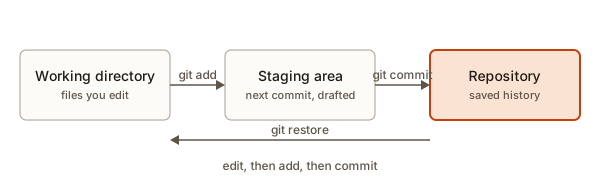 Three areas: working directory, staging area and repository with the commands between them
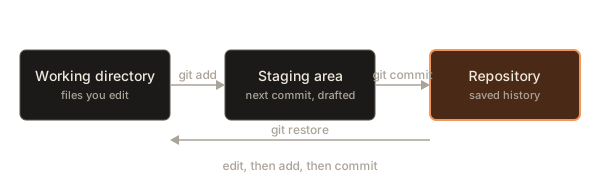
- Working directory: the files you see and edit, exactly as on your disk.
- Staging area (also called the index): a waiting room. It holds the exact set of changes that will go into your next commit.
- Repository: the permanent history of commits.
An analogy: you are packing a parcel. The working directory is your whole desk, covered in stuff. The staging area is the open box, where you place only the items you want to ship. The commit is sealing the box, labelling it and putting it on the shelf of past parcels. You can keep working on the desk after the box is sealed.
Why does a staging area exist? Because one afternoon of work often includes two unrelated fixes. The staging area lets you commit them separately, so that each commit tells one clear story. Many beginners wonder why Git has this extra step. The answer is control: you decide precisely what goes in the box.
You can model the three areas in a few lines of Python. This is a toy, but it shows the rule that confuses most beginners: a commit contains what was staged, not what was edited.
The output:
{'README.md': '# Hello Git'}
nothing to commit
1 commit(s)
Trace it. add("README.md") copies that file from the working area to staging. commit("Add README") builds a snapshot from staging, saves it, and empties staging. The second commit finds staging empty, so it does nothing. Notice that app.js never made it into the repository at all, because nobody staged it. Real Git behaves the same way.
Your first commit
Create a file. The echo command prints text and > redirects it into a file:
echo "# Hello Git" > README.md
git statusOn branch main
No commits yet
Untracked files:
(use "git add <file>..." to include in what will be committed)
README.md
nothing added to commit but untracked files present (use "git add" to track)Untracked means: Git sees the file but has never recorded it. Stage it:
git add README.md
git statusOn branch main
No commits yet
Changes to be committed:
(use "git rm --cached <file>..." to unstage)
new file: README.md
The file moved from "untracked" to "Changes to be committed". It is in the staging area. Now commit it:
git commit -m "Add README"[main (root-commit) de27fbe] Add README
1 file changed, 1 insertion(+)
create mode 100644 README.mdReading the output: main is the branch. root-commit marks the very first commit, the root of the history. de27fbe is the short ID. Then the message, then a summary: one file changed with one line added. create mode 100644 says a new file was recorded with the normal file permissions. You can ignore the number.
Run git status again:
On branch main
nothing to commit, working tree clean
Working tree clean is a phrase you will love. It means: the working directory, the staging area and the last commit all agree. There is nothing unsaved.
See who and when: git log
git logcommit de27fbeb5ee845b522a1f31120cc85432af66635
Author: Asha Rao <asha@example.com>
Date: Mon Nov 2 10:00:00 2026 +0530
Add READMEYou can see the full 40-character ID, the author (from lesson 2), the date, and the message. The date will be yours, of course.
Change a file and see the difference
Edit the file by appending a line (>> adds to the end instead of replacing):
echo "My first repo" >> README.md
git status -s M README.md-s is short for "short format". The M in the second column means modified in the working directory and not yet staged. Now see what changed:
git diffdiff --git a/README.md b/README.md
index ab690e8..9592c3f 100644
--- a/README.md
+++ b/README.md
@@ -1 +1,2 @@
# Hello Git
+My first repoThis is a diff, which you met in lesson 1. The lines --- a/README.md and +++ b/README.md name the old and new versions. The index line shows fingerprints of the two versions. The chunk shows one unchanged line and one added line. Plain git diff compares the working directory with the staging area, so it shows changes you have not yet staged.
Stage and look again:
git add README.md
git status -sM README.mdThe M moved to the first column. Two columns, two places: the first says what is staged, the second says what is changed after staging. Read git status -s this way:
| Output | Meaning |
|---|---|
?? file | Untracked |
A file | New file, staged |
M file | Modified, staged |
M file | Modified, not staged |
MM file | Staged, and then modified again after staging |
D file | Deleted, staged |
If you run git diff now, it prints nothing: the staging area and working directory agree. To see what is staged, ask for it:
git diff --stagedThat prints the same diff as before. git diff shows unstaged changes. git diff --staged shows staged changes. This pair is a classic interview question, and a classic source of "my diff is empty" confusion.
Commit:
git commit -m "Describe the project"[main ffd00d3] Describe the project
1 file changed, 1 insertion(+)Read the history
git log --onelineffd00d3 Describe the project
de27fbe Add READMENewest first. Each line is the short ID and the message. You can see the details of one commit with:
git show --statcommit ffd00d3674ed1930718303e29225e3de6e9a7165
Author: Asha Rao <asha@example.com>
Date: Mon Nov 2 10:00:00 2026 +0530
Describe the project
README.md | 1 +
1 file changed, 1 insertion(+)--stat adds a summary of which files changed and by how much. Without --stat, git show prints the full diff as well. Both git log and git show open a pager (a viewer) when the output is long. Press q to leave it, the space bar to go down a page.
A few more log options you will use all the time:
| Command | Shows |
|---|---|
git log -n 2 | Only the last 2 commits |
git log --oneline -- README.md | Only commits that touched that file |
git log -p -1 | The last commit including its diff |
git log --author="Asha" | Commits by one author |
git blame README.md | For each line, the commit and person that last changed it |
Writing good commit messages
A message is a note to your future self and to your teammates. The most useful rules fit on a card.
- Say what the commit does, in the imperative. "Add footer", "Fix login redirect", "Remove unused import". Imagine the sentence "If applied, this commit will ..." and finish it.
- Keep the first line short, around 50 characters, so it fits in one-line logs.
- One purpose per commit. If you need the word "and", you probably have two commits.
- Explain why in a body when it is not obvious. Leave a blank line after the first line and write a few sentences. From the command line, give a second
-m:git commit -m "Fix price rounding" -m "Prices were truncated instead of rounded, which undercharged by up to 1 paisa."
Examples:
| Poor | Better |
|---|---|
stuff | Add contact form to footer |
fix | Fix crash when cart is empty |
asdf | Remove unused CSS rules |
Fixed it. | Fix typo in pricing heading |
Update | Update tax rate to 18 percent |
You can even have a program check the rules. This toy flags the weakest messages:
It prints:
'Add README': ok
'Fix login button colour on mobile': ok
'Remove unused import': ok
'stuff': ['too short to say anything', 'says nothing about the change']
'changes': ['too short to say anything', 'says nothing about the change']
'asdf': ['too short to say anything', 'says nothing about the change']
'Fixed it.': ['ends with a full stop']
Notice what the program cannot do: "Fixed it." only trips the full-stop rule, although it says nothing useful. No checker replaces judgement. Reread your message and ask whether a stranger could tell what changed.
If you run git commit without -m, Git opens your editor (the one you chose in lesson 2) so you can write a longer message. Save and close the file to finish. If you close it with an empty message, Git cancels the commit.
Ignoring files with .gitignore
Some files should never be committed: passwords, downloaded libraries, build output, logs. You tell Git to ignore them with a file named .gitignore in the project root. Each line is a pattern:
node_modules/
.env
*.lognode_modules/ignores a whole folder (the trailing slash means folder)..envignores one specific file, usually where secrets live.*.loguses a wildcard: every file ending in.log.
Test it. Create a secret and a log file, and look at the status:
echo SECRET=1 > .env
echo x > debug.log
printf 'node_modules/\n.env\n*.log\n' > .gitignore
git status -s?? .gitignoreOnly .gitignore itself is untracked. The .env and debug.log files exist but Git pretends they do not. Commit the ignore file, so teammates get the same rules:
git add .gitignore
git commit -m "Add .gitignore"
To ask Git why a file is ignored, use:
git check-ignore -v .env.gitignore:2:.env .envIt names the file, line number and pattern that matched. Very handy when a file refuses to show up.
Here is a toy that matches names against patterns, in the same spirit:
tracked  index.html
ignored  .env
ignored  debug.log
ignored  node_modules/left-pad/index.js
tracked  src/app.js
Real .gitignore rules are richer (negation with !, patterns that match in nested folders), but this captures the idea.
Important: .gitignore only affects files Git is not already tracking. If you commit a file and then add its name to .gitignore, Git keeps tracking it. To stop tracking while keeping the file on disk, run git rm --cached secret.env, then commit. And remember that the old copies stay in history. A secret that was committed once must be treated as exposed: change the password.
Undoing small mistakes
Everyone makes mistakes. Git has a tool for each kind. First, a safety note: commands that discard uncommitted work cannot be undone, because Git never recorded that work.
Discard edits you have not staged. You edited README.md and want the last committed version back:
git restore README.mdThe file returns to its committed state. The edit is gone for good.
Unstage a file you added by mistake. The file stays edited, but leaves the staging area:
git add README.md
git restore --staged README.md
git status -s M README.mdThe space then M shows: modified, not staged. Nothing was lost.
Fix the last commit's message or contents. If the commit just made has a typo in its message:
git commit --amend -m "Add a notes line"Git replaces the last commit with a new one. Its ID changes, since the content is different. Use --amend only on commits you have not shared. Rewriting a commit that others already have causes trouble, as lesson 5 explains.
Undo a commit safely with revert. To cancel a commit's effect without erasing it from history, create a new commit that does the opposite:
git revert --no-edit HEAD[feat 9ba1800] Revert "Add bad line"
Date: Mon Nov 2 10:00:00 2026 +0530
1 file changed, 1 deletion(-)(The feat in this output is just the branch that happened to be checked out in the example. You will see your own branch name.) HEAD means "the commit I am currently on". History stays honest: the bad commit and its reversal are both visible. Revert is the right tool for commits that other people may already have.
| Situation | Command |
|---|---|
| Throw away unstaged edits to a file | git restore file |
| Remove a file from staging, keep the edits | git restore --staged file |
| Fix the message or contents of the last, unshared commit | git commit --amend |
| Cancel a shared commit with a new commit | git revert <id> |
Moving and deleting files
If you rename or delete a file with your file manager, Git simply sees a missing file and a new one. Using Git's own commands records the intent clearly:
git mv README.md readme.md
git status -sR README.md -> readme.mdThe R means renamed, and it is already staged. After a commit, git log --stat shows the rename:
434fcd3 Rename readme
 README.md => readme.md | 0
 1 file changed, 0 insertions(+), 0 deletions(-)
To delete a tracked file, use git rm <file>, which removes it from disk and stages the deletion.
Looking back in time
The whole point of history is that you can visit it. Make a tiny repository with three commits, each adding a line to list.txt:
printf 'one\n' > list.txt
git add list.txt
git commit -m "Add list"
printf 'one\ntwo\n' > list.txt
git commit -am "Add two"
printf 'one\ntwo\nthree\n' > list.txt
git commit -am "Add three"
You can format the log to show exactly the columns you want:
git log --format="%h %an %s"1fa4e1c Asha Add three
0fefeb0 Asha Add two
9fa77c4 Asha Add list%h is the short ID, %an the author name and %s the subject (the first line of the message). Many placeholders exist; this is rarely needed, but it shows that the log is data you can slice.
Read an old version without changing anything. The syntax <commit>:<file> names a file as it was at that commit. HEAD~2 means "two commits before HEAD", counting back along the chain:
git show HEAD~2:list.txtoneBring an old version of one file back into your working directory.
git restore --source=HEAD~2 list.txt
cat list.txt
git status -sone
M list.txtThe file now holds the old text, and Git sees it as a modification relative to the latest commit. Nothing is lost: if you do not like the result, git restore list.txt puts back the current version, and cat list.txt prints one, two, three again. If you do like the old text, commit it like any other change.
Compare any two points in history.
git diff HEAD~2 HEADdiff --git a/list.txt b/list.txt
index 5626abf..4cb29ea 100644
--- a/list.txt
+++ b/list.txt
@@ -1 +1,3 @@
one
+two
+threeAdd --stat for a summary: git diff --stat HEAD~1 prints list.txt | 1 + and 1 file changed, 1 insertion(+).
Search history for a change. git log -S"three" --oneline lists the commits in which the number of occurrences of the text three changed, so it finds the commit that introduced (or removed) a word. In our example it prints 1fa4e1c Add three. When someone asks "when did this line appear?", this is the tool.
Visit an old commit in full. git switch --detach HEAD~1 moves you to the old commit. Git says HEAD detached at 0fefeb0, meaning HEAD points at a commit instead of a branch. You can look around, run the project and see how it was. Do not make commits here unless you plan to create a branch for them. Return with git switch main.
Clear out untracked files safely. If your folder has stray files, git clean -n (the -n means "dry run") prints Would remove junk.txt without removing anything. Only git clean -f deletes. Always run the dry run first, because deleted untracked files cannot be recovered: Git never saw them.
How often to commit, and what goes in each commit
Beginners ask: "How big should a commit be?" There is no exact rule, but these tests work.
- Can you describe it in one short sentence without "and"? If not, split it.
- Does the project still work after this commit? Aim for each commit to leave the code in a working state. Then any commit is a safe point to return to.
- Would a reviewer want to read it in one go? A commit of five lines is easy. A commit of five hundred lines hides bugs.
- Is it one kind of change? Mixing a bug fix, a rename and a new feature in one commit makes each of them harder to undo.
A rhythm many developers use: finish one small step (a function, a fix, a heading), run the project, check git status, stage the files for that step, commit. Several times an hour is normal. It feels slow for a day and then becomes automatic.
What about work that is half done at the end of the day? Commit it on a branch (lesson 4) with a message such as "WIP: footer layout" and clean it up before sharing. A messy private commit is far better than lost work.
Do not commit:
- Generated files such as compiled output or downloaded libraries. They are rebuilt from source.
- Secrets, as discussed above.
- Large binaries without a good reason.
- Your editor's private files (
.vscode/settings,.idea/,.DS_Store). Put them in.gitignore, or in a global ignore file for all repos.
A global ignore file keeps personal junk out of every project without touching each project's .gitignore. Create ~/.gitignore_global containing .DS_Store and .idea/, then run git config --global core.excludesFile ~/.gitignore_global.
What happens inside: the objects Git stores
Curiosity pays off here. Peek inside .git:
cat .git/HEADref: refs/heads/mainHEAD is a file that says which branch you are on. A commit is stored as an object in the database. You can read one with a plumbing command (low-level commands meant mostly for Git's own use):
git cat-file -p HEADtree 1f43b4c1427983c06370adb8a5c2b49caca92937
parent 027a646050fa58a20bfde6262365bfa8a6e85b69
author Asha Rao <asha@example.com> 1793593800 +0530
committer Asha Rao <asha@example.com> 1793593800 +0530
Rename readmeA commit is a few lines of text: a tree (the ID of the snapshot of all your files), a parent (the commit before it), an author, a committer, and the message. That is the whole structure from lesson 1, now visible. The first commit has no parent line. A merge commit, which you will meet in lesson 4, has two.
So when you run git commit, Git builds a snapshot of the staging area, stores it as a tree, writes a commit object that points to that tree and to the previous commit, and then moves the branch label forward to the new commit.
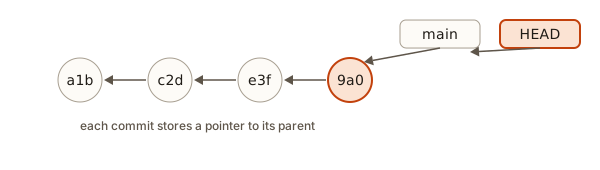 A chain of commits, each pointing to its parent, with main and HEAD pointing at the newest
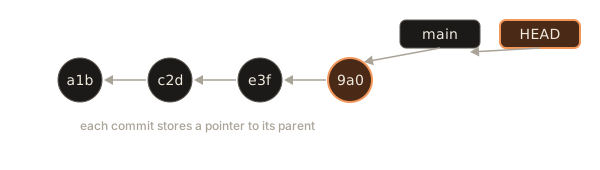
Notice that the arrows point backwards, from newer to older. A commit knows its parent, never its children. The label main is just a pointer to the newest commit, and HEAD points to main. This picture is the key to understanding branches in lesson 4.
Worked examples
Example 1: A two-commit story. Start empty. Create index.html with a heading, commit "Add home page". Edit it to add a paragraph, commit "Add opening hours". Result of git log --oneline: two lines, newest first. git show --stat HEAD shows index.html | 1 +.
Example 2: Two changes, two commits. You fix a typo in a.txt and also add a new file b.txt. Stage only the typo fix: git add a.txt, then git commit -m "Fix typo in a.txt". git status -s still shows ?? b.txt, which has not been staged. Stage and commit it separately: git add b.txt, git commit -m "Add b.txt". The history now tells two stories.
Example 3: The MM surprise. You run git add README.md, and then edit README.md again. git status -s shows MM README.md. The first M is the version staged, the second M is the later edit. If you commit now, only the staged version goes in. To include the later edit, run git add README.md again. This catches many beginners.
Example 4: Empty commit. You type git commit -m "nothing" with a clean tree. Output:
On branch main
nothing to commit, working tree clean
Git refuses to record an empty commit by default.
Example 5: Stage everything. git add . stages every change in the current folder and below, including new, modified and deleted files. It is fast, and risky: it also stages things you did not mean to include. Run git status first and git diff --staged after, or use git add <file> for each file. A common shortcut is git commit -am "message", which stages changes to already-tracked files and commits in one step, though it never picks up brand-new files.
Example 6: Reading blame. In a repo where two commits touched index.html, git blame -L1,2 index.html prints one line per source line with the commit, author and date:
0d2c37f7 (Asha Rao 2026-11-02 10:00:00 +0530 1) <h1>The Corner Cafe and Bakery</h1>
^026fd54 (Asha Rao 2026-11-02 10:00:00 +0530 2) <p>Open every day.</p>
The caret before 026fd54 marks the very first commit. Blame is not about blaming people; it is the fastest way to find the commit with the explanation for a line.
Example 7: Naming a version with a tag. git tag v1.0 attaches a permanent, readable name to the current commit. git tag lists tags, and git log --oneline --decorate shows them next to commits, such as (HEAD -> main, tag: v1.0). Teams use tags to mark releases.
Common mistakes and their real error messages
1. Running Git outside a repository.
fatal: not a git repository (or any parent up to mount point /)
Stopping at filesystem boundary (GIT_DISCOVERY_ACROSS_FILESYSTEM not set).
You are in a folder with no .git in it or its parents. Use pwd to see where you are, cd to your project, or git init.
2. Adding a file that does not exist.
fatal: pathspec 'nothere.txt' did not match any files"Pathspec" is Git's word for a file name or pattern. The name has a typo, or you are in the wrong folder. Use ls to see what is there.
3. Committing with nothing staged. If git status shows changed files in red but you did git commit, read the message: it lists "Changes not staged for commit" and ends with no changes added to commit. Run git add first.
4. Committing a secret. If a password reaches a commit, deleting the file in a new commit does not remove it from history. Treat the secret as leaked: revoke it and create a new one. Then clean up history using advanced tools, or ask a senior teammate. The best fix is prevention: write .gitignore before the first git add ..
5. A bad commit message. Use git commit --amend if it is the last commit and not yet pushed.
6. Using git add . blindly. It stages .DS_Store, editor files and build output if nothing ignores them. Check git status first.
7. Panicking at the pager. If the terminal seems stuck with a : at the bottom or (END), you are in the pager. Press q.
A debugging walkthrough
Scenario: "I committed, but my change is not in the history." Find out why.
- Run
git status. If the file is under "Changes not staged for commit", you edited but never staged. - If it is under "Untracked files", Git has never seen it. Run
git add <file>. - If it is not listed at all, run
git check-ignore -v <file>. A rule in.gitignoremay be hiding it. - If
git statusshows clean, rungit log --oneline -3andgit show --stat. Perhaps the change was committed in an earlier commit than you thought. - If none of these explain it, check
pwd. You may be editing a copy of the project in a different folder.
Notice how every step is a question answered by a command. Developers debug Git the same way they debug code: look at the real state, not at memory.
Interview-style questions
- What is the staging area for? It lets you choose exactly which changes go into the next commit, so each commit holds one logical change.
- What is the difference between
git diffandgit diff --staged? The first shows changes not yet staged, the second shows what is staged for the next commit. - How do you undo a commit that has already been shared? Use
git revert, which adds a new commit that cancels the old one, instead of rewriting history. - What does
git commit --amenddo? It replaces the most recent commit with a new one, which is fine for unshared commits. - Why is
.gitignorenot enough to remove a file already committed? It only affects untracked files. You mustgit rm --cachedthe file, and the old versions stay in history.
Practice
Do these in a fresh practice folder. Try each before opening the solution.
1. (Easy) Create a repository, add a file notes.txt with one line of text, and make a first commit. Which command shows it?
Solution
mkdir practice
cd practice
git init
echo "first note" > notes.txt
git add notes.txt
git commit -m "Add notes file"
git log --oneline
The log shows one line with a short ID and Add notes file.
2. (Easy) After the commit, what does git status say, and what does that phrase mean?
Solution
nothing to commit, working tree clean. The working directory, staging area and last commit all agree: there are no unsaved changes.
3. (Easy) Add a second line to notes.txt. Which command shows the change before you stage it, and what do the + and - signs mean?
Solution
git diff. A line with + was added, and a line with - was removed. Here you will see one + line for the new text.
4. (Easy) Stage and commit the change with a good message. Give a bad message and a good message for it.
Solution
Bad: update. Good: Add second note about deadlines (or similar). A good message says what the change does in a few words.
5. (Medium) Edit notes.txt, stage it with git add, then edit it again. Predict the output of git status -s, then check.
Solution
MM notes.txt. The first M means a modified version is staged, and the second means the file has been modified again after staging. A commit now would include only the staged version.
6. (Medium) Create debug.log and .env in the practice folder. Make Git ignore both with one .gitignore containing two lines, and prove it with a command.
Solution
echo x > debug.log
echo SECRET=1 > .env
printf '.env\n*.log\n' > .gitignore
git status -s
git check-ignore -v .env
git status -s shows only ?? .gitignore. git check-ignore -v .env prints the rule that matched, for example .gitignore:1:.env .env.
7. (Medium) You staged notes.txt by mistake but want it kept as a plain edit. Which command, and what does git status -s show afterwards?
Solution
git restore --staged notes.txt. Then git status -s shows M notes.txt (a space, then M): modified, not staged. The edit itself is untouched.
8. (Medium) Make a commit with a typo in the message, then fix the message. Why is it risky to do this after sharing the commit?
Solution
git commit --amend -m "Corrected message". Amending creates a new commit with a new ID. If a teammate already has the old commit, your history and theirs now disagree, which causes confusing conflicts. Amend only unshared commits.
9. (Hard) You committed a line bad line yesterday and others have pulled it. Remove its effect safely, and say how the log looks afterwards.
Solution
git revert --no-edit <id> (or git revert HEAD if it is the latest commit). The log now shows both the original commit and a new commit Revert "Add bad line" on top. Nothing is erased, so teammates can pull the fix like any other change.
10. (Hard) You accidentally committed secret.env, which contains a password, then added it to .gitignore. Does Git stop tracking it? What must you do and what else must you assume?
Solution
No. .gitignore does not affect files that are already tracked. Run git rm --cached secret.env, which stops tracking it but keeps the file on disk, then commit. The earlier commits still contain the secret, so assume it has leaked: change the password or revoke the key. Add the file to .gitignore before the first commit next time.
11. (Hard) Use git cat-file -p HEAD in a repo with at least two commits. Which line connects the commit to the previous one, and what would be missing in the very first commit?
Solution
The parent line holds the ID of the previous commit. The first commit has no parent line, because it has no predecessor. The tree line points to the snapshot of all files at that commit.
What you now know
git initcreates the hidden.gitfolder, the database of all history.git statusis the command to run constantly.- A change moves from working directory to staging area (
git add) to repository (git commit). A commit holds what was staged. git diffshows unstaged changes,git diff --stagedshows staged ones,git log --onelineshows history, andgit showshows one commit.- Good messages are short, imperative and say what the change does. One purpose per commit.
.gitignorekeeps passwords, libraries and logs out, but only for untracked files, and committed secrets must be treated as leaked.- To undo:
git restorefor edits,git restore --stagedfor staging,git commit --amendfor the last unshared commit,git revertfor shared ones. - A commit is a small object with a tree, a parent, an author and a message;
mainandHEADare just pointers.