Why this matters
Every software team on earth keeps its code in version control. On your first day at a job, someone will give you access to a repository and expect you to know what a commit, a branch and a pull request are. Without this skill you cannot work in a team, you cannot contribute to open source, and you cannot show your projects to an employer.
This lesson contains no installation and almost no commands. It builds the idea from the ground up, so that when you meet the Git commands in the next lessons, each one will feel like an obvious answer to a problem you already understand.
The problem: many copies of one thing
Imagine you are writing an essay in a word processor. You finish a draft and save it as essay.docx. Your teacher wants changes, and you are nervous about breaking what works, so you save a copy: essay_v2.docx. A week later you have essay_final.docx. Then your friend sends feedback and you create essay_final_REAL.docx. Then essay_final_REAL_use_this_one.docx.
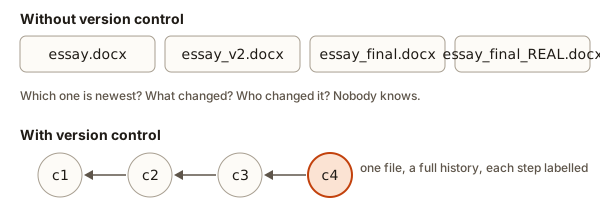 Many renamed file copies compared with one file and a chain of commits
This works for one person and one document. It falls apart quickly:
- You cannot tell which file is newest. File names lie. Dates on the file change when you open and re-save it.
- You cannot tell what changed. To find out how
essay_v2differs fromessay_final, you read both and compare line by line with your eyes. - You cannot tell why something changed. Three weeks later you will not remember why you deleted the third paragraph.
- You cannot undo one change. If version 5 has a great new intro but a terrible new conclusion, you have to copy and paste by hand.
- Two people cannot work at once. If you and a friend both edit
essay_final.docxand email it back and forth, one set of edits gets lost.
Now scale that up. A real software project has thousands of files. A team of ten people changes dozens of them every day. A single bug fix might touch four files. Copying the whole project folder every time anyone changes anything is impossible, and comparing folders by eye is hopeless.
Version control is the tool that solves all of this.
The idea in one sentence
Version control is a system that records every change to a set of files, along with who made it and why, so you can look at any earlier state, undo mistakes, and combine the work of several people.
Another word you will hear is VCS, short for version control system. Git is the most widely used VCS in the world. Others exist (Subversion, Mercurial), but nearly every job you apply for will expect Git.
An everyday analogy: save points in a video game
Think of a long video game. Before a hard boss fight you make a save point. If you lose, you reload the save and try again. You may keep many saves: one before the cave, one after the dragon, one at the castle gate. Each save has a name or a time. You can go back to any of them.
Version control gives your project save points:
| Video game | Version control |
|---|---|
| Save point | Commit |
| Name of the save | Commit message |
| List of saves | History or log |
| Reload an old save | Check out an old version |
| A second playthrough trying a different choice | Branch |
| Combining the good parts of two playthroughs | Merge |
The analogy has one limit. In a game, loading an old save throws away what you did after it. In version control, loading an old version does not delete anything: all the newer saves stay available, and you can jump forward again.
The precise version: snapshots with labels
A commit is a snapshot of every tracked file in your project at one moment, stored together with a message, an author, a time, and a link to the commit that came before it.
Read that carefully. Three things in it matter.
- Snapshot of every file. A commit is not "the change to one file". It is the state of the whole project at that moment.
- A message. The message is written by a human. It says why the commit exists.
- A link to the previous commit. This link is how the commits form a chain, and the chain is the history.
The word repository (often shortened to repo) means the project folder together with its full recorded history. Whenever someone says "clone the repo", they mean "get a copy of the project and all its history".
Build a toy version control system
You will understand Git better after you have built a tiny version of the idea yourself. The program below is not Git. It is a toy that keeps a list of snapshots, each with a message.
Run it. You can also edit the texts and messages and run it again.
Step by step, here is what happens:
history = []creates an empty list. This list is our repository.committakes the current text and a message, and appends a record to the list. The record also gets anid, which is just its position (1, 2, 3).- We make three commits. Each stores the whole text at that moment.
- The
forloop prints the log: one line per commit. - The last lines look up commit number 2 (position 1 in the list, because lists count from 0) and print the text as it was then.
The output:
v1  Add opening hours
v2  Mention Monday closing
v3  Merge the two lines into one

Version 2 was:
Open every day.
Closed on Mondays.
Notice what you got for free: the history is ordered, every version has a reason attached, and you can look at any past state. That is the core of version control. Everything else in Git is a more powerful, faster, safer version of this list.
Differences: seeing what changed
Saving whole snapshots solves "what was the state then". It does not yet answer "what changed between then and now". For that, version control computes a diff (short for difference): a list of the lines that were removed and the lines that were added.
Python ships with a module that computes diffs. Run this:
The output:
--- before
+++ after
@@ -1,2 +1,2 @@
-Open every day.
+Open every day except Monday.
 Closed on Mondays.
How to read a diff, because you will read hundreds of them:
- A line starting with
-was removed (it exists in the old version only). - A line starting with
+was added (it exists in the new version only). - A line starting with a space is unchanged context, shown so you can see where the change sits.
- The line starting with
@@says which line numbers the chunk covers.-1,2means "starting at line 1 of the old file, 2 lines";+1,2means the same for the new file. You rarely need to decode it. Treat it as a chunk header. - A changed line shows up as a removal followed by an addition. A diff has no "edit" symbol: replacing a line means delete the old one and add the new one.
Git prints diffs in almost exactly this shape. When you meet git diff in lesson 3, it will look familiar.
Snapshots, not differences
There are two ways a VCS could store history.
- Store the first version, then store only the diff for each later change. To rebuild version 40, start from version 1 and apply 39 diffs in order. Older systems such as Subversion work this way.
- Store a snapshot of the project at each commit, and reuse the pieces that did not change. Git works this way.
Does Git copy the whole project every commit? No. If a file did not change, the new commit simply points to the same stored copy of that file as the commit before. Only the files that changed are stored again. So you get the speed of snapshots (looking at any version is instant, since nothing has to be rebuilt) without the disk cost.
This matters later. When Git "shows" a diff, it computes it on the fly by comparing two snapshots. The diff is not what is stored.
Fingerprints: how Git names a commit
Each commit needs a name. The name could be 1, 2, 3, as in our toy. In real life that breaks: you and a teammate both make a commit "number 7" on the same day, in different places, and the numbers collide.
Git solves this by naming each commit with a hash: a fingerprint computed from the commit's content. A hash function takes any text and produces a fixed-length string of letters and digits. The same input always gives the same output. A tiny change in input gives a completely different output.
Try it:
The output:
d6c452c
d6c452c
c8871ea
Lines 1 and 2 are identical because the input is identical. Line 3 dropped one full stop and the fingerprint changed completely. That is what makes it useful: nobody can alter a commit without its ID changing.
Now the clever part. A commit's ID is computed from its content and from the ID of its parent. See the effect in a toy:
The output:
66836ee Add README <- parent none
7901f27 Add footer <- parent 66836ee
582c6ed Add menu <- parent 7901f27
Because every ID depends on the one before it, changing an old commit would change its ID, which would change the next ID, and so on to the end. History cannot be quietly edited. If it is rewritten, everyone can see that the IDs differ. This is why Git is trusted for important software: the record is tamper-evident.
Real Git uses a longer, more careful version of the same idea (a 40-character ID, and it hashes much more than a message). You normally write only the first 7 characters, called the short ID, because that is enough to be unique in a normal project. The IDs in your own repositories will not match the ones printed in this course, even when you type the same commands, because they include your name and the exact time.
Three jobs version control does
You now have enough to name what it does for you every day.
1. It is an undo button for the whole project
You can break something badly, and go back. Not "Ctrl+Z" for the last few keystrokes, but "return the entire project to how it was last Tuesday at 4 p.m."
2. It is a logbook
For every line of every file you can ask: who wrote this, when, and in which commit, with what explanation? This is not a luxury. When a bug appears in production, the most useful question is "what changed recently?" A good history answers it in seconds.
3. It lets many people work at the same time
Each person works on their own copy. When they are done, version control combines the copies. If two people changed different parts, the combination is automatic. If they changed the same lines in different ways, the tool stops and asks a human to decide. You will practise this in lesson 4.
Centralised versus distributed
Older systems (Subversion, CVS) were centralised: one server holds the history. You check out files from it, edit them, and check them back in. If the server is down, or you are on a train without internet, you can do almost nothing.
Git is distributed. Every person has a complete copy of the history on their own computer. This has practical effects:
- Almost every command runs on your machine, so it is instant and works offline.
- Every clone is a full backup. If the central server vanished, any developer's laptop could restore it.
- You can commit as often as you like without bothering anyone, and share the commits later.
There is still usually one agreed "official" copy that the team treats as the source of truth, hosted on a service such as GitHub. But that is a convention the team chooses, not something Git forces on you.
Git versus GitHub
Beginners confuse these constantly. They are different things.
| Git | GitHub | |
|---|---|---|
| What it is | A program on your computer | A website and company |
| What it does | Records history, makes branches, merges | Hosts Git repositories online and adds tools for teams |
| Needs internet | No | Yes |
| Free | Yes, open source | Free plans exist for individuals |
| Created | 2005, by Linus Torvalds (also the creator of Linux) | 2008; bought by Microsoft in 2018 |
An analogy: Git is like a word processor, and GitHub is like a cloud drive with comments and sharing. You can write documents without the cloud drive. The drive makes sharing and teamwork easy.
Alternatives to GitHub exist, mainly GitLab and Bitbucket. They all host Git repositories. If you know Git, you can use any of them. This course uses GitHub because it is the most common, and because employers look at your GitHub profile.
A vocabulary table
You will use these words constantly. Read the table now and return to it whenever a word feels fuzzy.
| Word | Meaning |
|---|---|
| Repository (repo) | A project folder plus its full history |
| Commit | A saved snapshot with a message |
| Working directory | The actual files you see and edit |
| Staging area | A waiting room where you pick which changes go into the next commit |
| Branch | A separate line of work that you can later merge back |
| Merge | Combine the work of two branches |
| Merge conflict | Two branches changed the same lines differently, so a human must choose |
| Remote | A copy of the repo somewhere else, such as on GitHub |
| Clone | Download a complete copy of a repo |
| Push | Upload your commits to a remote |
| Pull | Download new commits from a remote and combine them with yours |
| Fork | Your own copy of someone else's repo on GitHub |
| Pull request (PR) | A request to merge your branch into another, reviewed by others |
A day in the life: tracing a team workflow
Words are easier to remember when you see them in order. Follow Asha and her teammate Ravi working on a cafe website. Nothing here needs a computer; it is a story to give you the map.
- Ravi created the project and made the first commit,
Add home page. He put the repo on GitHub. - Asha cloned the repo. She now has the full project and its one-commit history on her laptop.
- Asha wants to add a footer. She creates a branch called
add-footer. Her main line of work stays untouched. - She edits
index.htmland makes two commits on her branch:Add footer markupandStyle the footer. - Meanwhile Ravi, on his own branch, adds a menu page and makes a commit.
- Asha pushes her branch to GitHub.
- She opens a pull request titled "Add footer". Ravi reads her changes in a web page, leaves a comment on one line, and Asha fixes it with a third commit.
- Ravi approves. The pull request is merged: the footer commits join the
mainbranch. - Ravi pulls to get the footer onto his laptop. His menu branch can now be built on top of everything.
At every step, the history keeps a record. A month later, if the footer shows a bug, anyone can ask who changed it, find the pull request, read the discussion, and see exactly which lines changed.
You will do each of these steps yourself by the end of the module.
What Git is not
Knowing the limits stops you from misusing it.
- Git is not a backup of your whole computer. It tracks the folder you tell it to, and only the files you commit. Uncommitted work is not safe.
- Git is not for huge binary files. Videos, large datasets and compiled programs bloat a repository, because each version of a binary file is stored in full. There are add-ons for this, but beginners should simply avoid committing them.
- Git is not a place for secrets. Passwords and keys committed once stay in history, even after the file is deleted. Lesson 3 shows how to keep them out.
- Git is not the same as deploying. Having code on GitHub does not put it on a live website. Other tools do that, and you will meet them later.
- GitHub is not a backup you can rely on blindly either. It is a second copy. Push regularly, but also know how to restore from it.
Common mistakes and misunderstandings
"Git and GitHub are the same thing." If you say "I used GitHub to commit", people will understand you, but it shows confusion. You commit with Git. You push to GitHub.
"Saving the file is the same as committing." Saving writes to your disk. A commit is a deliberate act you perform in Git. Until you commit, Git has no record of your change.
"I should commit only when everything is finished." The opposite is better. Small, frequent commits are easier to understand, review and undo. A commit is a save point, not a graduation ceremony.
"A commit stores only my change." It stores a snapshot of all tracked files. Git computes the change by comparing snapshots.
"If I delete a file, it is gone." If the file was ever committed, it is still in history and you can bring it back. That is also why a secret you commit and then delete is still exposed.
Typing Git commands in the wrong folder. Later you will see this error, and it is worth recognising now:
fatal: not a git repository (or any parent up to mount point /)
Stopping at filesystem boundary (GIT_DISCOVERY_ACROSS_FILESYSTEM not set).
Read it literally: Git looked in the current folder, then in each parent folder, and found no repository. It means you are in a folder that is not a Git repo. The fix is to cd into your project folder, or to run git init there. It is never a sign that Git is broken.
A short debugging story
Here is why history matters. A shop's checkout page starts charging customers 10 percent too much. Nobody knows when it started. The team uses the history like a detective.
- They look at the log for the checkout file. Twelve commits in the last month.
- They compare the state from last Monday (correct prices) with the state from today (wrong prices). The diff shows one changed line: a tax rate went from
1.08to1.18. - They look at the commit that changed it. The message says "Update tax for new region", written by a named person, linked to a discussion.
- They fix the line and commit "Restore tax rate to 1.08 for old region". A bad day becomes a ten-minute fix.
Without version control, this would take hours of guessing. With it, the investigation is mechanical. Git even has a command that automates the search for the bad commit by halving the history repeatedly, called git bisect. You do not need it yet, but now you know the kind of problem it exists for.
What goes into a repository, and what stays out
A repository holds the things a teammate needs to rebuild your project from nothing: source code, text documents, configuration files, small images, and notes. It should not hold things that a computer can regenerate, or things that belong only to you.
Think of a recipe book and a finished meal. The book (source) belongs in the repository. The meal (build output) does not, because anyone with the book can cook it again. Keeping the meal in the repository would only make the book heavier and the history noisier.
| Belongs in the repo | Stays out of the repo |
|---|---|
| Source code | Downloaded libraries (rebuilt from a list of dependencies) |
| The list of dependencies | Compiled output and build folders |
| Documentation and a README | Passwords, API keys and tokens |
| Small test data | Your editor's personal settings |
| Configuration without secrets | Log files and temporary files |
The "stays out" column is handled by a file called .gitignore, which lesson 3 covers. For now, remember the rule of thumb: if it can be rebuilt from other files, or if it is private to you, do not commit it.
Reading history like a story
A good history reads like the diary of a project. Here is the log of a small website, as you will see it with git log --oneline in lesson 3:
e41c0aa Fix broken link in footer
9b7d312 Add contact form
6c20f58 Style the menu page
2fa8b90 Add menu page
18de4c3 Add home page
Read from the bottom up: the project started with a home page, then gained a menu, then styling, then a contact form, then a bug fix. Without opening a single file you know the order of work and the direction of the project. A teammate who joins in the middle can catch up in a minute.
Now compare a bad history:
a5b92f1 stuff
7f3c0d9 more stuff
31ee8a4 fix
c8d70b2 asdf
This tells you nothing. Every commit forces you to open the diff to learn what it did. Teams treat messages as part of the product, and reviewers will ask you to rewrite messages like these. Lesson 3 teaches a simple recipe for good ones.
Version control is not only for code
Anything made of text benefits. People keep their notes, website content, configuration for servers, legal documents, scientific papers and even books in Git. Writers working on a manual use branches for chapters and pull requests for review. Data teams track the code that cleans their data. Designers use similar ideas inside tools like Figma, which keeps a version history of every design file.
The one weak spot is large binary files, such as videos. Git cannot compare two videos line by line, so it stores each version in full. For those cases, teams use extra tools that keep the large files elsewhere and store only a small pointer in Git.
Why employers care
When a hiring manager opens your GitHub profile, they are looking for three signals. First, that you can use Git without help: your history shows regular, sensible commits. Second, that you can write clearly: your commit messages and README explain your work. Third, that you finish things: repositories with a working project, not just empty folders.
That is why this module matters even though the commands are few. The habits you form on your first practice repository, small commits, clear messages and a README, are the habits a reviewer will notice in your first week at a job.
Interview-style questions
These are real questions beginners get asked. Practise answering them out loud in two or three sentences.
- What is version control and why do teams use it? It records every change to a project with author and reason, so teams can undo mistakes, trace bugs and work in parallel without overwriting each other.
- What is the difference between Git and GitHub? Git is the local tool that tracks history. GitHub is a hosting service for Git repositories that adds collaboration features such as pull requests.
- What is a commit? A snapshot of the project with a message, an author and a pointer to its parent commit.
- Why is Git called distributed? Every developer has the full history locally, so most work happens offline and every clone is a complete backup.
- Why does Git use hashes for commit IDs? They are computed from the content, so they are unique without a central counter, and they make tampering with history detectable.
Practice
Work through these in order. Try each before opening the solution.
1. (Easy) Name three problems with keeping versions of a project as folders called project, project_v2, project_final.
Solution
Any three of: you cannot tell which is newest, you cannot see what changed between them, you cannot see why it changed, you cannot undo one change without copying by hand, and two people cannot work at once without overwriting each other. Folder copies also waste disk space, because every unchanged file is stored again.
2. (Easy) Match each Git word to its video-game equivalent: commit, branch, merge, log.
Solution
Commit is a save point. Branch is a second playthrough exploring a different choice. Merge is combining the good parts of two playthroughs. Log is the list of all saves.
3. (Easy) A friend says: "I use GitHub to track my code on my laptop, and it works without Wi-Fi." What is wrong with the sentence?
Solution
Tracking history on your laptop is done by Git, which works offline. GitHub is a website, so it needs internet. The friend mixed up the two names.
4. (Easy) In this diff, which lines were added and which were removed?
-Price: 10
+Price: 12
 Currency: INR
Solution
Price: 10 was removed and Price: 12 was added. Currency: INR is unchanged context. In plain words, the price changed from 10 to 12.
5. (Medium) Change the toy program from the lesson so that commit also stores an author name, and the log prints v1 (Asha) Add opening hours. Run it to check.
Solution
It prints v1 (Asha) Add opening hours and v2 (Ravi) Mention Monday closing. Real Git stores the author, an email and a timestamp with every commit in exactly this way.
6. (Medium) In the hash example, change the message "Add footer" to "Add footers" and run it. What happens to the IDs of the second and third commits, and why?
Solution
Both change. The second ID changes because its own message changed. The third ID changes because it is computed from the second commit's ID, which changed. The first ID stays the same. This chain effect is why editing an old commit changes every commit after it.
7. (Medium) Explain why a distributed system like Git still works when you are on a train with no internet, but a centralised one mostly does not.
Solution
In Git, your computer holds the complete history, so committing, branching, viewing the log and comparing versions all run locally. Only sharing (push and pull) needs a connection. In a centralised system the history lives on a server, so even viewing old versions or committing needs to reach that server.
8. (Medium) A teammate says: "I'll commit once, when the whole feature is done, so the history stays clean." Give two reasons that is a bad idea.
Solution
First, one huge commit is hard to review or understand, because a reader has to take in everything at once. Second, if something breaks halfway, you have no earlier save point to return to, so you lose all the work since your last commit. Small commits also make bugs easier to find, since a short list of changes narrows the search.
9. (Hard) Write a Python function diff_lines(old, new) that returns the list of lines that appear only in the old text and the list that appear only in the new text. Use plain lists, not difflib. Then say one case where this simple approach gives a misleading answer compared with a real diff.
Solution
It prints (['b'], ['d']). The approach is misleading when lines are duplicated or moved. If old is ["x", "y"] and new is ["y", "x"], it reports no change at all, although the order changed. A real diff algorithm looks at positions, not just presence. It would also miss a line that was removed in one place but still appears elsewhere in the file.
10. (Hard) Using the three-commit hash chain, describe what an attacker would have to do to change the message of the first commit without anyone noticing, and why they cannot.
Solution
Changing the first message changes the first ID. The second commit stores the first ID as its parent, so its own ID would change, and the same for the third. The attacker would have to recompute every later ID, and every other copy of the repo (teammates, GitHub) still holds the old IDs. As soon as anyone compares, the histories disagree, and the rewrite is visible. Because Git is distributed, there are many independent witnesses.
What you now know
- Version control records every change with an author and a reason, so you can undo, trace bugs and work with others.
- A commit is a labelled snapshot of the whole project with a link to its parent. A repository is the project plus all its commits.
- A diff shows lines removed (
-) and added (+) between two versions. Git computes diffs from snapshots; it does not store them. - Commit IDs are hashes: fingerprints that depend on content and parent, which makes history tamper-evident.
- Git is distributed: everyone holds the full history, so most work is offline and every clone is a backup.
- Git is the local program. GitHub is a website that hosts Git repos and adds pull requests and review.
- The key words: repo, commit, branch, merge, conflict, remote, clone, push, pull, fork, pull request.